Sprint retrospective templates
Try different retro formats like the Lean Coffee and 4 Ls retrospective. Or keep it simple with a quick retrospective.
Typing filters results after every character typed
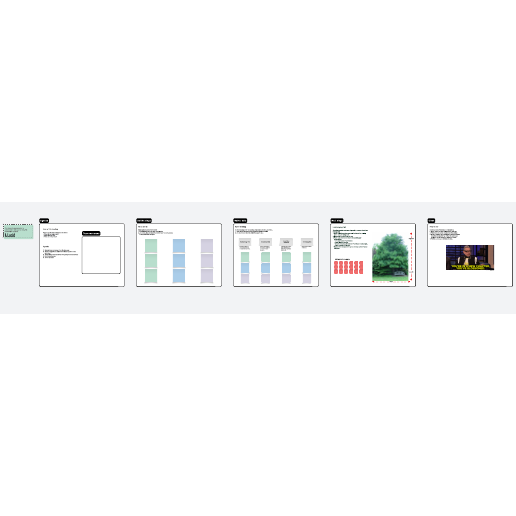
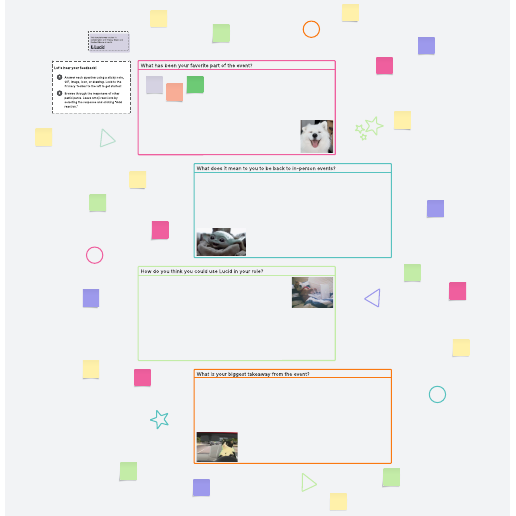
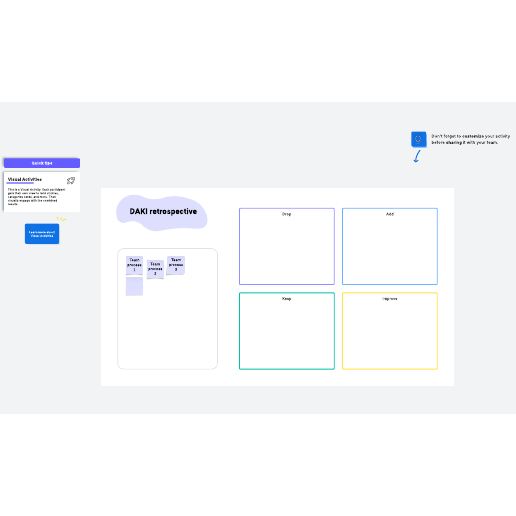
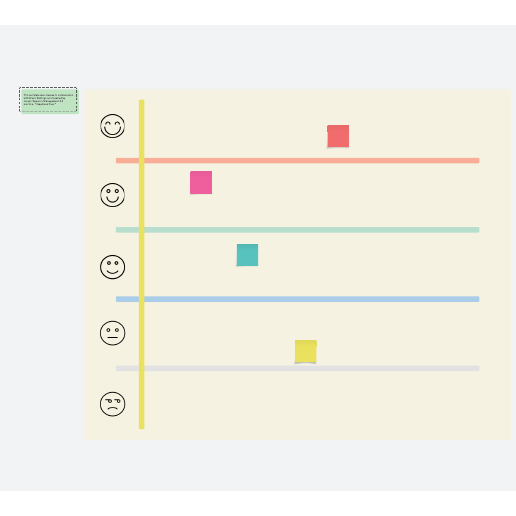
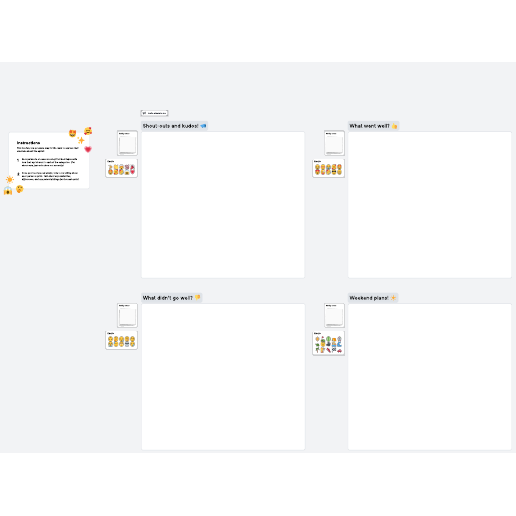
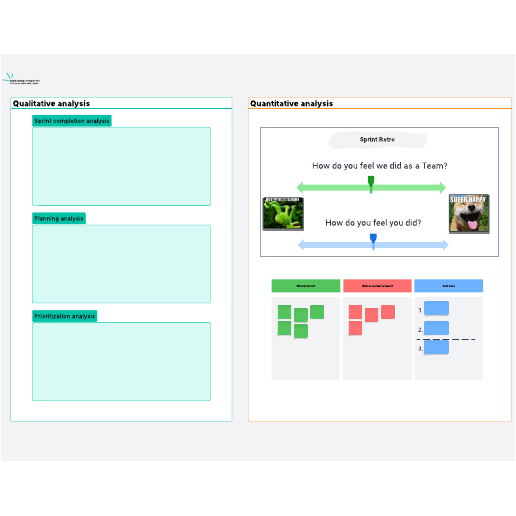
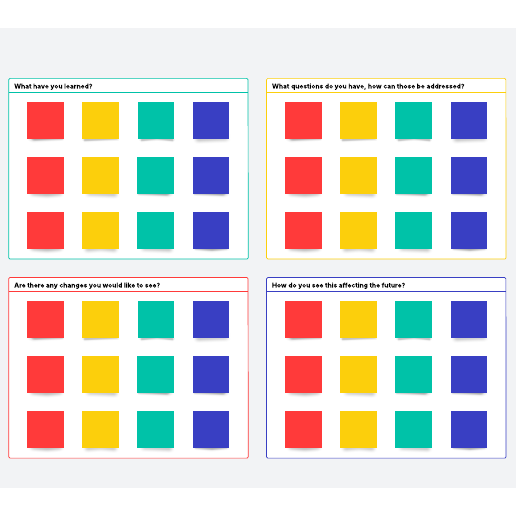
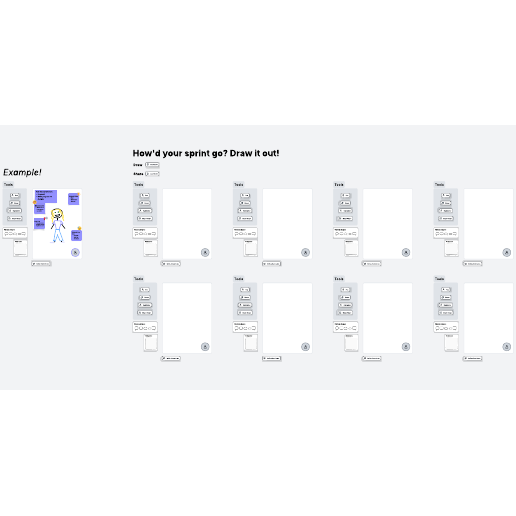
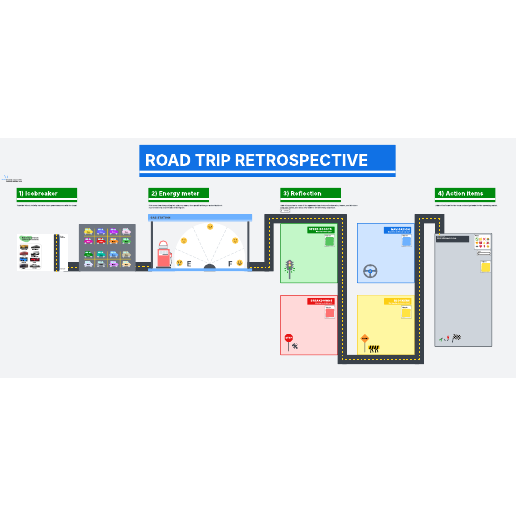
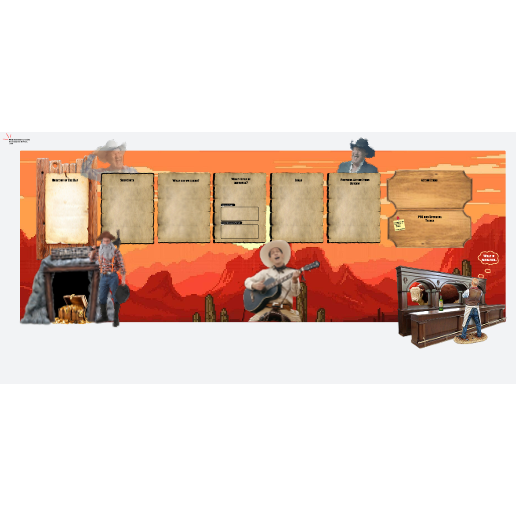
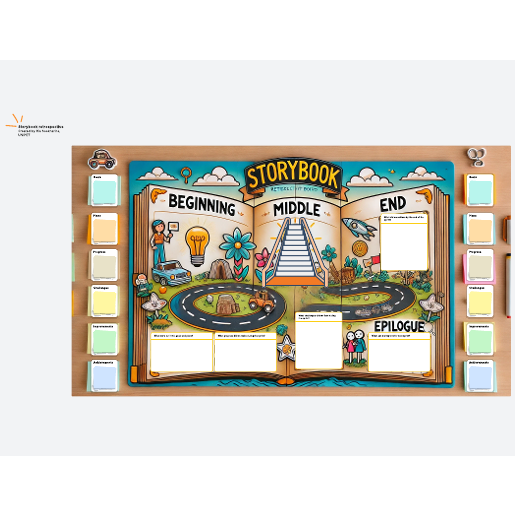
Draw your sprint retrospective
Pricing:
Free
Go to Draw your sprint retrospective template, Pricing: Free
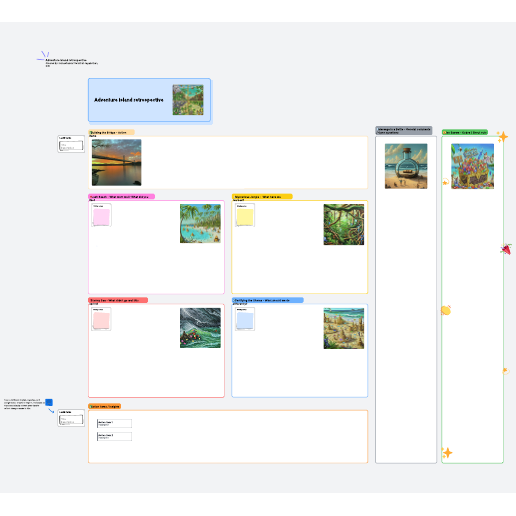
Adventure island retrospective
Pricing:
Free
Go to Adventure island retrospective template, Pricing: Free
How to use sprint retrospective templates in Lucid
Sprint retrospectives are meetings where Scrum teams reflect on what went well and what didn’t go well during the previous sprint. Retrospectives provide opportunities to identify areas for improvement. Using sprint retrospective templates in Lucid allows hybrid, remote, and in-person teams to collaborate effectively, increase engagement using Facilitator Tools, and organize feedback in one place.
How to get started:
-
Select a template. Lucid offers templates for both free and paid accounts, which are clearly marked. If you already have a Lucid account, you can simply log in and start editing.
-
Sign up for a Free, Individual, or Team account. If you don’t have a Lucid account, you can quickly sign up with your email address. Verify your email, and you’ll be logged in and ready to use your template.
-
Invite collaborators. Share a link to your document with team members.
-
Print, export, or present your document. In addition to being able to print your Lucid document, you can export it using various file formats. You can also build and export a presentation to Google Slides or Microsoft PowerPoint.
Lucid template features allow you to:
-
Create and edit documents. Drag shapes onto the canvas, resize, and easily connect shapes with lines. Customize colors, line styles, fonts, shapes, and create your own shape libraries.
-
Use advanced features. Link shapes to data from Google Sheets, Excel, or CSV files. Add layers to visualizations for multiple levels within your document. Access the document revision history to see changes over time and revert to a previous version if needed.
-
Collaborate in real time. Invite multiple collaborators to create and edit the same document at once. Give real-time feedback with comments and @mentions. Enable collaborator colors to see who contributed what.