AI diagram generator

Simply describe your process and let Lucid AI build, style, and optimize your visuals instantly.

Create an AI diagram

See what’s possible with our AI diagram generator

Skip the manual work. Leverage AI diagramming in Lucid to create powerful visuals that help your teams stay aligned.

Diagram with Lucid AI
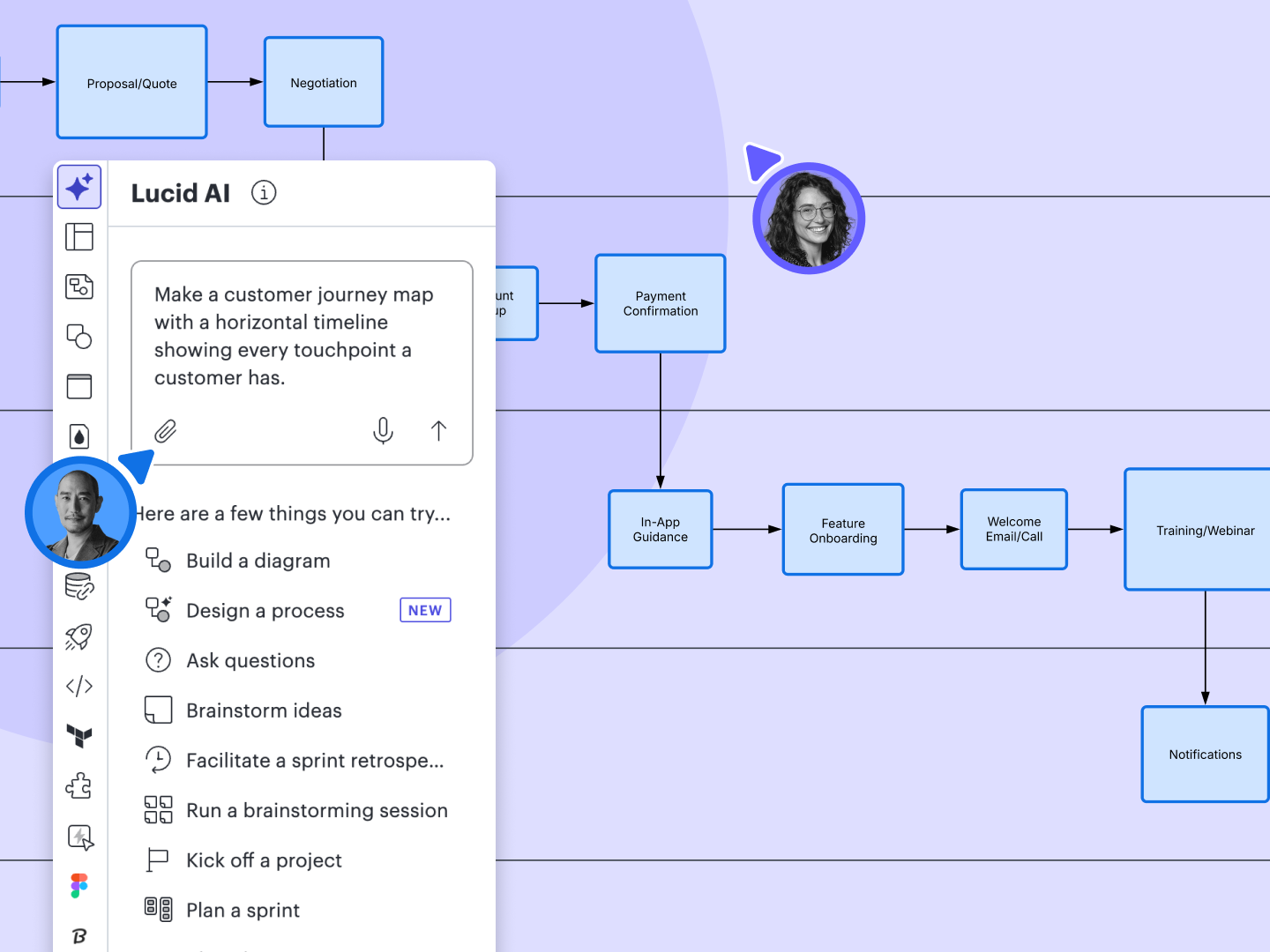
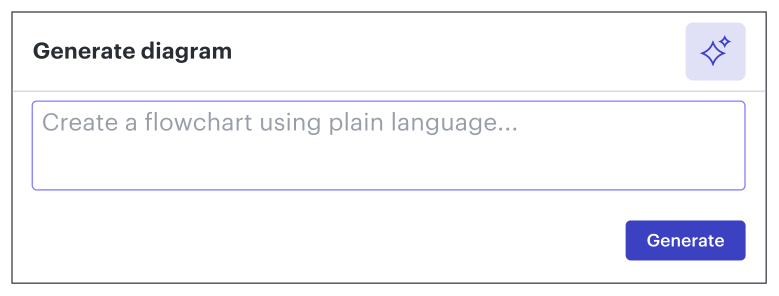
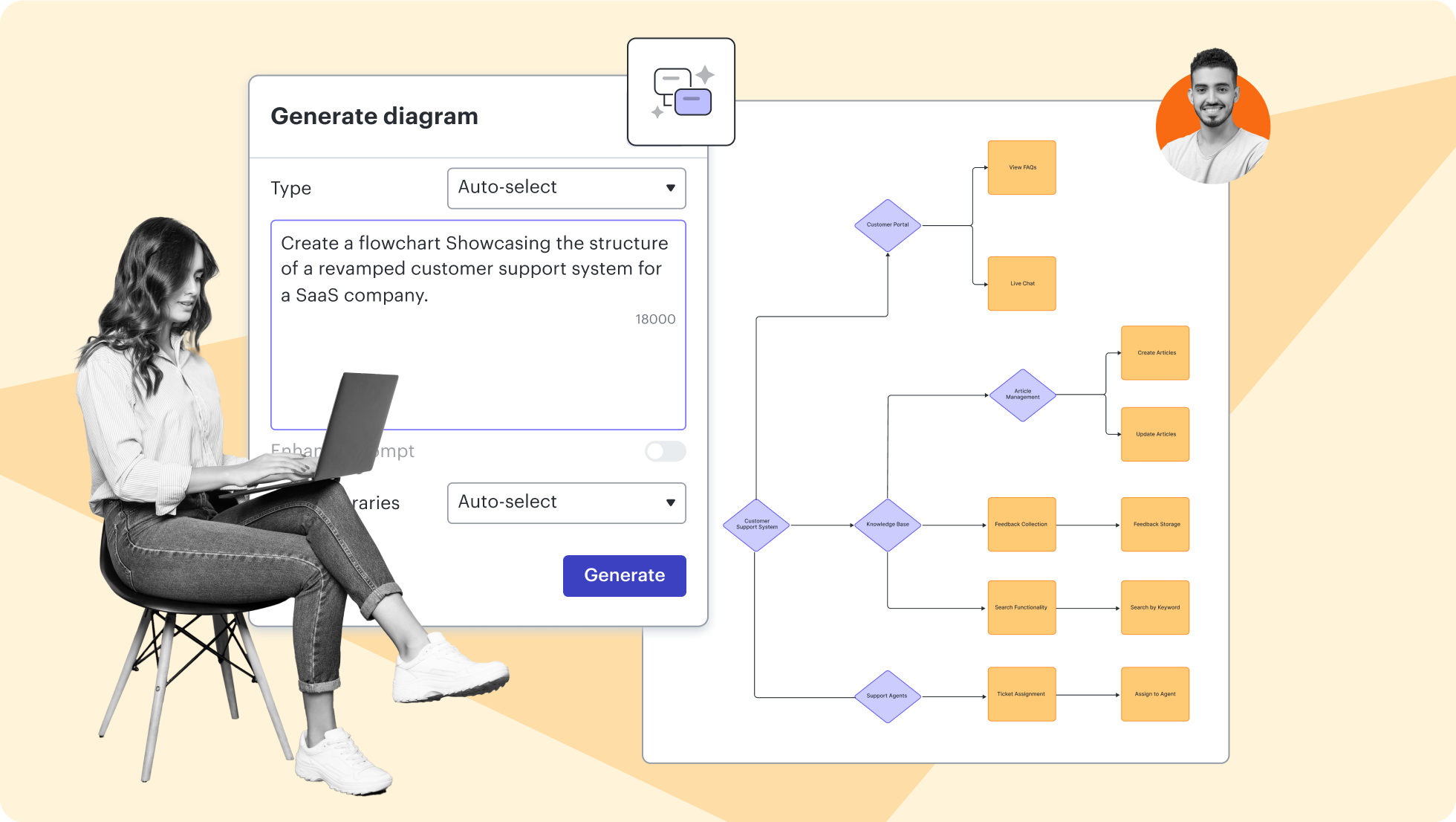
Use the Lucid AI diagram maker to instantly turn text prompts into professional visuals. Stop staring at a blank canvas—start creating solutions faster. Our text-to-diagram AI allows you to document processes and visualize ideas with a single prompt.

Intelligent optimization

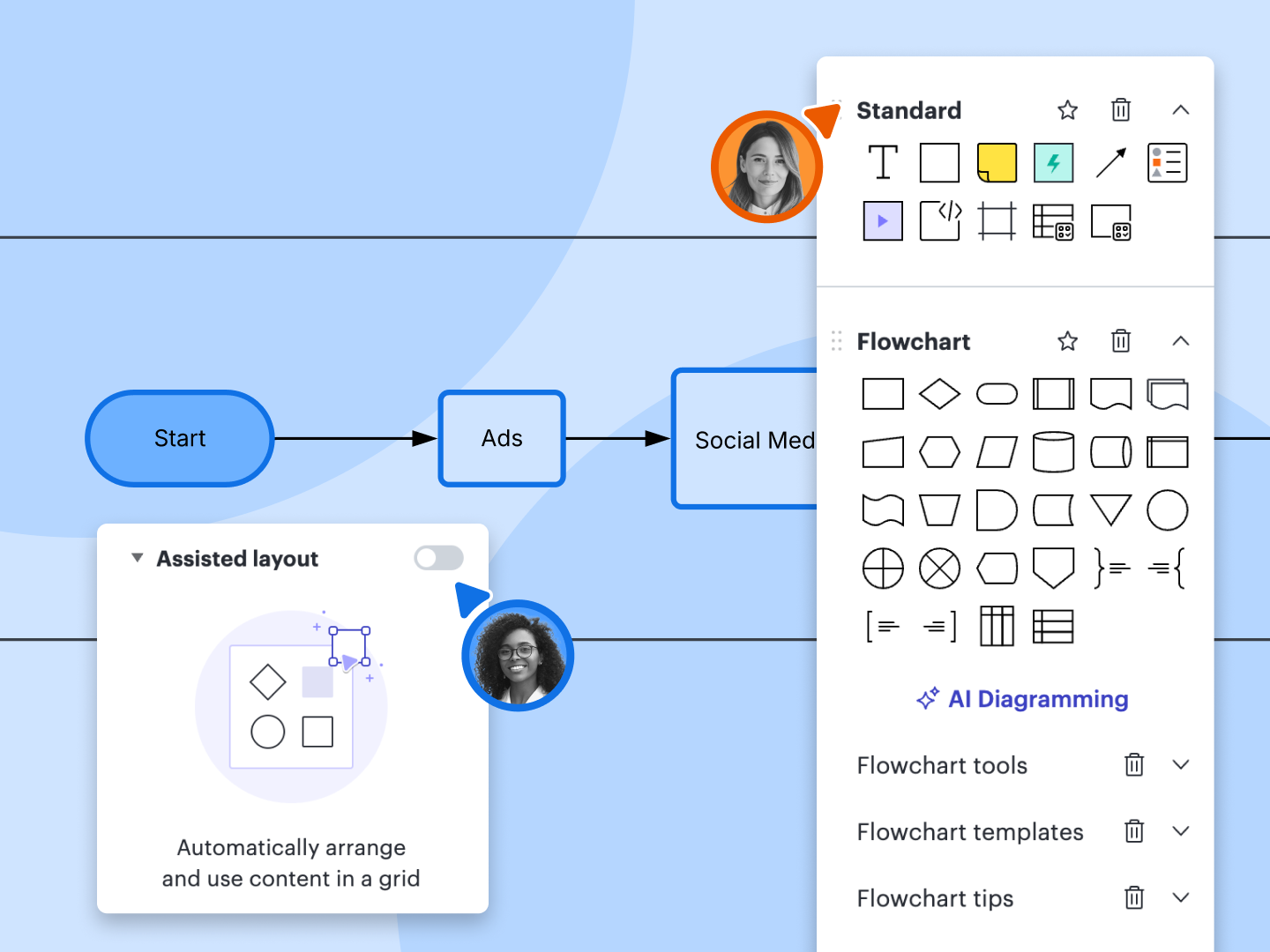
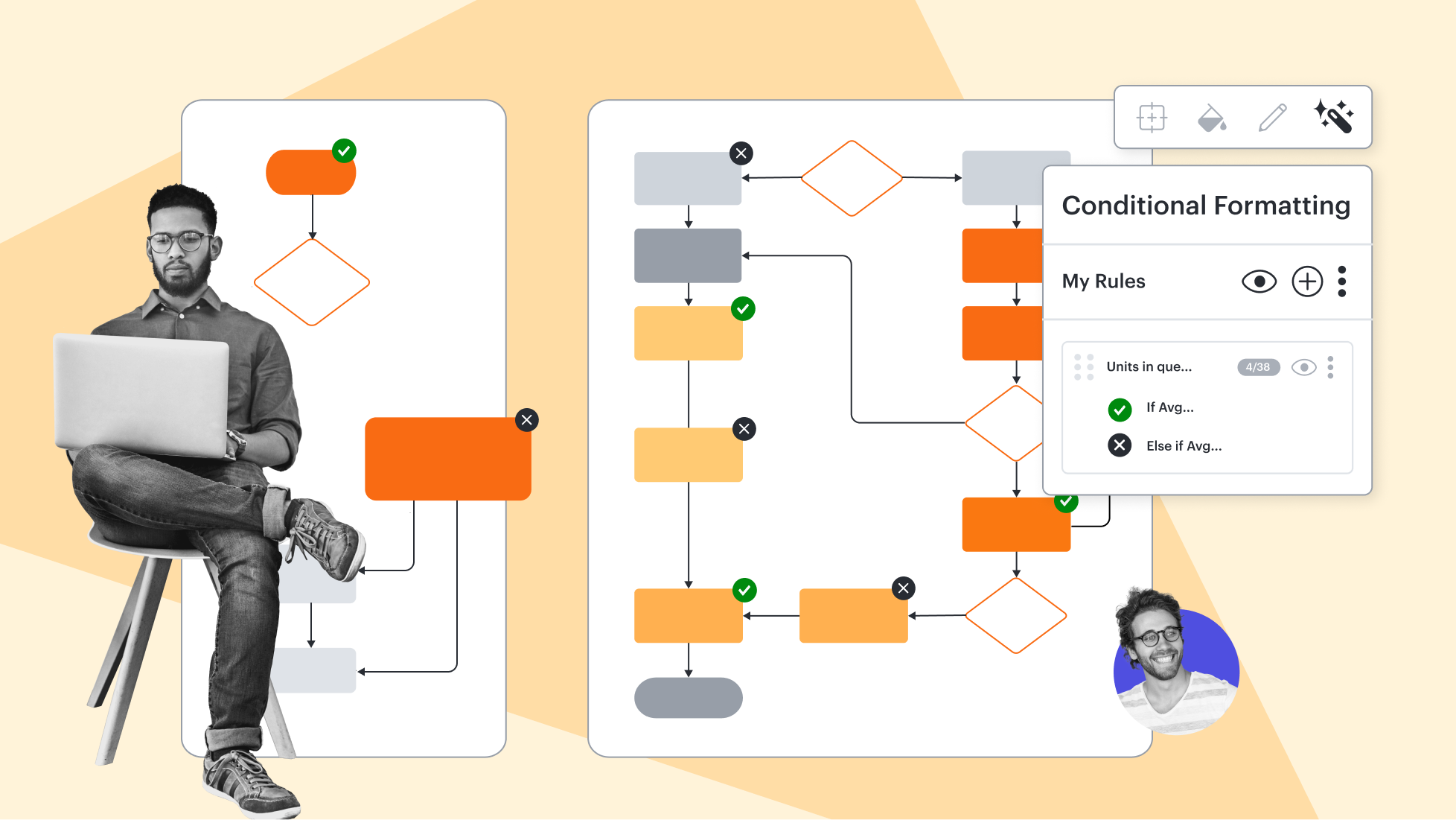
Iterate on your AI diagrams with a single click. Our AI diagram maker, combined with shape libraries, assisted layout, and conditional formatting, empowers you to automate processes and maintain professional standards with ease.

Generate visuals instantly

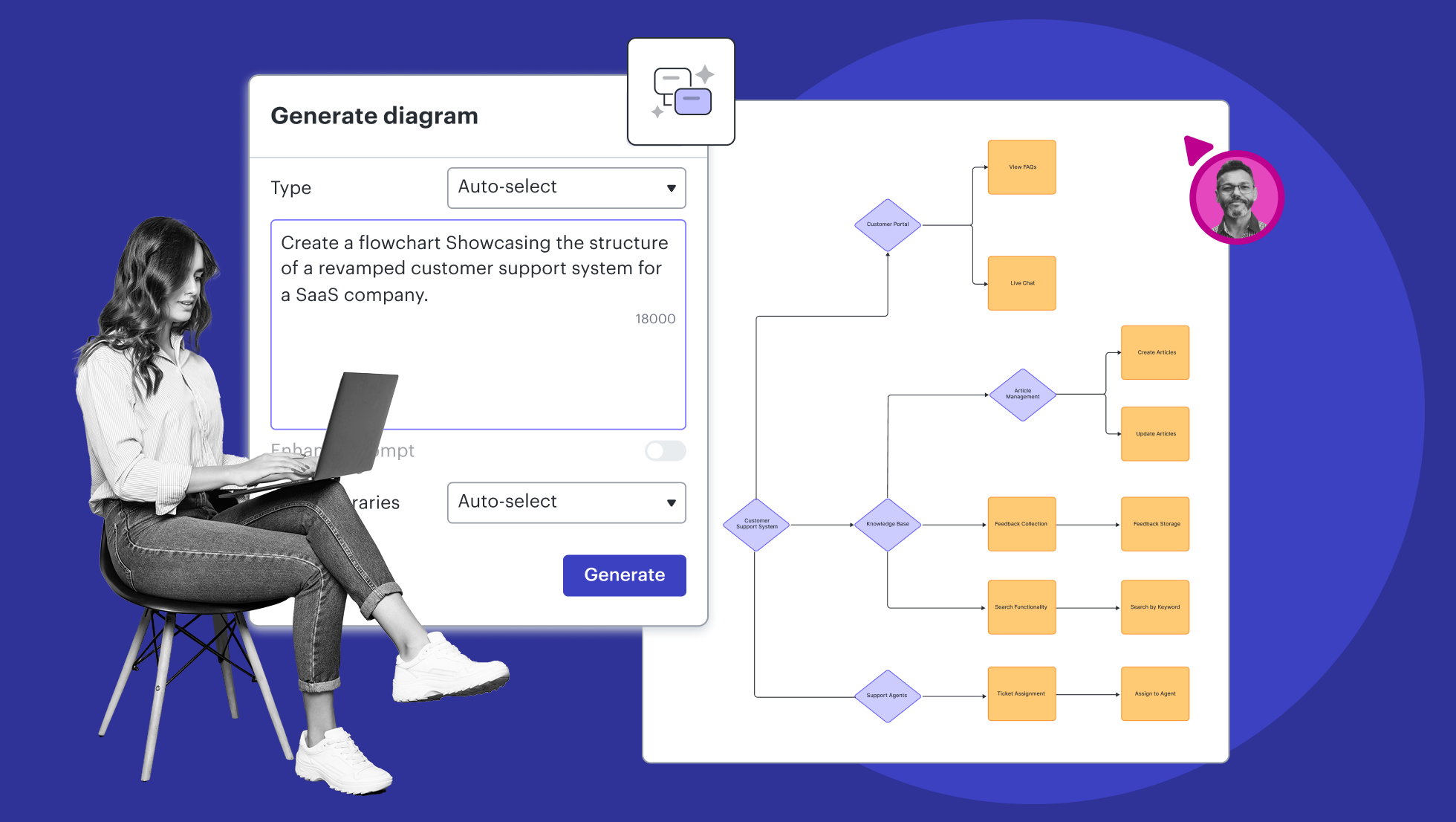
Don't let a blank canvas slow your team down. With Lucid AI, you can create everything from basic flowcharts and mind maps to detailed ERDs and more.

Integrate with AI-powered apps

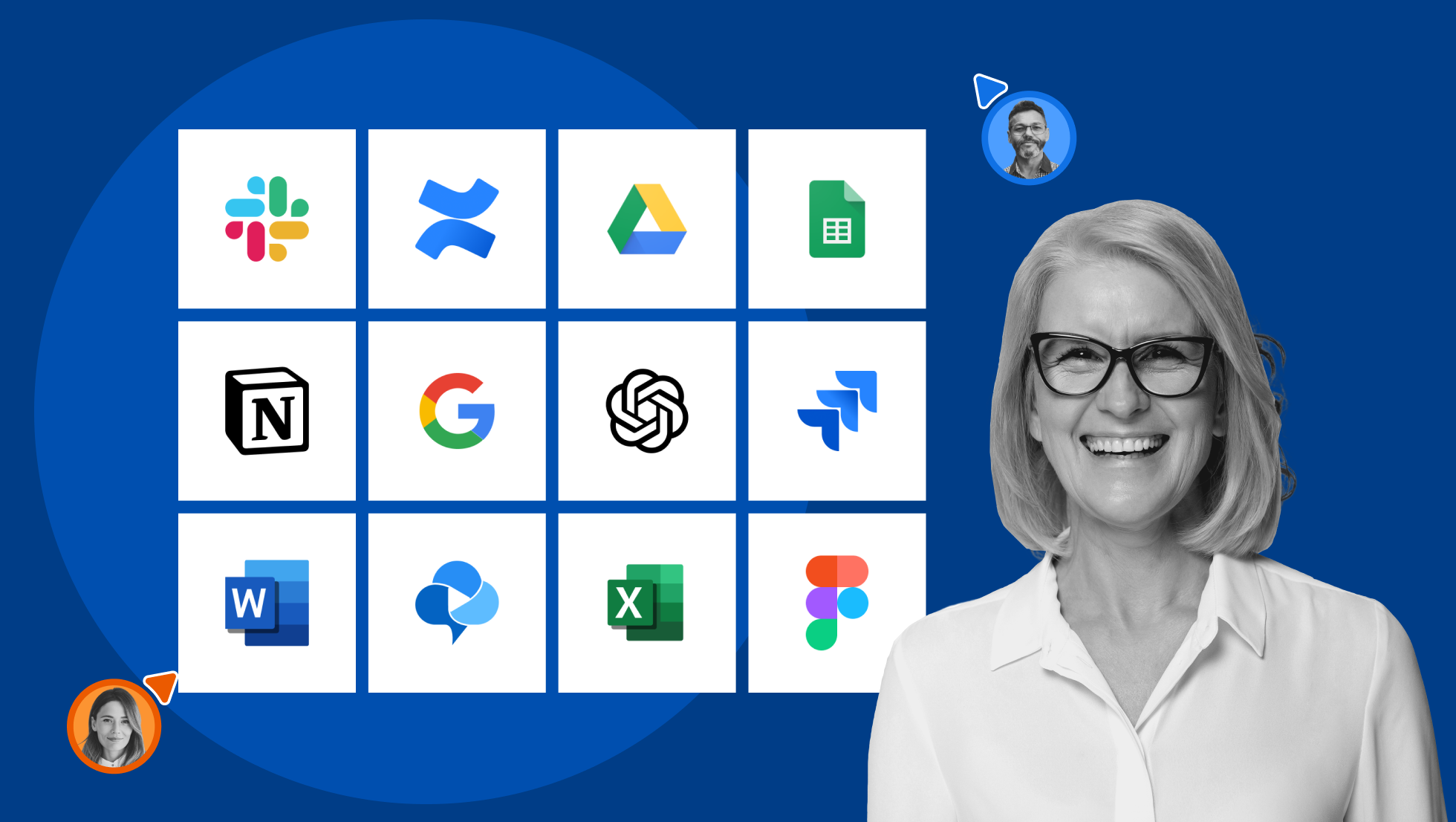
Create, share, and summarize diagrams with AI-powered integrations like AI Custom GPT, Microsoft Graph Connector, Microsoft Copilot, Slack, and more.

Jumpstart work with templates

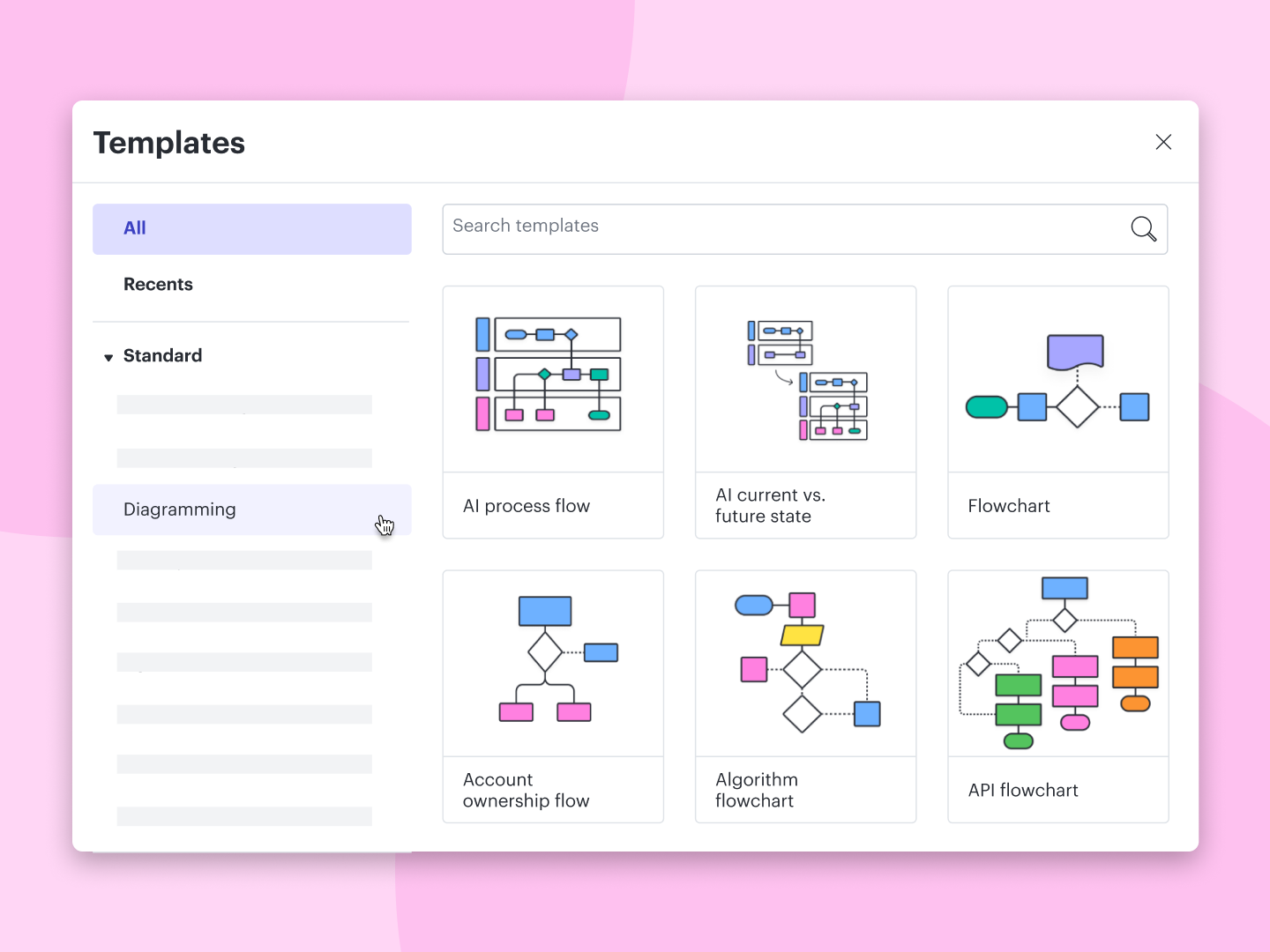
Leverage 1000+ customizable templates to brainstorm ideas and visualize your work. Our dedicated support team and professional services are here to help create tailored solutions for your teams.

Lucidchart feature highlights

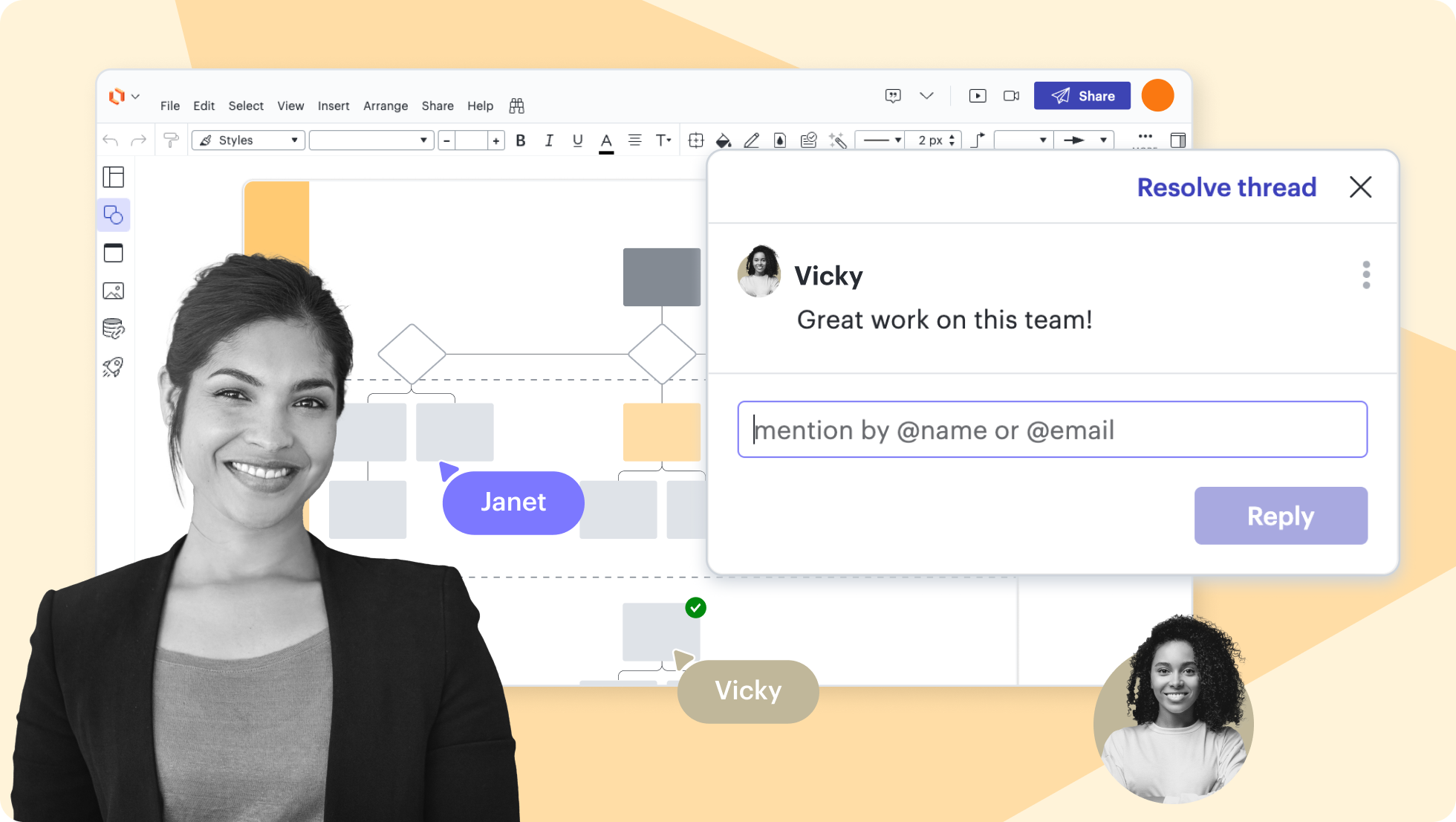
Real-time collaboration

Streamline work by enabling multiple collaborators to create and edit the same diagram at once.

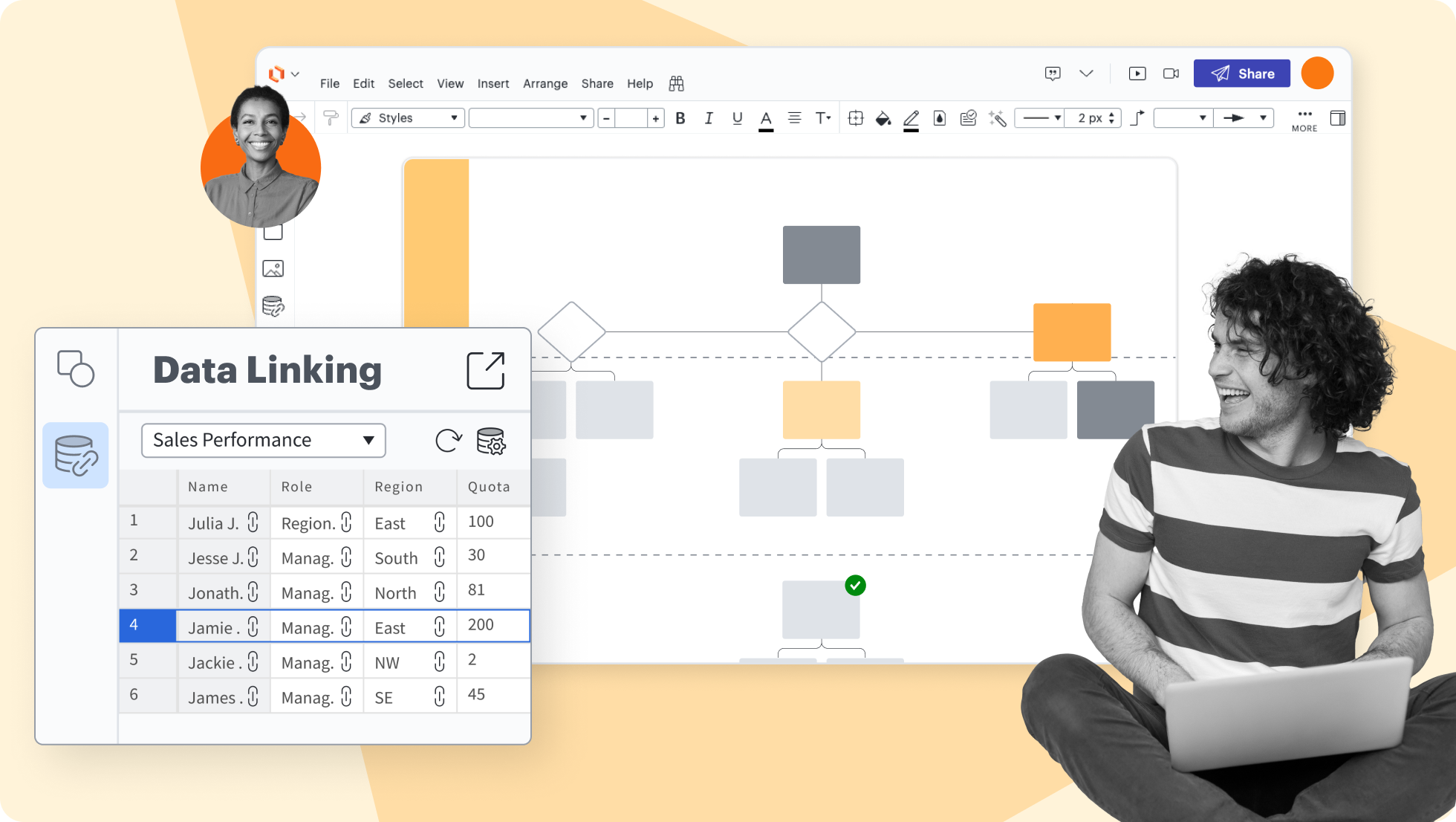
Create accurate diagrams faster by linking shapes to data from Google Sheets, Excel, or CSV files.

Transform data by visually highlighting patterns and insights for quick comprehension at a glance.

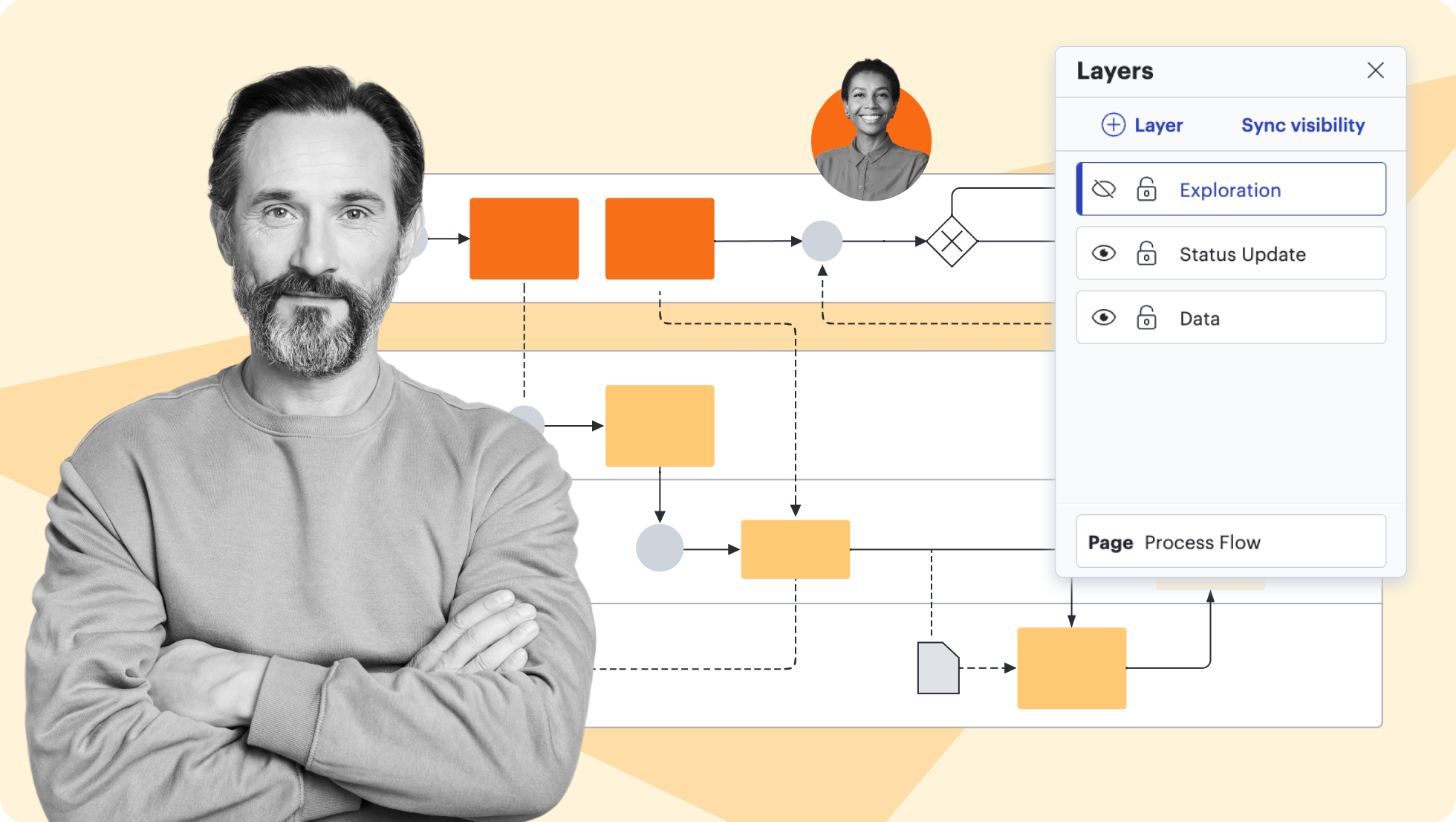
Add layers to visualizations for multiple levels, distinct visibility controls, and streamlined editing.

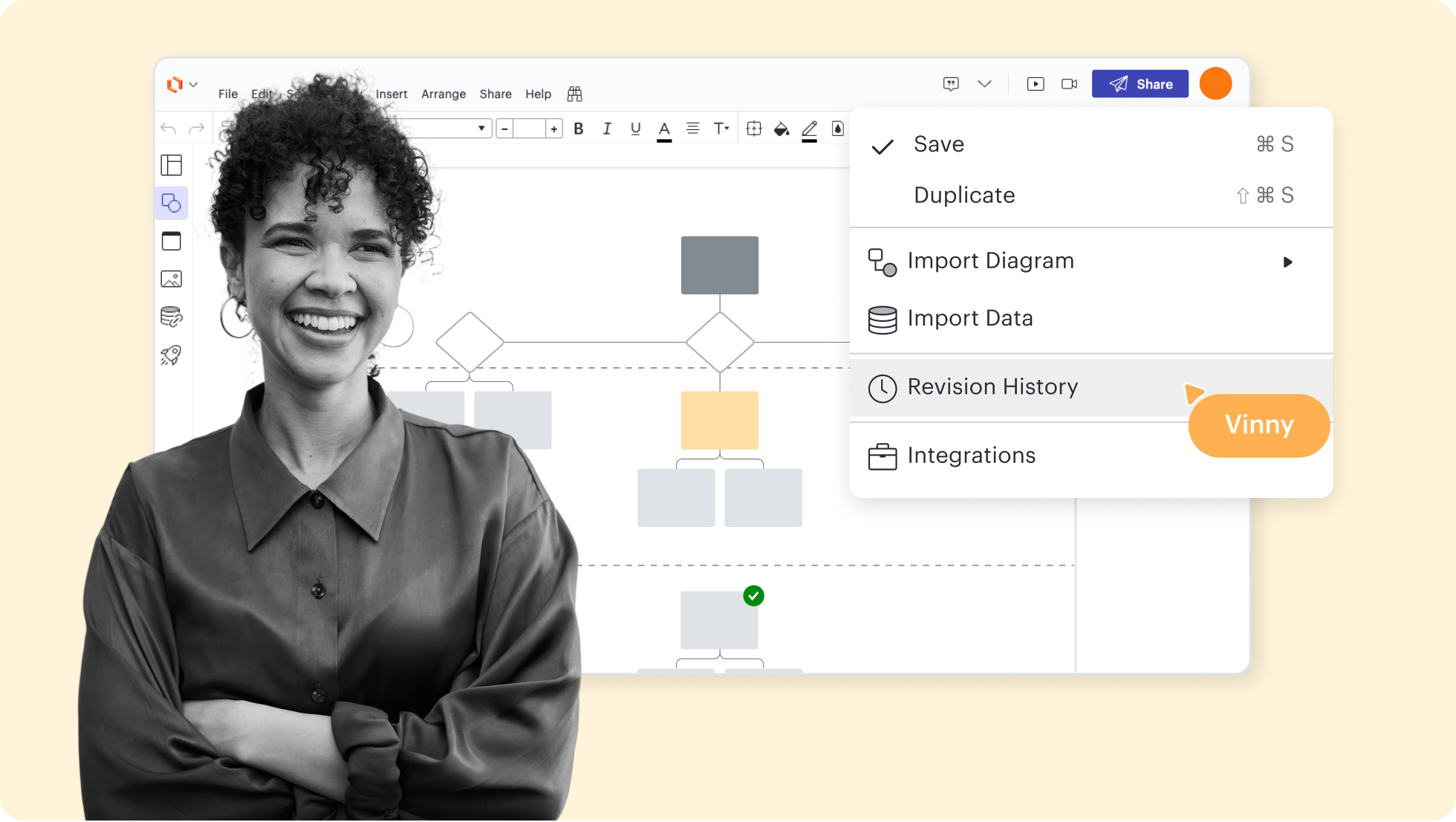
Collaborate confidently—view changes, revert to prior versions, and ensure diagrams are up to date.

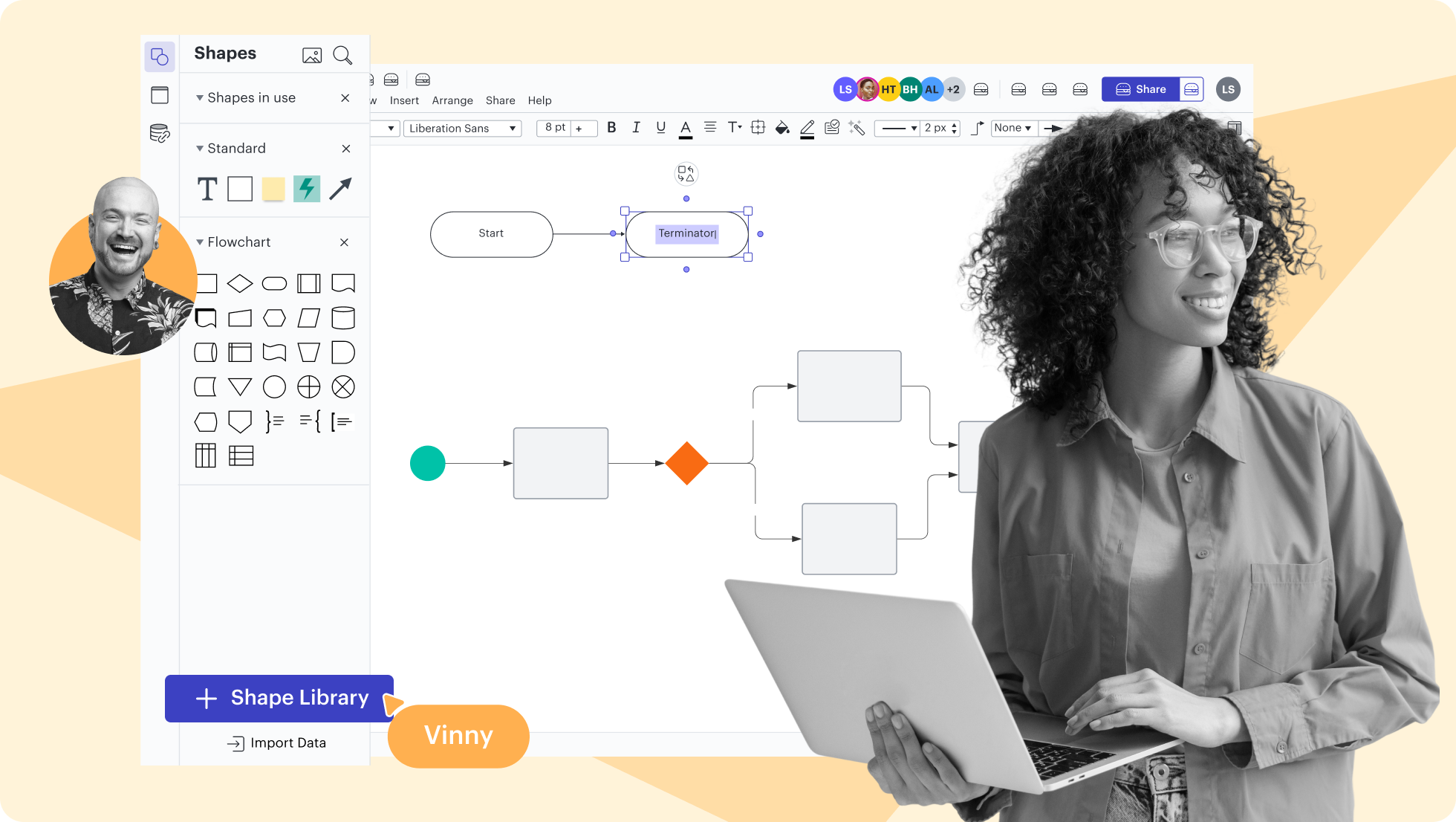
Use existing shape libraries for Salesforce, enterprise architecture, and more—or customize your own.

Build and experiment with LLMs on the Lucid canvas. Test prompts and inputs to see what works best.

Lucidchart feature highlights

Streamline work by enabling multiple collaborators to create and edit the same diagram at once.

AI diagramming templates and examples

Create a diagram using Lucid AI

Getting started in Lucidchart

Follow along with this video tutorial and learn how to make any type of diagram in Lucidchart.

Why teams choose Lucidchart

As an intelligent diagramming application, Lucidchart provides simple yet powerful capabilities for visualizing information.

Collaboration. Bring teams together side by side on a shared canvas from anywhere in the world.

Alignment. Build transparency and shared understanding of how a team or company works.

Large-scale change. Increase visibility, standardization, and knowledge sharing across your entire org.

End-to-end workflows. Upgrade to the Lucid Suite for a complete, connected visual collaboration solution.

How to access Lucid AI

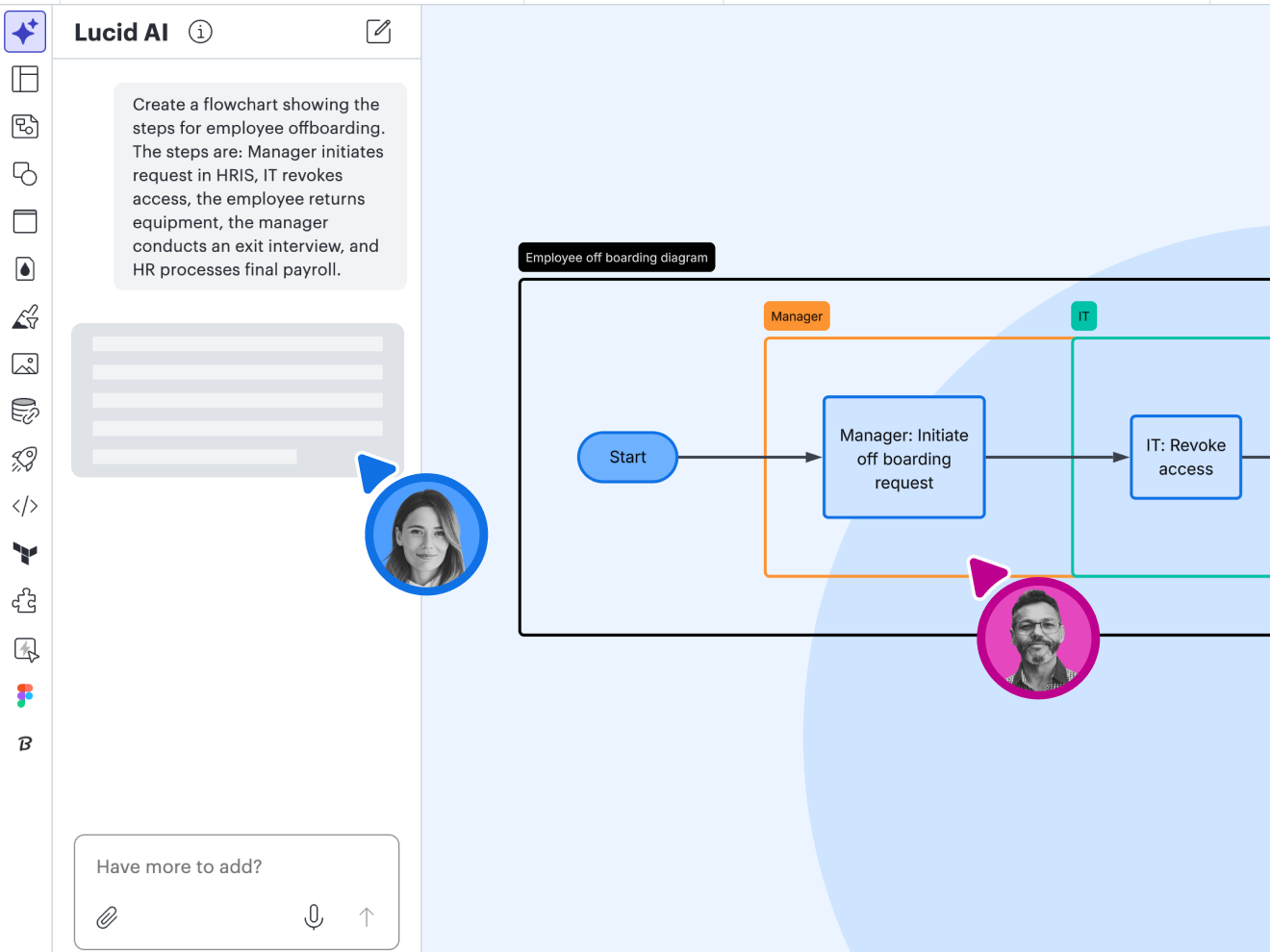
To access Lucid AI, open a document and select the Lucid AI icon from the primary toolbar on the left-hand side of the page. From there, you can type a request into the text entry box or use the microphone icon for voice-to-text.

In the text-entry box, type a detailed description of the diagram you want to create. You can attach one or more images, PDFs, or .txt files using the paperclip icon in the bottom right-hand corner of the text box. Press enter on the keyboard or click the arrow to submit your prompt.

You can iterate on the AI diagram both manually and by requesting changes you'd like AI to make in the text-entry box. You can continue iterating on a diagram, even after you’ve started a new chat, by selecting the diagram and entering a prompt into the Lucid AI panel.

Use assisted layout on your AI-generated diagrams to effortlessly organize content into swimlanes, Containers, and Frames with one click. This feature automatically aligns objects for a clean, structured workspace by snapping items into a grid pattern and adjusting container size as you add or remove content.

Type a question about your document or how to use Lucid into the text box. Lucid AI will provide answers, ask clarifying questions, or share step-by-step guides with links to the help center.

Additional Lucidchart resources

Lucid Training Labs

Learn visual collaboration skills in free, self-serve courses and live training workshops.

Explore courses

Lucid Community

Connect with other users to share tips and insights. Provide feedback to Lucid’s product team.
Join now

Help center

Find detailed articles with step-by-step instructions for using specific Lucid features.
Search resources

Lucidchart tutorials

Go to the Lucidchart tutorials playlist on YouTube for video training on various topics.
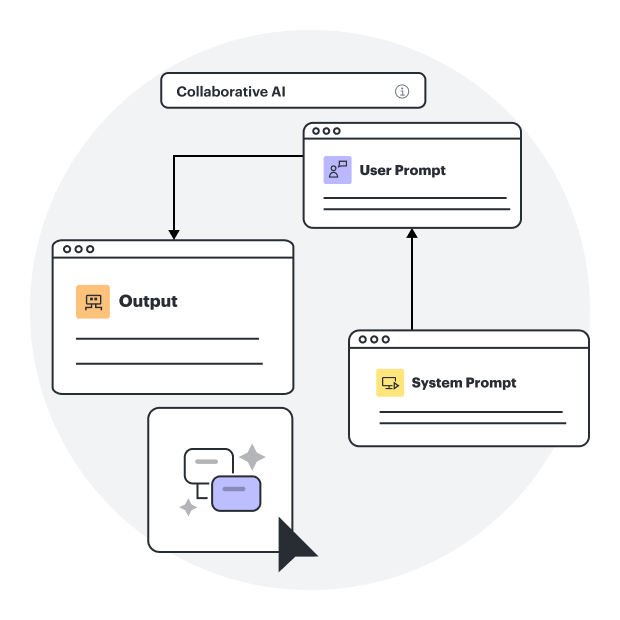
Explore playlist

Collaborate with AI

Get an overview of Lucid’s AI functionality and find additional resources.
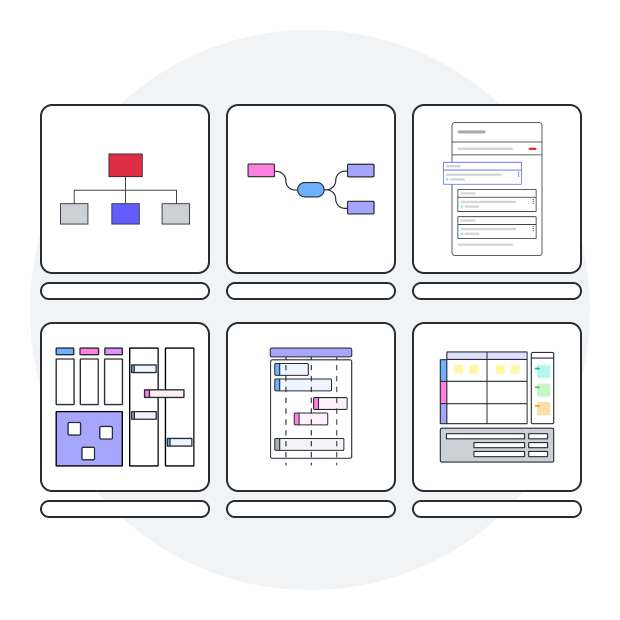
See what’s possible

Lucid blog

Explore tips for optimizing collaboration, aligning teams, and driving initiatives in Lucidspark.
Read now

Lucidchart pricing

Create a free account and compare options for paid Individual, Team, or Enterprise plans.

Compare plans

Frequently asked questions about using Lucid’s AI diagram generator

Lucid's AI capabilities are currently available to all users but may be subject to a paid subscription model in the future.

No. Using Lucid’s AI capabilities doesn’t result in customer data being used to train any generative AI models available to third parties. Lucid stores anonymized and redacted prompts and responses for its internal error handling and analysis, ensuring no direct connection to individual Lucid users or documents. Both Lucid and Microsoft adhere to stringent policies that segregate user data from model training processes, ensuring customer data remains a standalone entity used solely for its intended purpose and maintaining a high standard of user privacy and data confidentiality. 

The Microsoft Azure OpenAI Service employs robust abuse-monitoring measures to identify and mitigate suspicious behavior, including real-time monitoring, anomaly detection, and reporting capabilities designed to ensure the integrity and security of the AI system.

If you don’t see the Lucid AI icon in your primary toolbar, this may be because your admin has disabled AI features for your account. Reach out to your Lucid admin for more information. If you are an admin, you control whether users have access to this feature.


Lucid employs AI models powered by Microsoft Azure OpenAI Service. You can learn more about their approach to data, privacy, and security by clicking the button below. To stay up-to-date on other vendors we may use in the future, check out the Lucid Software Inc. Sub-Processor List.

Everything you need to make a diagram

In addition to our online AI diagram generator, Lucidchart offers support and training resources to help you branch out to any type of diagram.

Lucid Training