Key takeaways
ERD stands for entity-relationship diagram, a specialized type of flowchart that shows how entities such as people, objects, and concepts relate within a system.
Teams use entity-relationship diagrams to design new relational databases, troubleshoot existing ones, and gather requirements before development starts.
Every ERD is built from four elements: entities, relationships, attributes, and cardinality (numeric rules between entities).
ERD notation styles include Chen, Crow's Foot (Martin), Bachman, IDEF1X, and Barker, each rendering symbols differently while progressing from conceptual to logical to physical at increasing levels of detail.
ERDs model structured, relational data, so they are not suited to unstructured data or free-form content. Conceptual, logical, and physical data models describe the same database at increasing levels of technical detail.
In Lucidchart, you can create a free entity-relationship diagram manually, by importing a live database, or by using Lucid AI to generate an editable diagram.
An entity-relationship diagram (ERD) is a visual model of the data in a system. ERD stands for entity-relationship diagram, and it shows how entities—people, objects, or concepts—relate to one another. These diagrams give teams an at-a-glance view of what information exists and how it connects. Use Lucid's ER diagram tool to map that structure before you build or debug a database.
What is an ER diagram?
An ER diagram is a type of flowchart that illustrates how entities relate to each other within a system. They are also called ERDs or ER models.
ER diagrams are most often used to design or debug relational databases across software engineering, business information systems, education, and research. They use a defined set of symbols—rectangles, diamonds, ovals, and connecting lines—to depict entities, relationships, and attributes. They mirror grammatical structure, with entities as nouns and relationships as verbs.
ER diagrams are related to data structure diagrams (DSDs), which focus on relationships within entities rather than between them. They also pair with data flow diagrams (DFDs), which map how information moves through a process or system.
What does ERD stand for?
ERD stands for entity-relationship diagram. The name reflects its purpose: to show the entities in a system and the relationships that connect them.
History of ER models
Peter Chen, a computer scientist and applied mathematician, is credited with developing ER modeling for database design in the 1970s. The idea of depicting how things interconnect is much older. It dates back to ancient Greece and the works of Aristotle, Socrates, and Plato.
The concept resurfaced in the 19th and 20th centuries through philosopher-logicians such as Charles Sanders Peirce and Gottlob Frege. By the 1960s and 1970s, Charles Bachman and A.P.G. Brown were developing precursors to Chen's approach.
Bachman created a type of data structure diagram called the Bachman diagram. Brown published works on real-world systems modeling, and James Martin later added ERD refinements. The work of Chen, Bachman, Brown, and Martin also shaped Unified Modeling Language (UML), which is widely used in software design.
What are entity-relationship diagrams used for?
Entity-relationship diagrams help teams plan, build, and maintain the databases behind their systems. The most common uses fall into six areas.
Database design
ER diagrams model and design relational databases. The logical data model captures logic and business rules, while the physical data model guides technology implementation.
In software engineering, an ERD is often the first step in defining requirements for an information systems project. Teams use it early to outline requirements and express information flows. Because ERDs make assumptions and dependencies visible early, they catch issues sooner, reduce confusion about complex systems, and lower project risk. Review database design best practices before you commit a schema to code.
Database troubleshooting
ER diagrams analyze existing databases to find and resolve problems in logic or deployment. Drawing the diagram often reveals exactly what is going wrong.
Business information systems
Teams use the diagrams to design or analyze the relational databases that run business processes.
Business process re-engineering (BPR)
ER diagrams help analyze databases used in business process re-engineering and model new database setups.
Education
Databases are the standard method of storing relational information for educational purposes and later retrieval.
Research
Because so much research relies on structured data, ER diagrams help set up the databases needed to analyze it.
What are the components of an ER diagram?
An ER diagram is composed of entities, relationships, and attributes, and it also depicts cardinality. Each component maps to a specific part of the data structure.
Entity
An entity is any kind of data object, such as a person, place, or thing. Entities have types and sets, and they fall into categories: strong, weak, and associative. Entity keys include super, candidate, and primary keys.
Relationship
Relationships define how entities act upon each other. They appear as diamonds or as labels on connecting lines. A recursive relationship occurs when the same entity participates more than once.
Attribute
Attributes define the properties of an entity. A descriptive attribute adds detail, and attribute categories include simple, composite, derived, and single- or multi-value.
Cardinality
Cardinality defines the numeric attributes of a relationship. Common types of cardinality in an ER diagram are one-to-one, one-to-many, and many-to-many. Cardinality can be shown with look-across or same-side views and expressed through constraints.
Mapping ER components to natural language
ER components map to parts of speech, which makes diagrams easier to read. A common noun is an entity type, and a proper noun is an entity. A verb is a relationship, an adjective is an attribute for an entity, and an adverb is an attribute for a relationship. The ERROL query language mirrors natural language and is based on reshaped relational algebra (RRA).
ERD symbols and notations
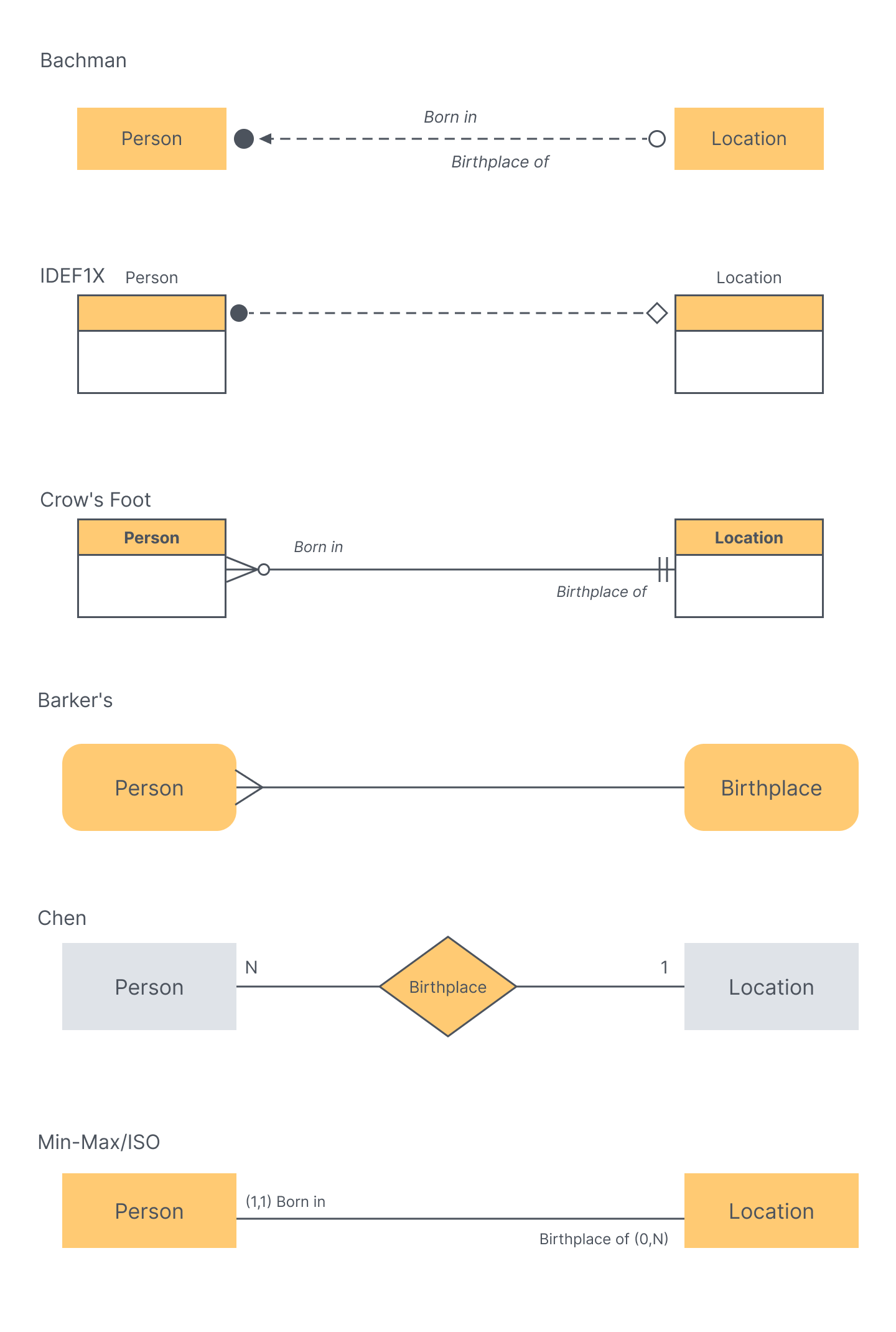
ERDs use several notation styles, each of which draws entities, relationships, and attributes with its own symbols. For a full reference, see Lucid's guide to ERD symbols and notation.
Chen notation
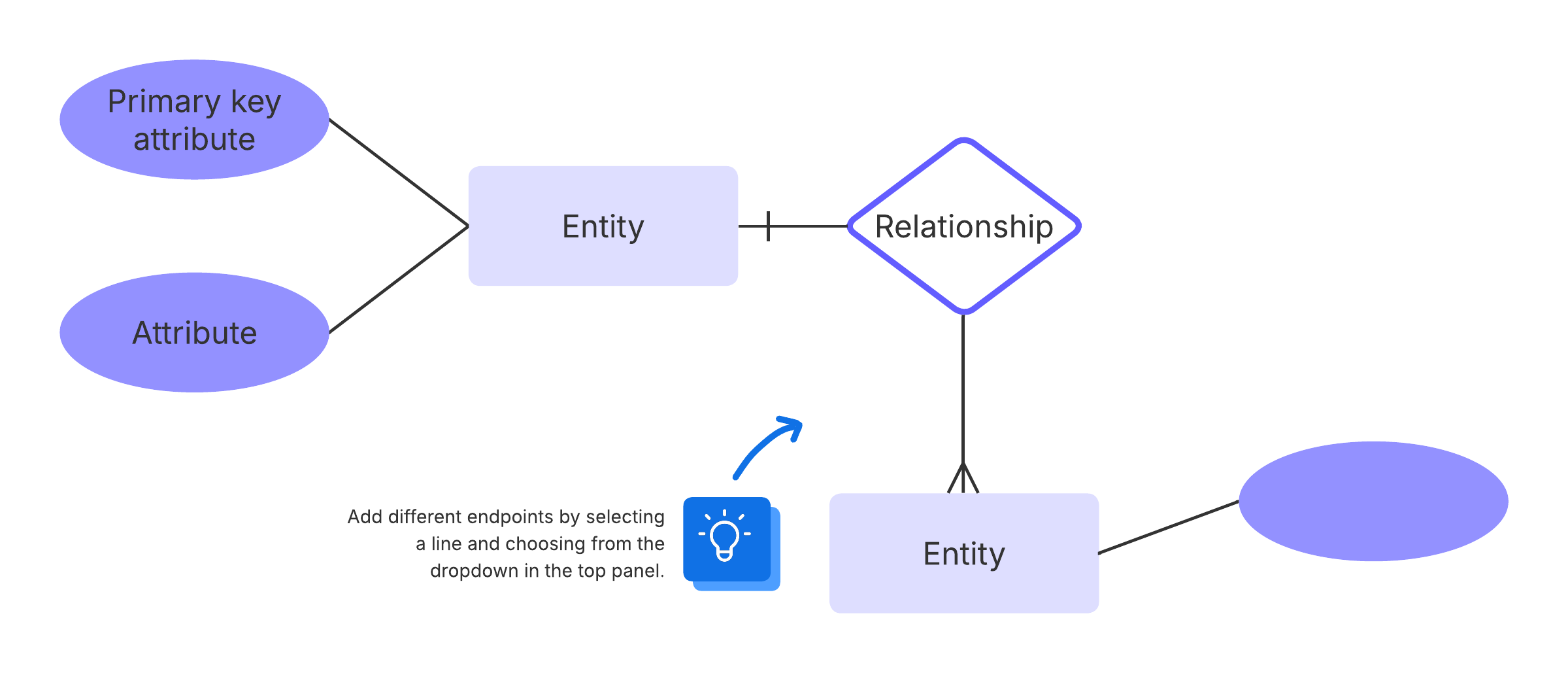
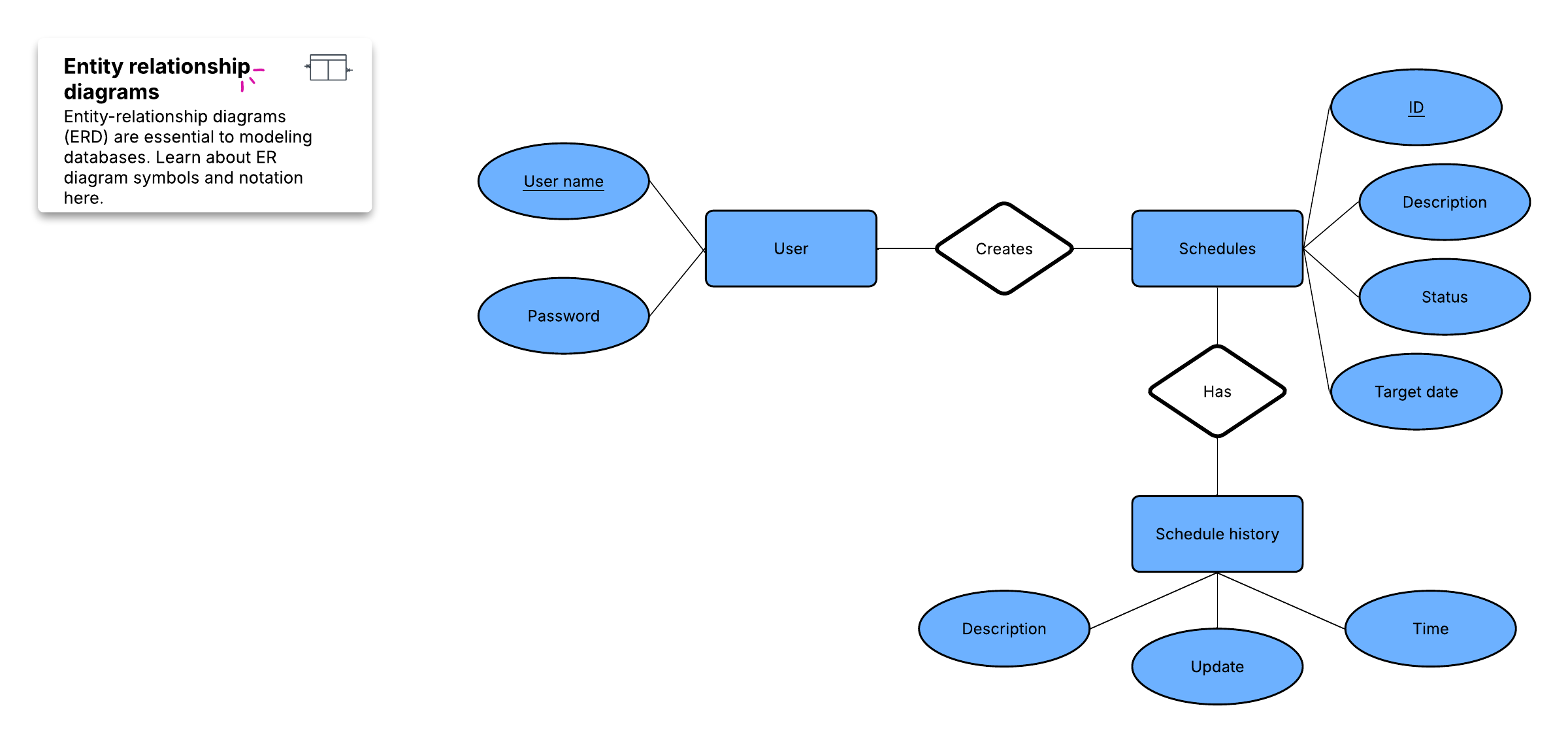
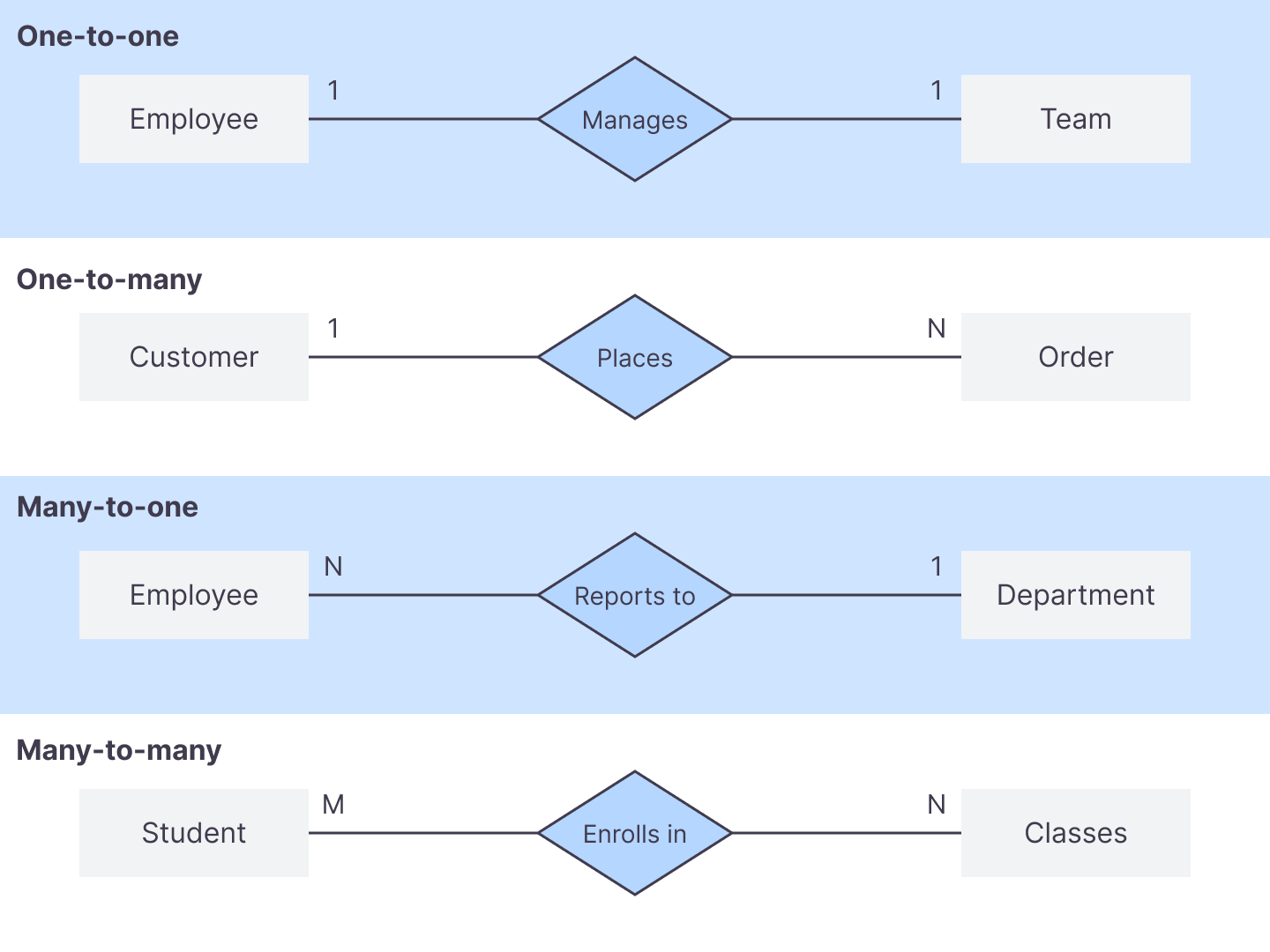
Chen notation uses rectangles for entities, diamonds for relationships, and ovals for attributes, connected by lines. It is detailed and well-suited to conceptual modeling.
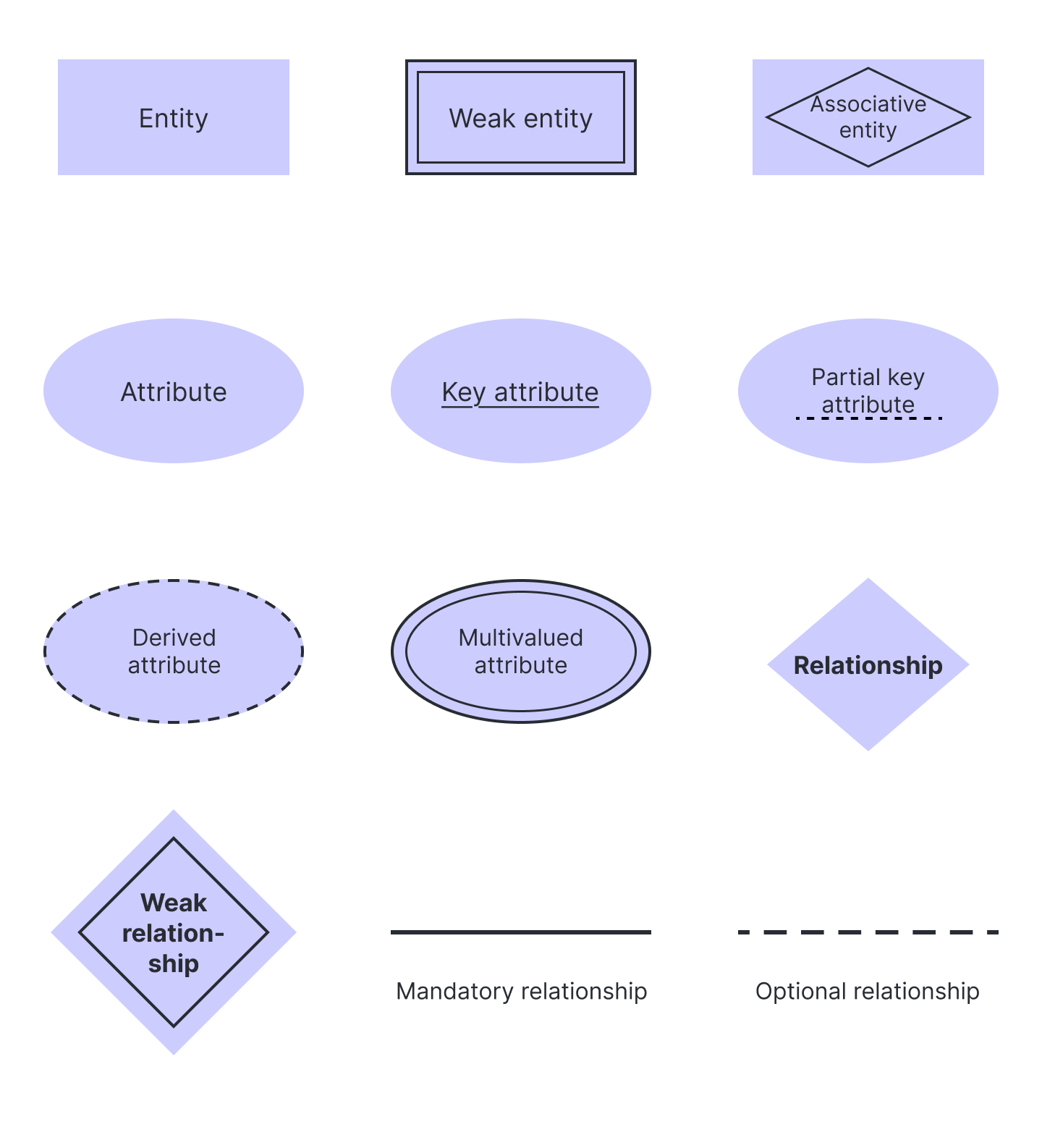
Here are some of the relationships that you would see within Chen notation.
Crow's Foot (Martin/Information Engineering) notation
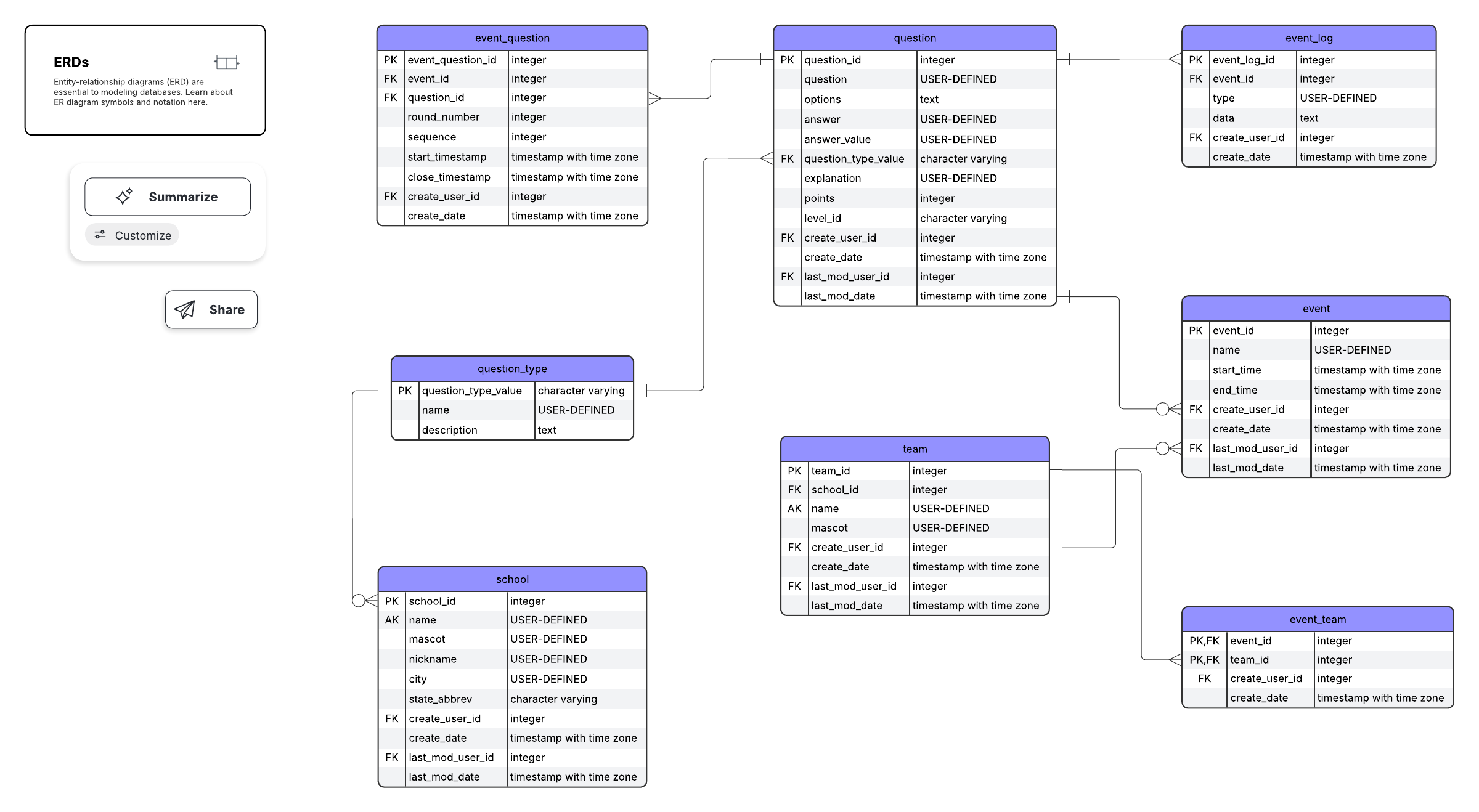
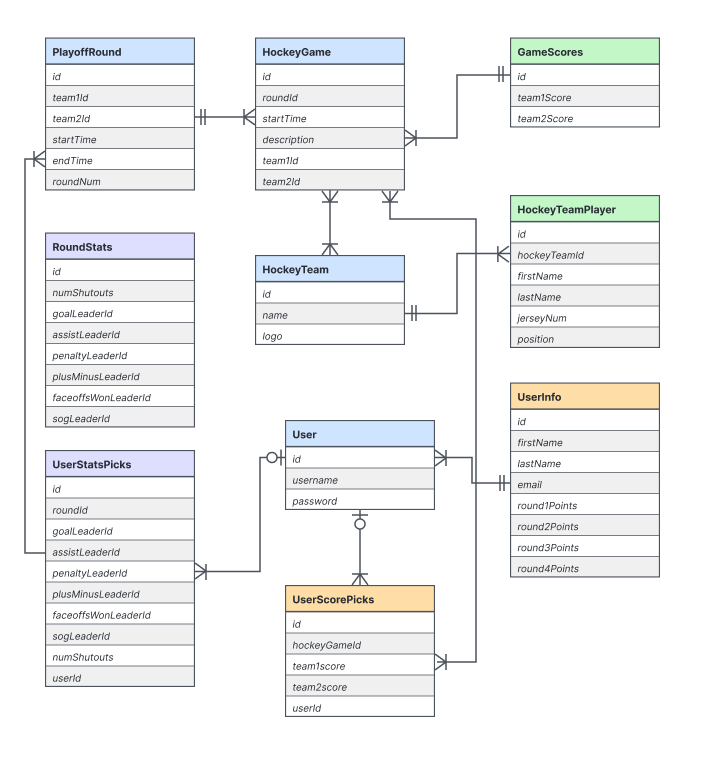
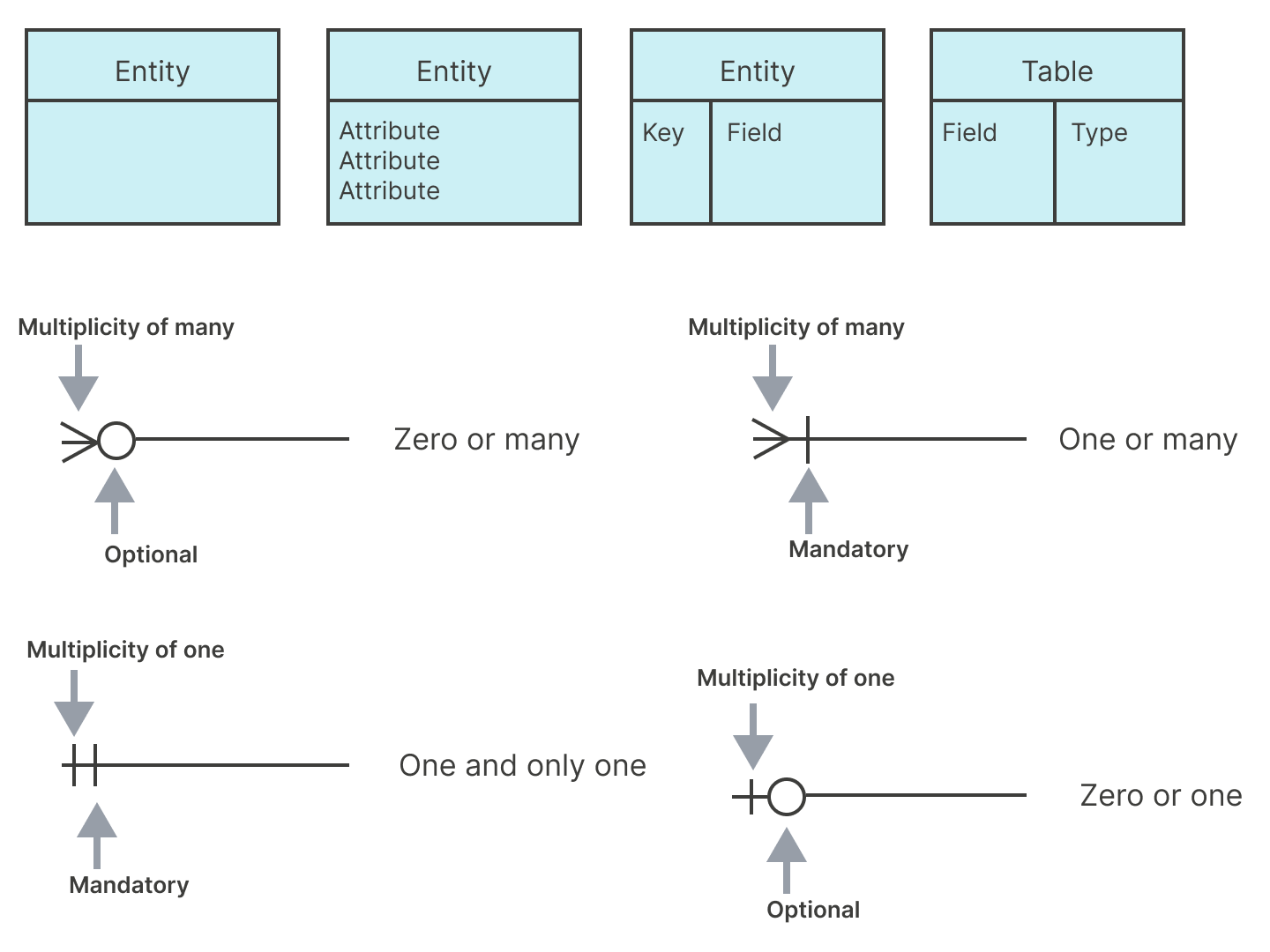
Crow's Foot notation, also called Martin or Information Engineering notation, uses branching "crow's foot" symbols at the ends of connecting lines to show cardinality. It is compact and popular for database design.
Bachman notation
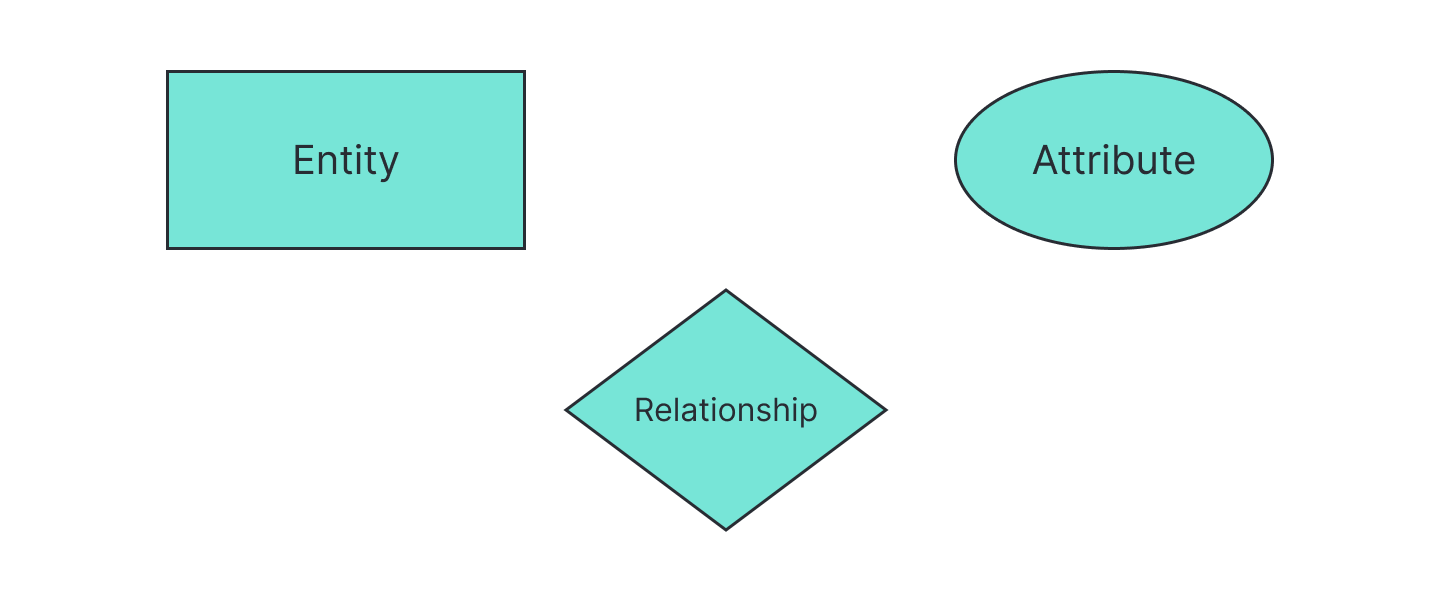
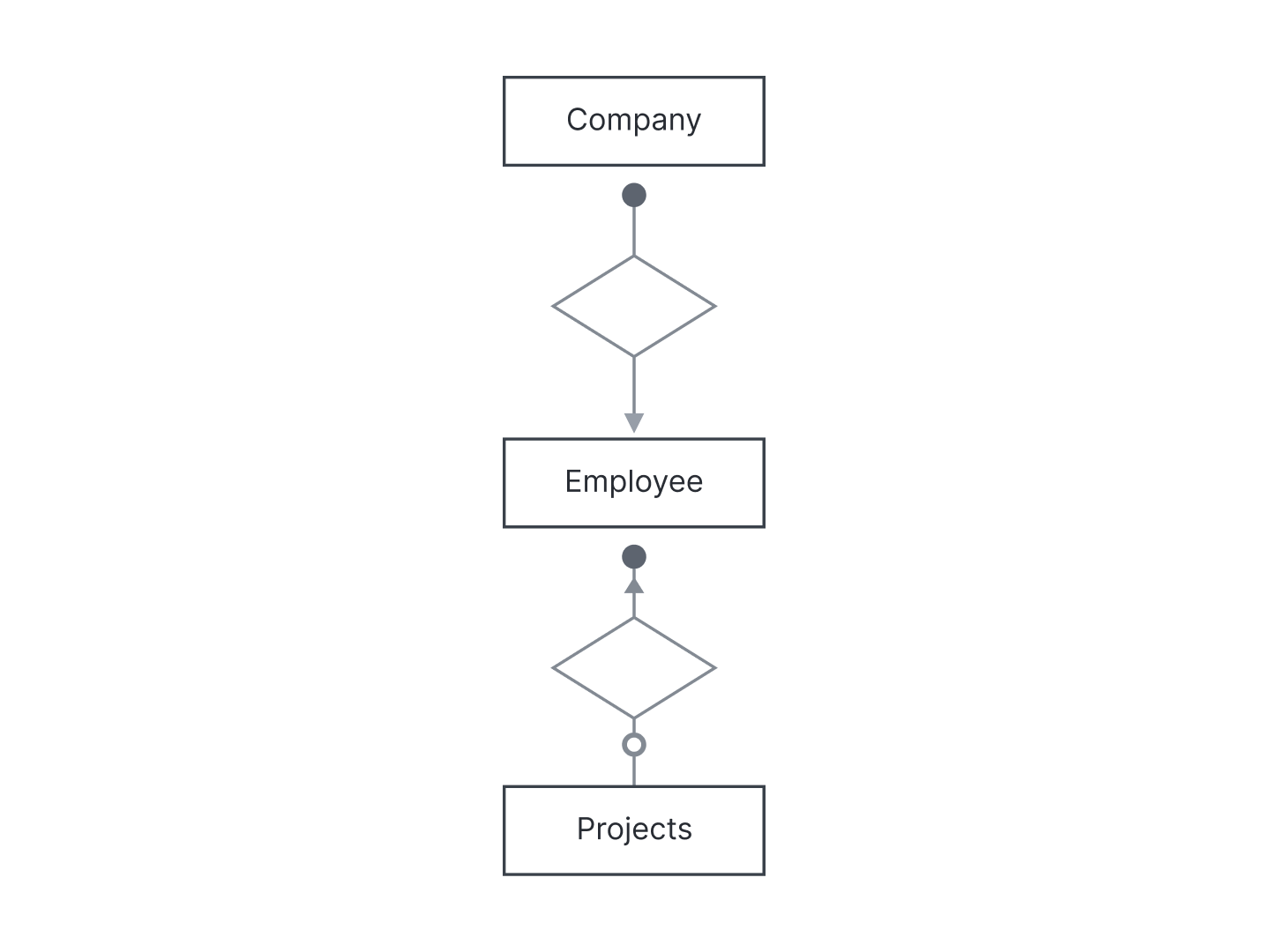
Bachman notation represents entities as boxes, attributes as ovals, and relationships as diamonds.
Bachman notation uses arrowheads and circles on the connecting lines to indicate cardinality and participation.
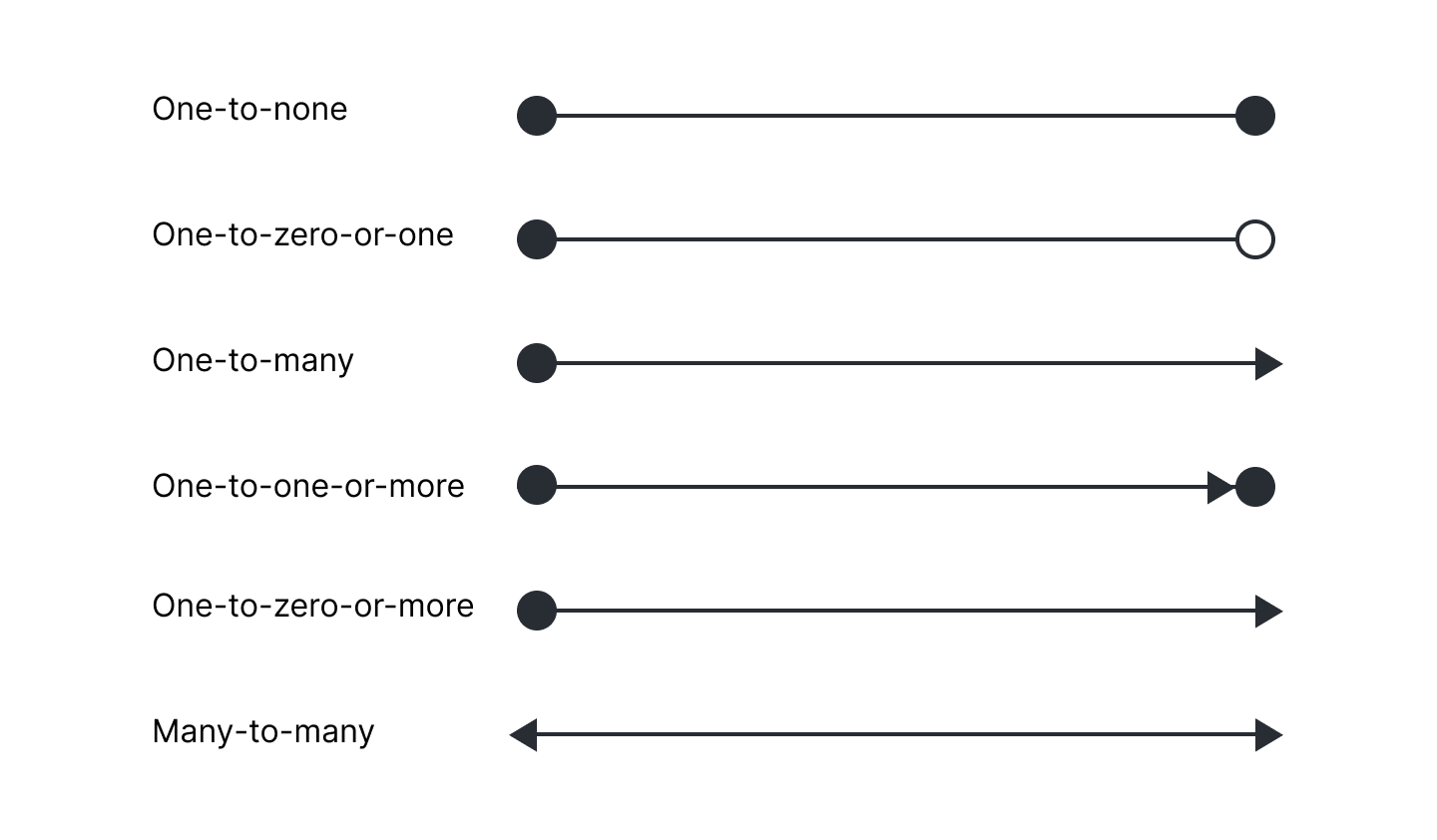
Here is an example of these symbols and connections coming together in Bachman notation.
IDEF1X notation
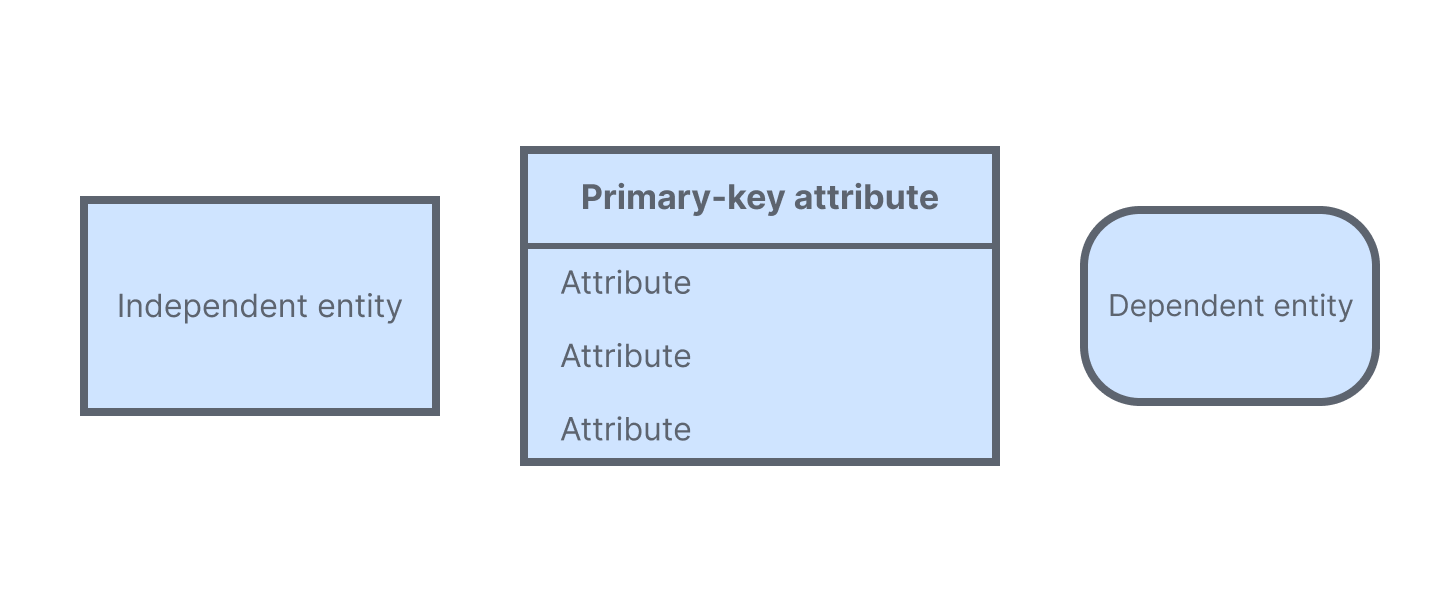
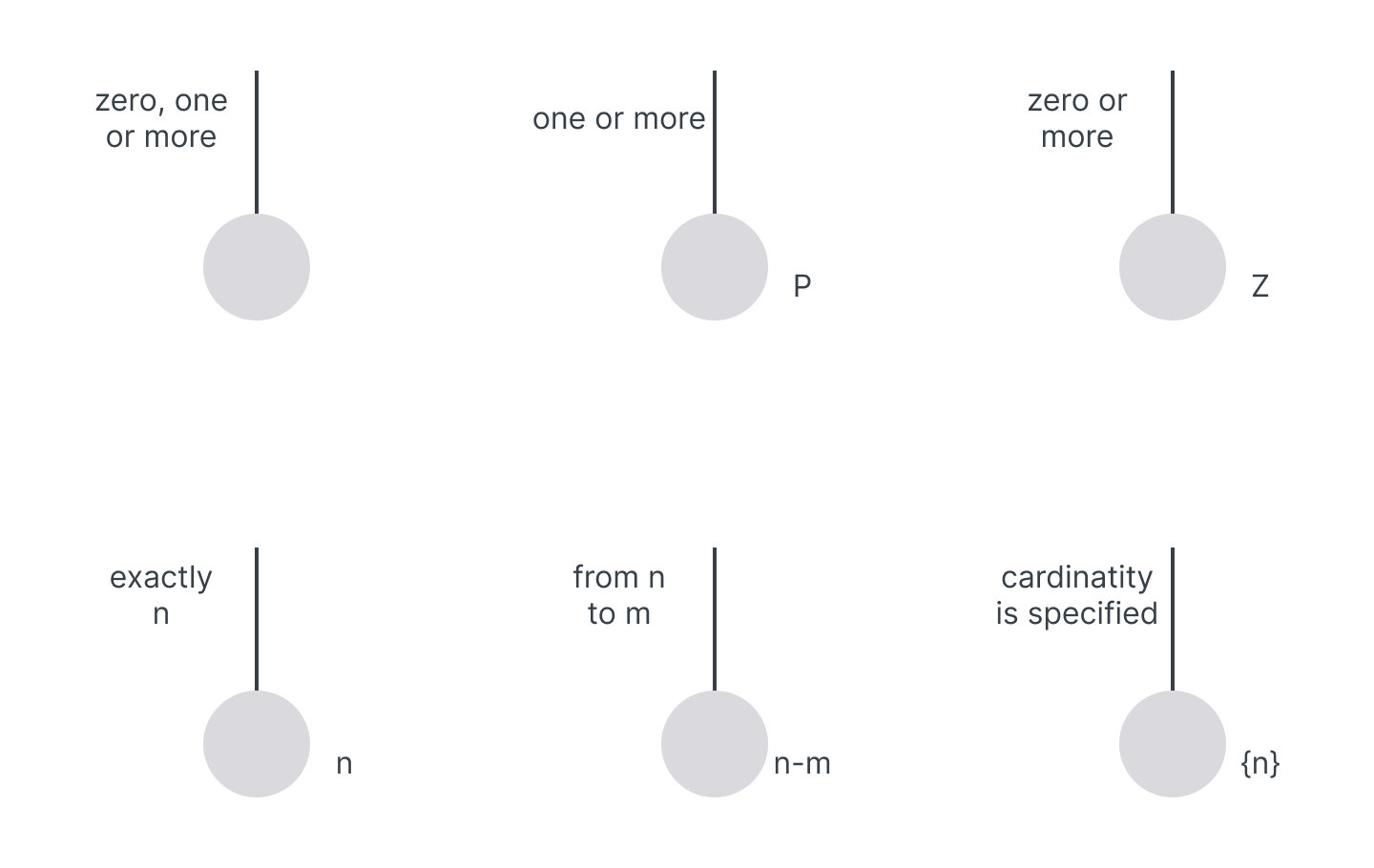
IDEF1X is a standardized notation used in system modeling. It distinguishes identifying and non-identifying relationships and uses rounded corners to mark dependent entities.
Barker's notation
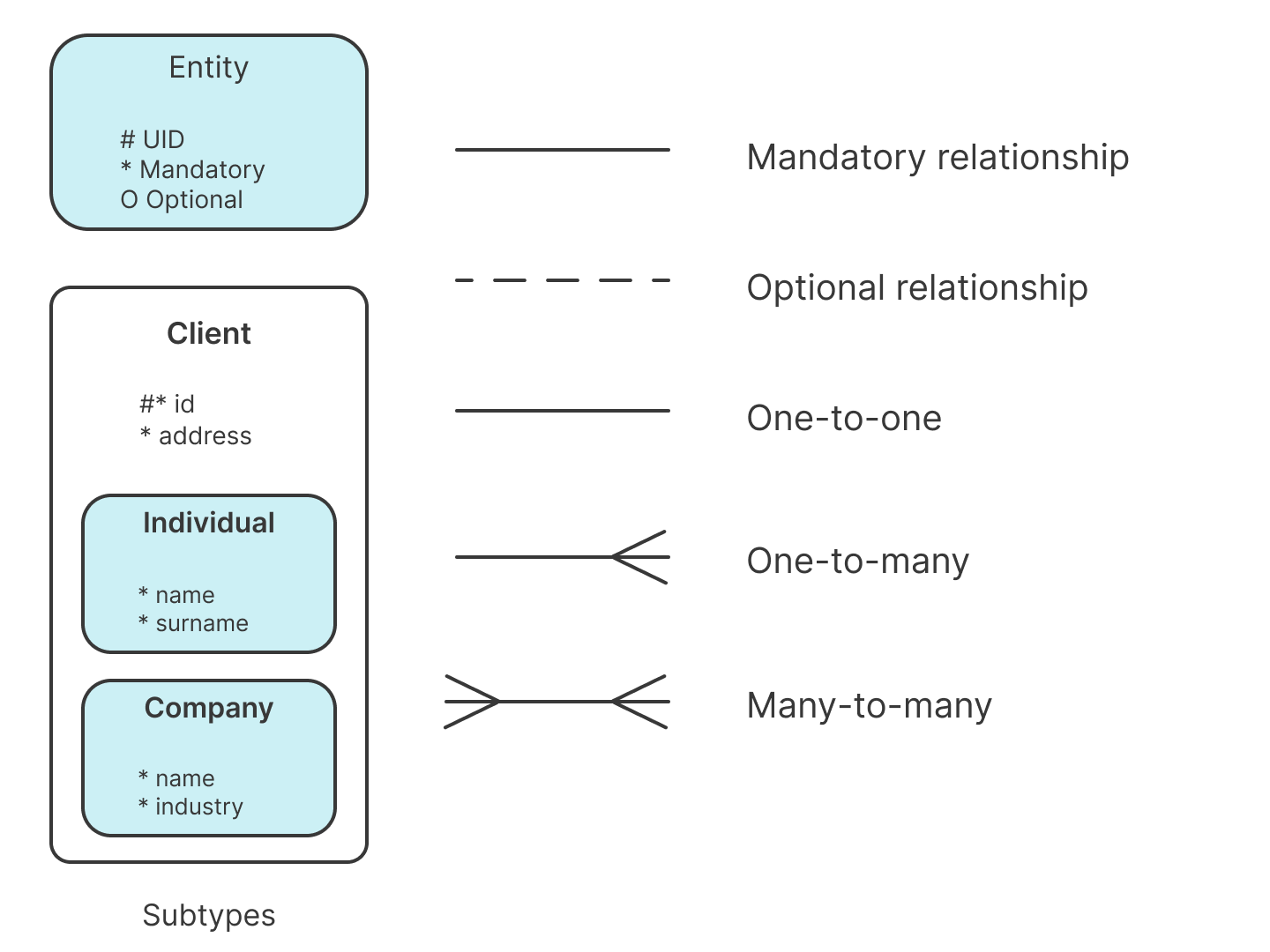
Barker's notation uses solid and dashed lines to show mandatory and optional relationships, with crow's foot ends for cardinality. It is widely used in Oracle environments.
Applying UML notation
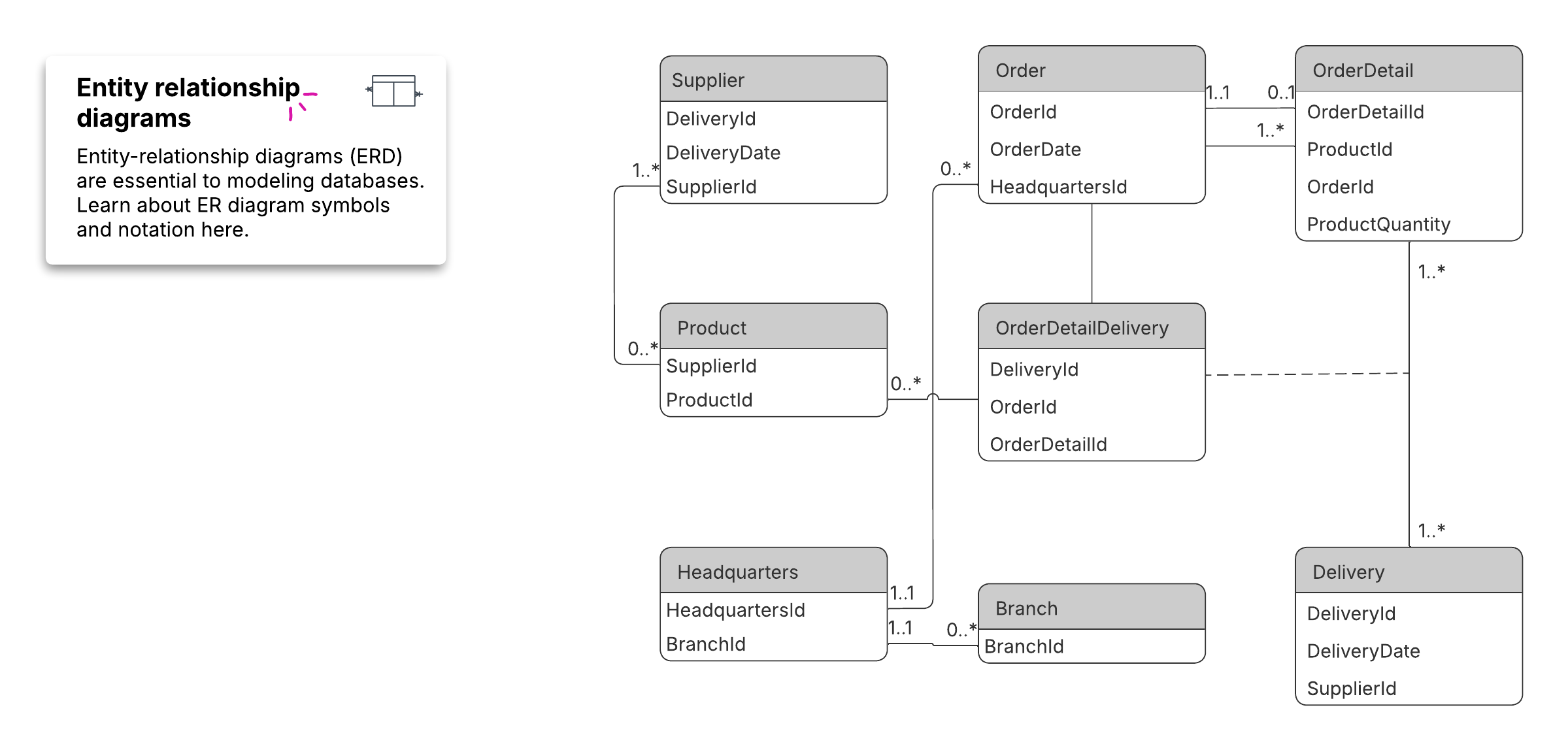
You can also apply Unified Modeling Language (UML) notation to model entity relationships. In UML, 1..1 indicates a one-to-one relationship and 1..* indicates a one-to-many relationship.
ER diagram examples
The clearest way to learn ERDs is to study examples in each notation style. Reviewing an ER diagram example lets you see how entities, relationships, and cardinality are represented in Chen, Crow's Foot, Bachman, IDEF1X, and Barker's notation. You can find ready-made examples in the templates section below and adapt them to your own system.
Conceptual, logical, and physical data models
A data model diagram can describe a database at three levels of detail. Choosing the right level keeps your ERD useful for its audience.
Conceptual data model: the highest-level view with the least detail, used to define scope and major entities
Logical data model: adds more detail that defines operational and transactional entities, independent of any technology
Physical data model: adds enough technical detail to produce and implement the actual database
Limitations of ER diagrams and models
ER diagrams are powerful, but they have clear boundaries. Knowing them helps you pick the right tool for the job.
They work only for relational, structured data.
They are not suited to unstructured data or free-form content.
They can be difficult to integrate with an existing database.
For systems that need richer detail, consider an enhanced ER diagram (EERD), which extends the standard model with concepts like specialization and inheritance.
How to create a basic ER diagram
Start with a plan and build the diagram one layer at a time. Follow these five steps to structure any ERD.
Define purpose and scope: Decide what system the diagram covers and why.
Identify entities: List the people, objects, and concepts the system tracks.
Add relationships: Connect the entities and label how they interact.
Add attributes: Attach the properties that describe each entity.
Set cardinality: Define the numeric rules for each relationship.
How do you create an ER diagram in Lucidchart?
You create an ER diagram in Lucidchart by enabling the entity-relationship shapes, and then dragging, connecting, and sharing them. You can also import a database or generate the diagram with Lucid AI.
Here’s how to create an ERD in Lucidchart manually:
Open a new Lucidchart document. Start from a blank canvas or an ER diagram template.
Enable the ERD shapes. Search for and add the ERD shape library from the left-hand toolbar.
Drag and drop shapes. Pull entity, relationship, and attribute shapes onto the canvas.
Connect the shapes. Draw lines between entities and set cardinality to define each relationship.
Share your ER diagram. You can easily share your ER diagram with others for feedback, editing, or a presentation.
How do you import a database into Lucidchart?
You can auto-generate an ERD by importing an existing database instead of drawing it by hand. This turns your live schema into a diagram in minutes.
Choose your database management system (DBMS).
Copy the provided query.
Run the query on your database.
Import the resulting CSV, TSV, or TXT file.
Lucidchart draws the relationship lines for you automatically when primary and foreign keys are set. You can also create an ERD with Lucid AI, which generates a first-draft diagram from a text prompt in seconds, allowing you to refine it afterward.
Entity-relationship diagram (ERD) tutorials
This tutorial walks through building an ER diagram from scratch, covering the three core building blocks—entities, attributes, and relationships—and how cardinality connects them. It also shows how Lucidchart can automatically generate database code from your diagram to speed up your workflow.
This second tutorial moves into advanced ERD concepts, explaining how primary keys, foreign keys, and bridge tables preserve data integrity and organize complex relationships. It also demonstrates exporting a Lucidchart diagram directly into your DBMS as SQL code.
Entity-relationship diagrams give organizations better visibility into databases—and Lucidchart makes it simple to get started.