Communication diagram maker
No matter the kind of communication diagram you have in mind, our UML diagram tool can help you get to work on it right away, with diagram specific shape libraries to get you started.


By registering, you agree to our Terms of Service and you acknowledge that you have read and understand our Privacy Policy.
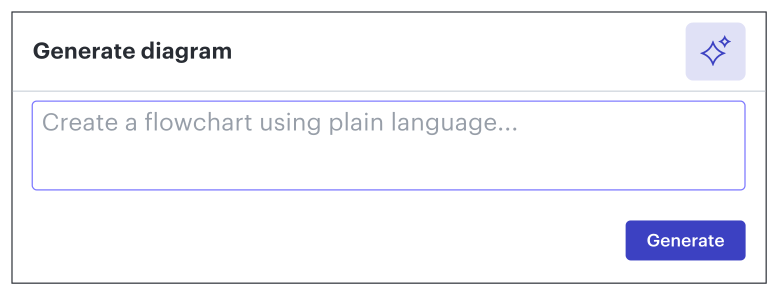
Get started with our AI diagram generator
See the Architecture, Not Just the Order
Creating a communication diagram is like drawing a map of a neighborhood and then tracing the routes of the mail carriers. It’s less about "when" things happen and more about "who" talks to whom.
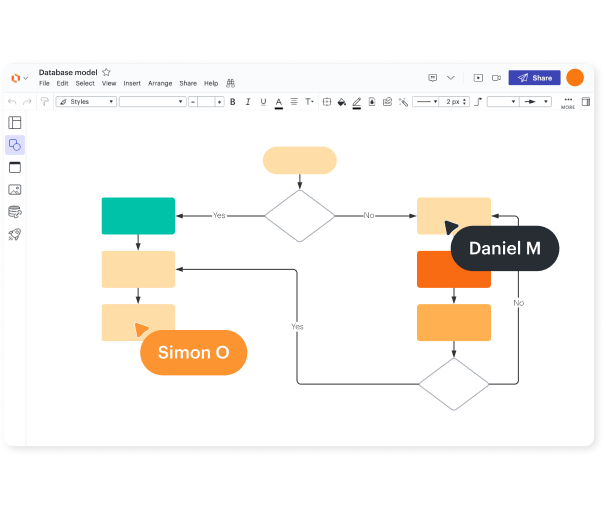
Visualizes Structural Relationships
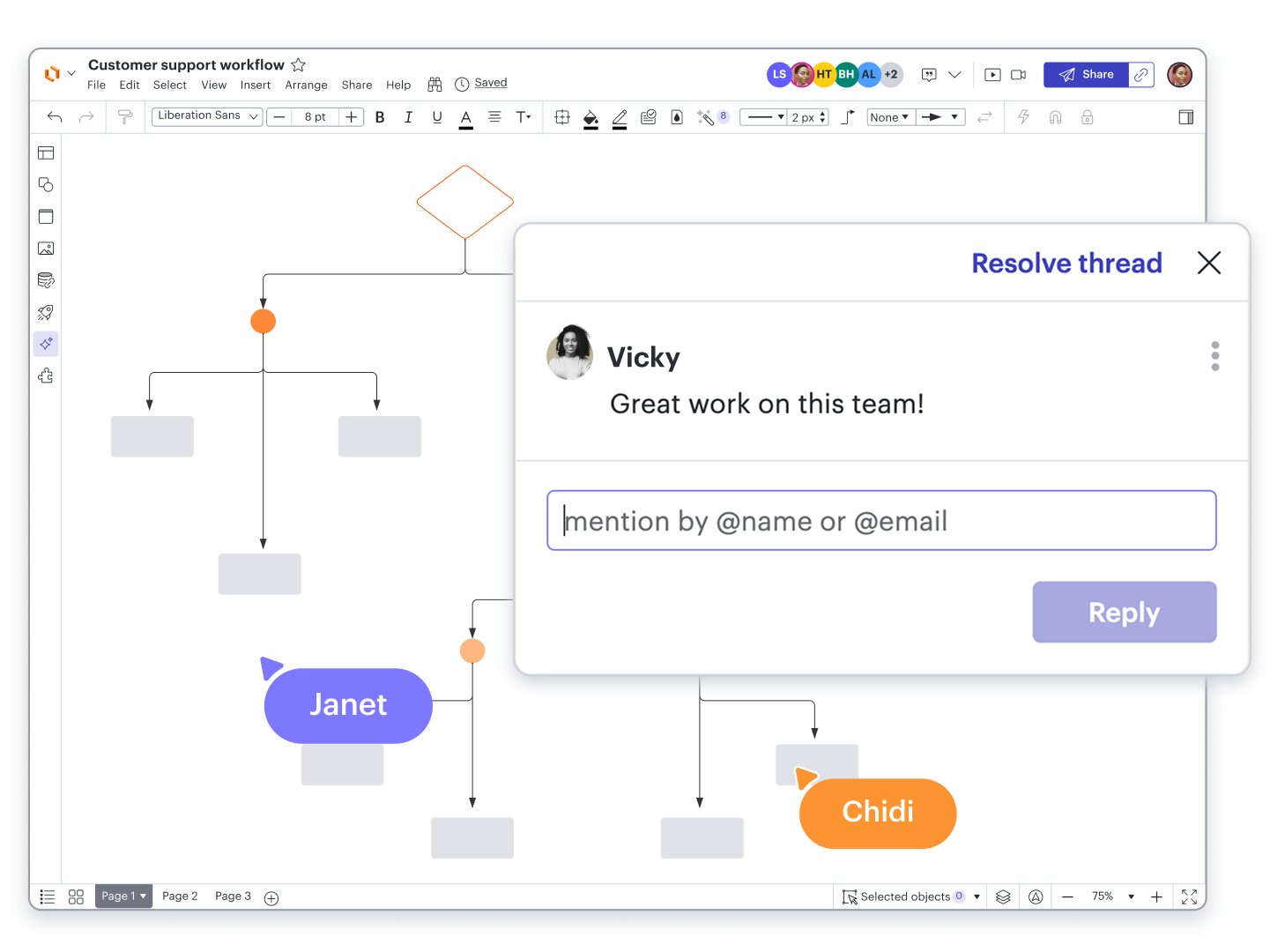
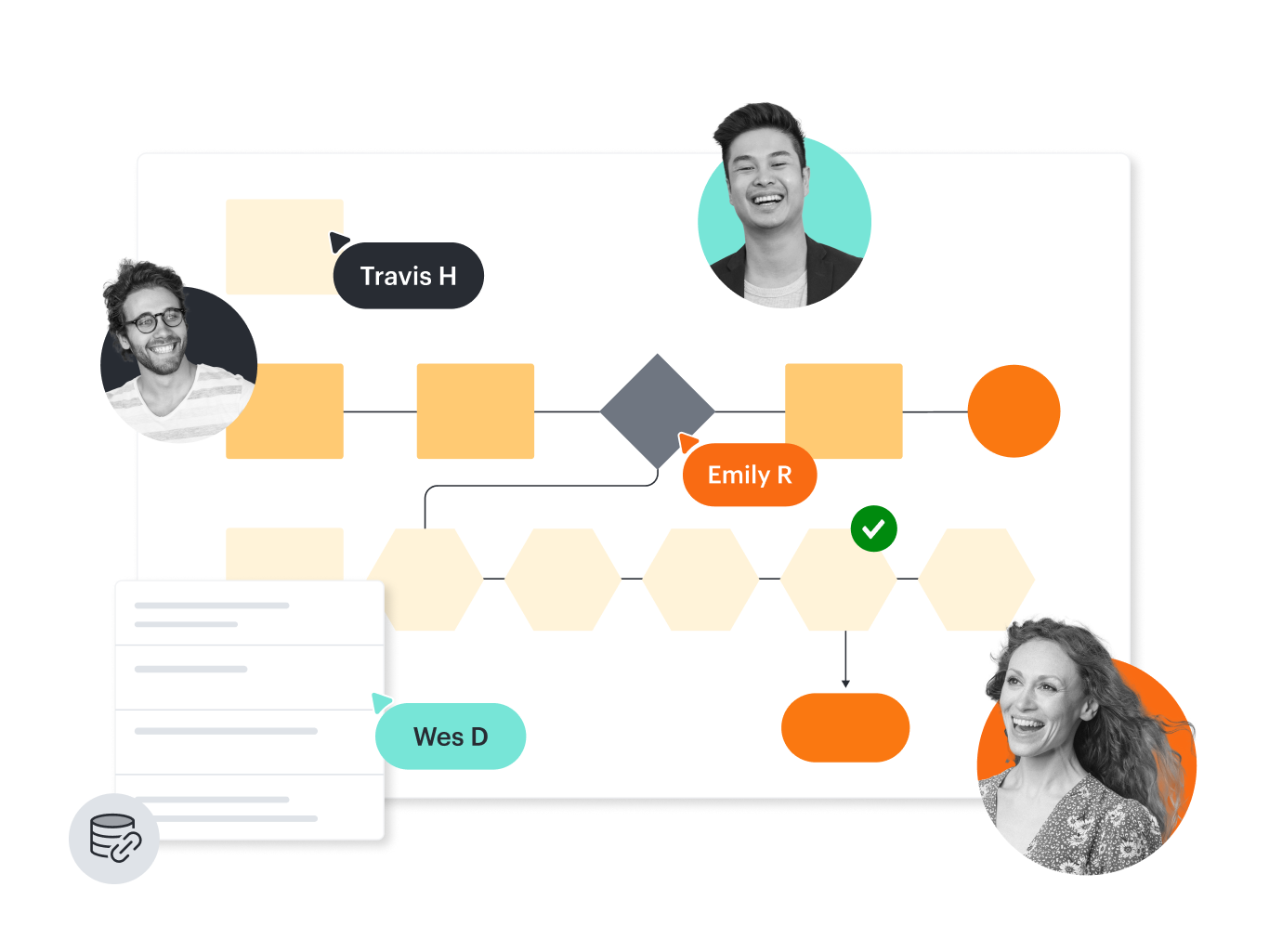
Collaborate in real time
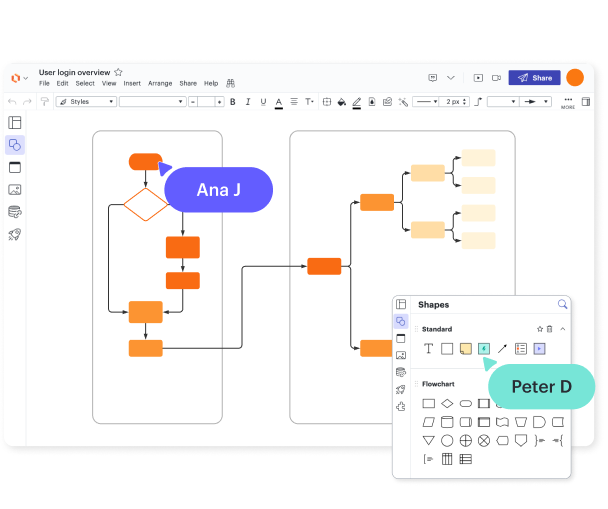
Built-in UML diagram shape library
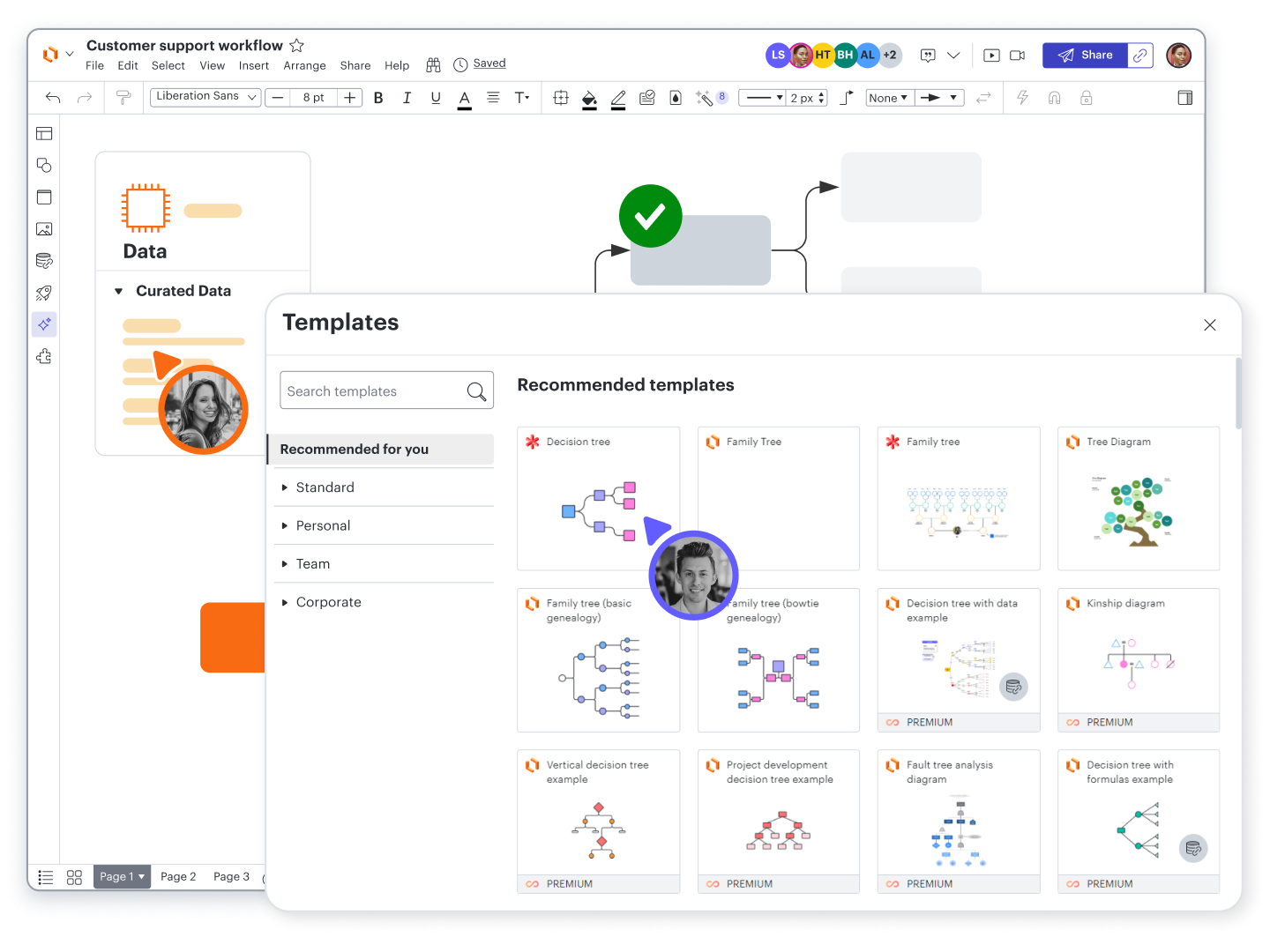
Get an easy-to-use UML diagram with templates
Boost productivity with 100+ integrations
Lucidchart feature highlights
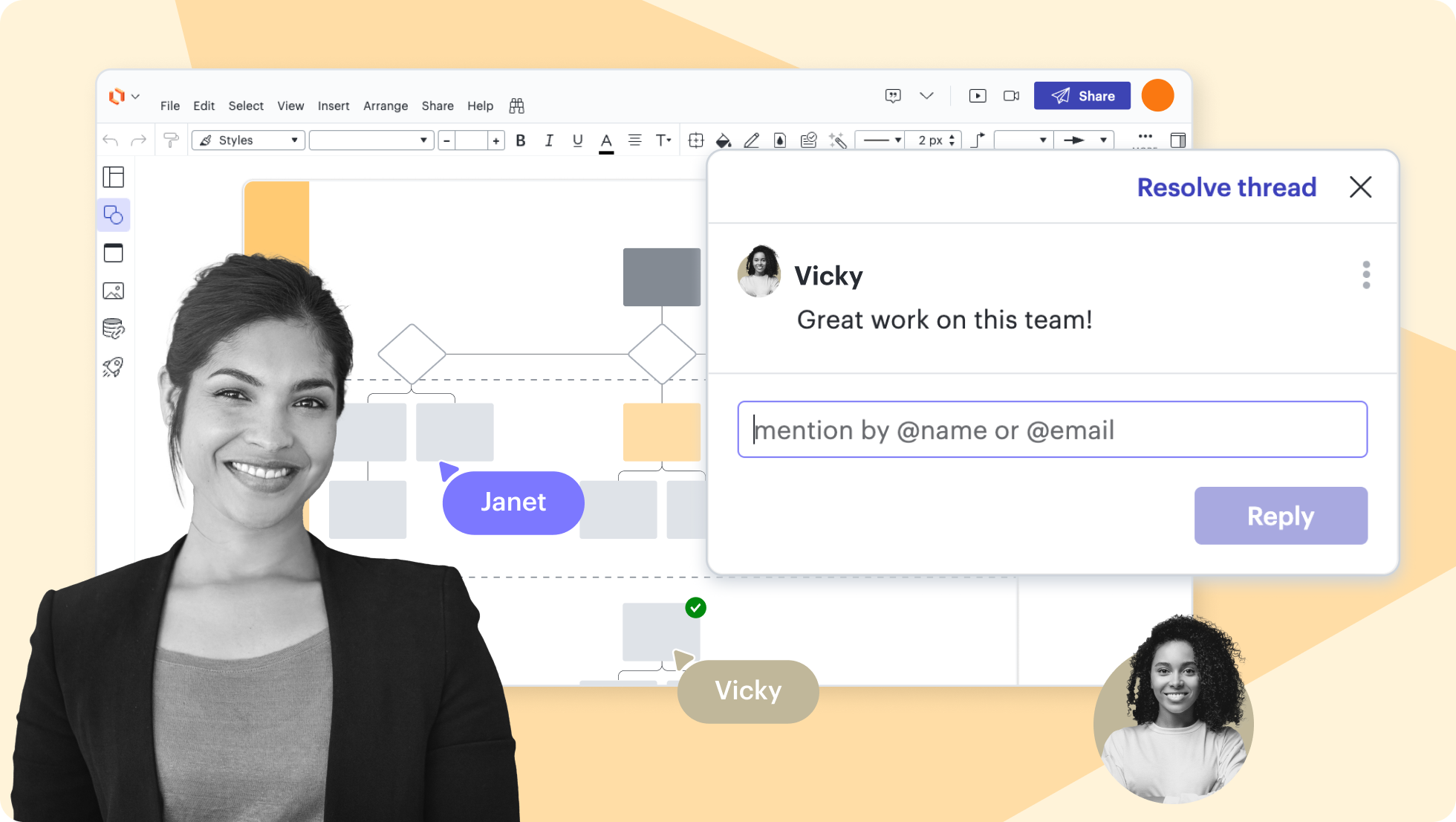
Real-time collaboration
Real-time collaboration
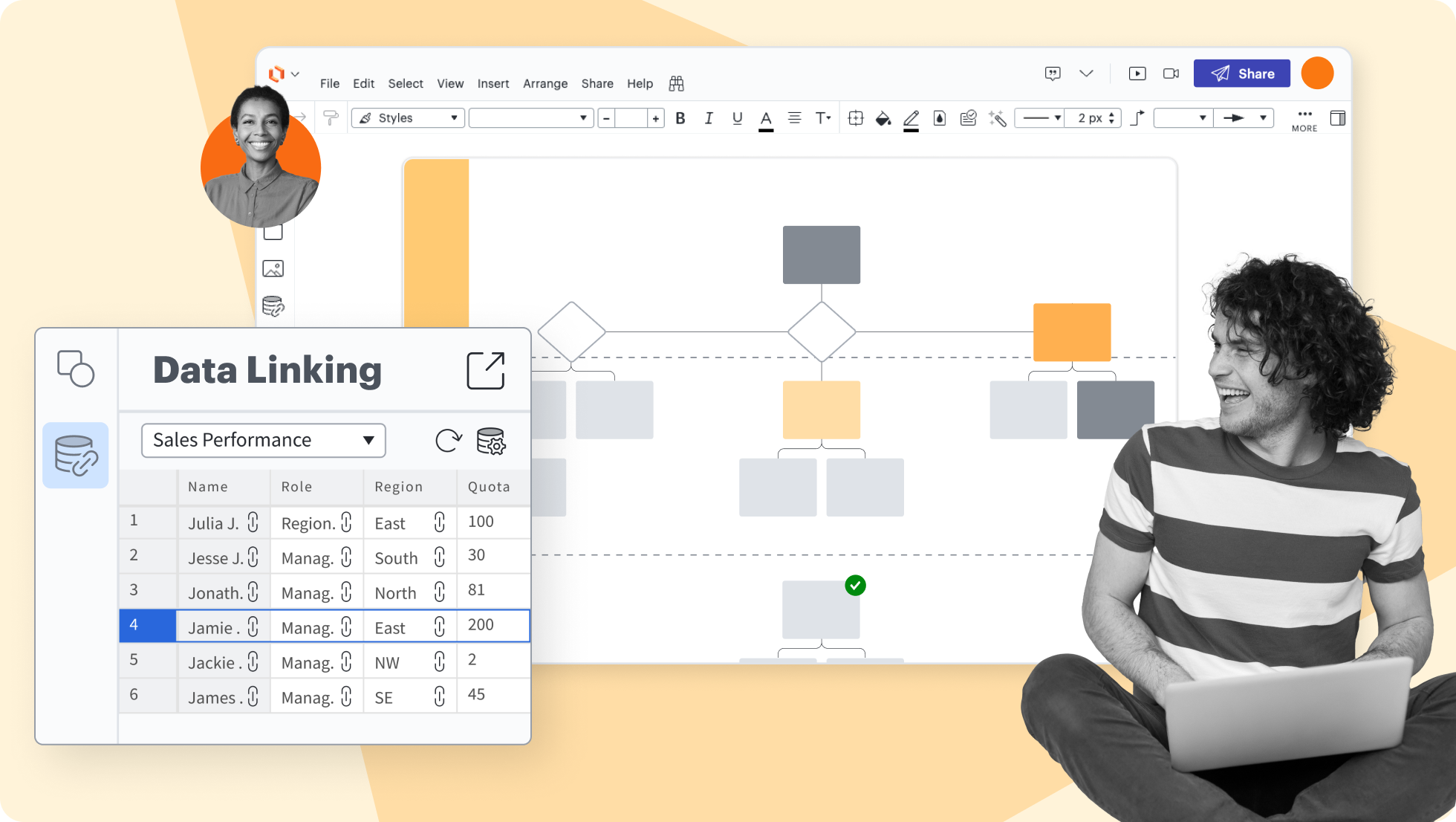
Data linking
Data linking
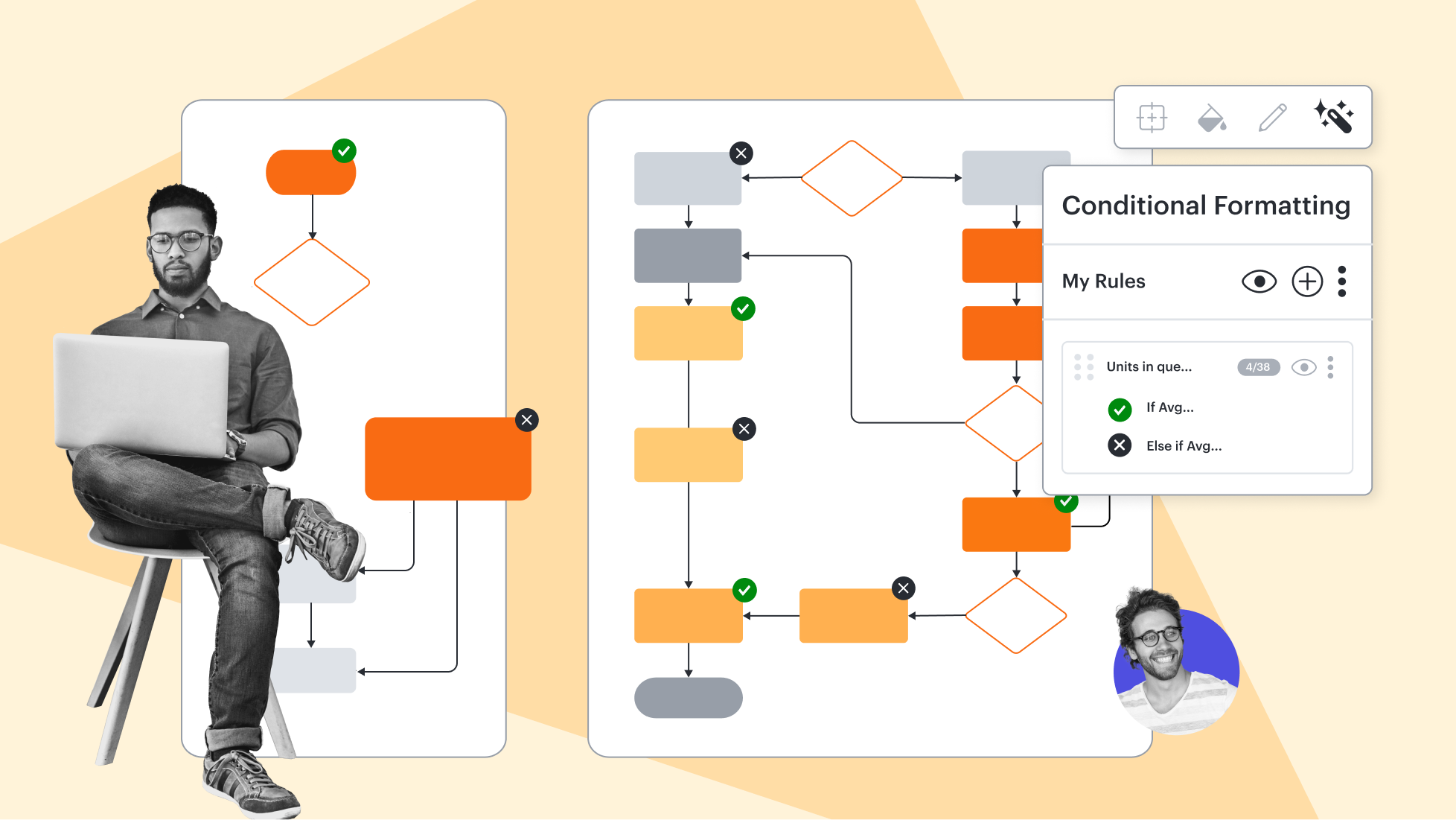
Conditional formatting
Conditional formatting
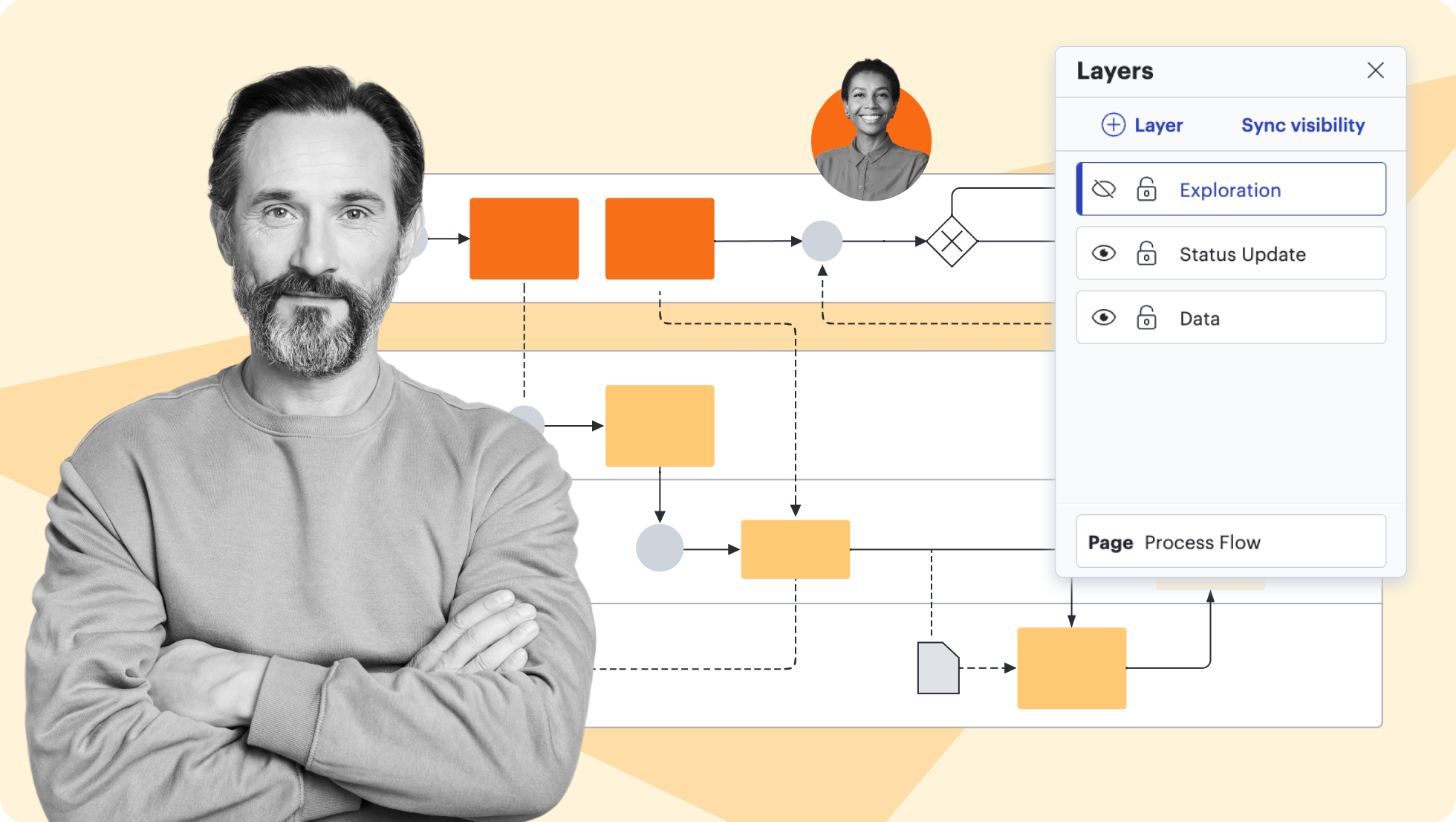
Layers
Layers
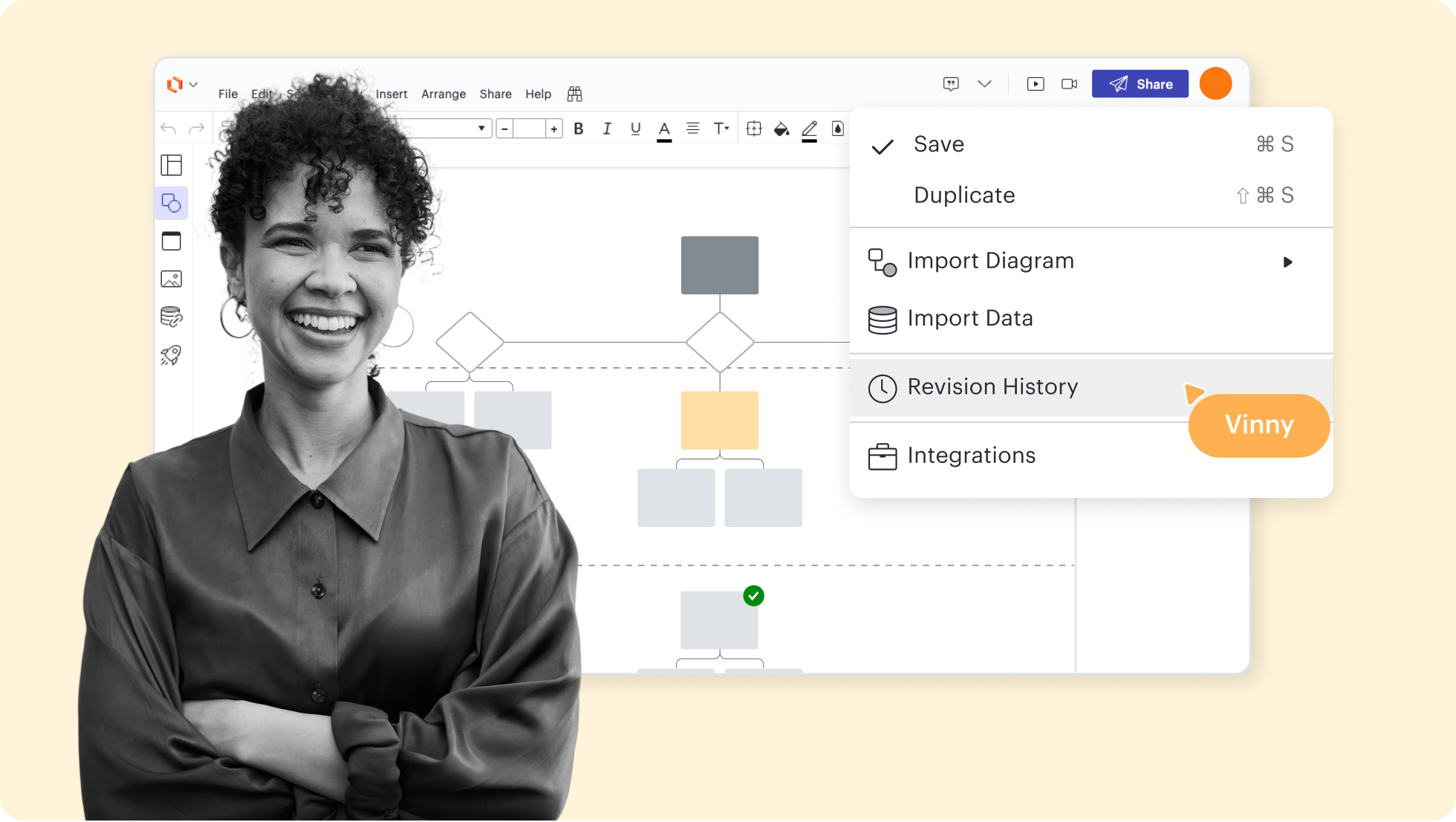
Revision history
Revision history
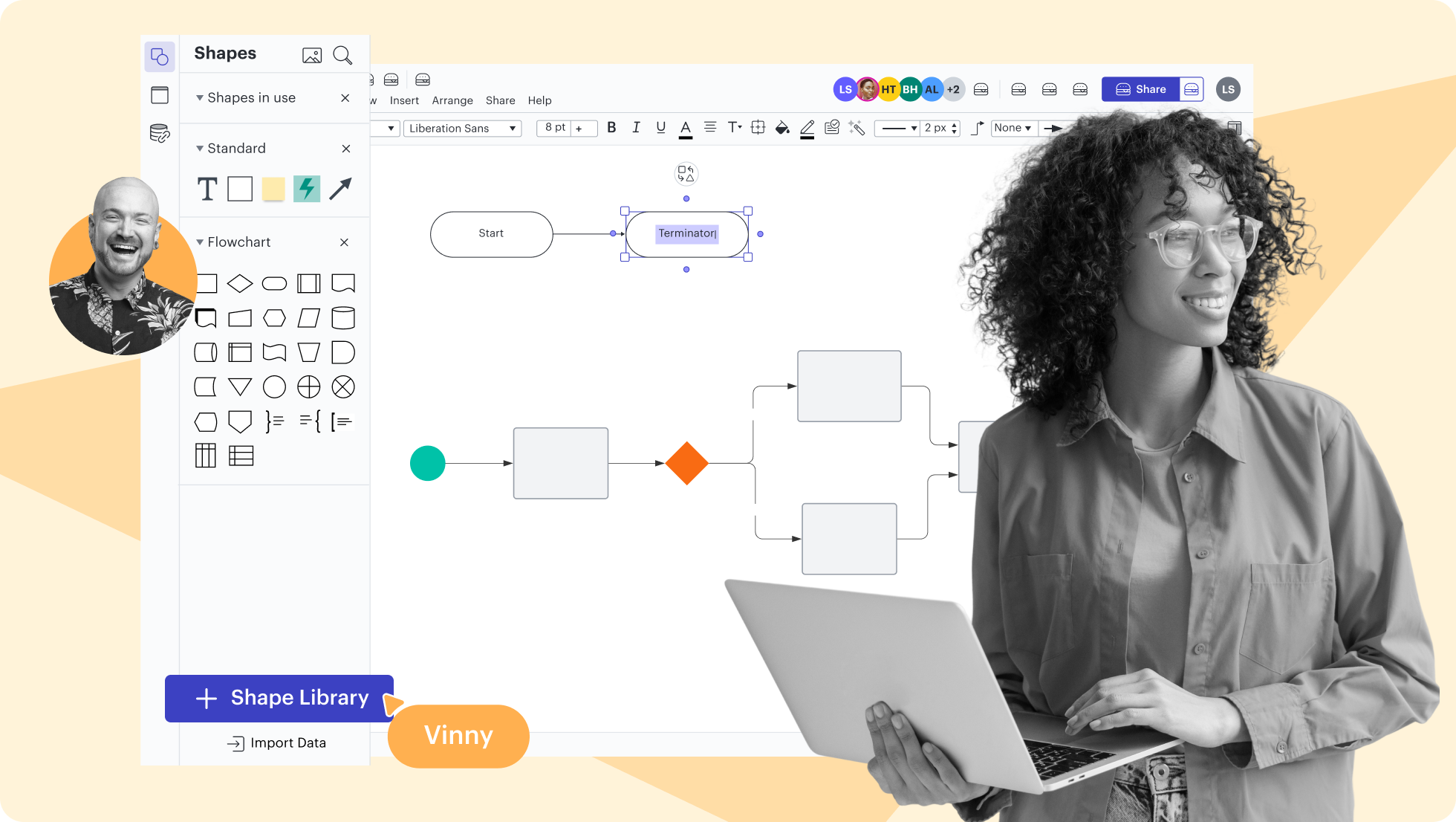
Shape libraries
Shape libraries
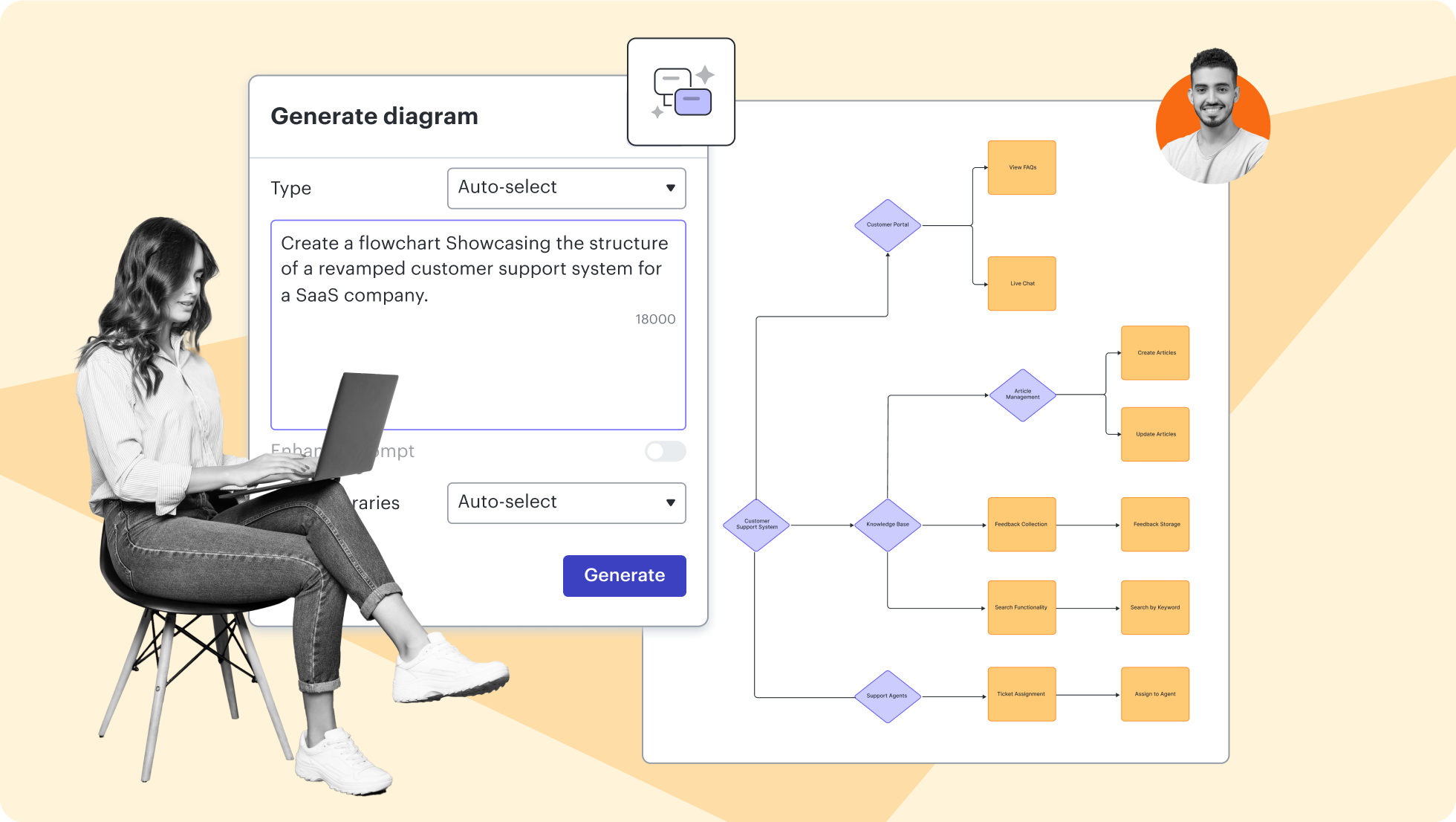
AI prompt flow
AI prompt flow
Lucidchart feature highlights
Streamline work by enabling multiple collaborators to create and edit the same diagram at once.
UML diagram templates and examples
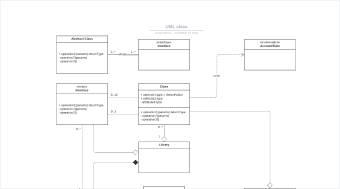
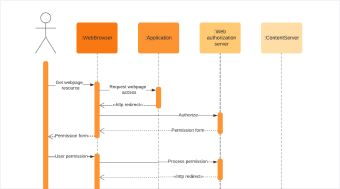
Use a template from our gallery to get a head start on your UML diagram.
Getting started in Lucidchart
Getting Started in Lucidchart
Follow along with this video tutorial and learn how to make any type of diagram in Lucidchart.
Why teams choose Lucidchart
As an intelligent diagramming application, Lucidchart provides simple yet powerful capabilities for visualizing information.

Collaboration. Bring teams together side by side on a shared canvas from anywhere in the world.
Alignment. Build transparency and shared understanding of how a team or company works.
Large-scale change. Increase visibility, standardization, and knowledge sharing across your entire org.
End-to-end workflows. Upgrade to the Lucid Suite for a complete, connected visual collaboration solution.


What is a UML Communication diagram?
A communication diagram offers the same information as a sequence diagram, but while a sequence diagram emphasizes the time and order of events, a communication diagram emphasizes the messages exchanged between objects in an application. Sequence diagrams can fall short of offering the "big picture.” This is where communication diagrams come in and offer that broader perspective within a process.
How to create a UML Communication diagram
Identify the Context and Participants
Establish the Structural Links
Add Messages and Direction
Apply Sequence Numbering
Refine with Iteration and Loops (Optional)
Additional Lucidchart resources
Lucid Training Labs
Learn visual collaboration skills in free, self-serve courses and live training workshops.

Lucid Community
Connect with other users to share tips and insights. Provide feedback to Lucid’s product team.
Help center
Find detailed articles with step-by-step instructions for using specific Lucid features.
Lucidchart tutorials
Go to the Lucidchart tutorials playlist on YouTube for video training on various topics.
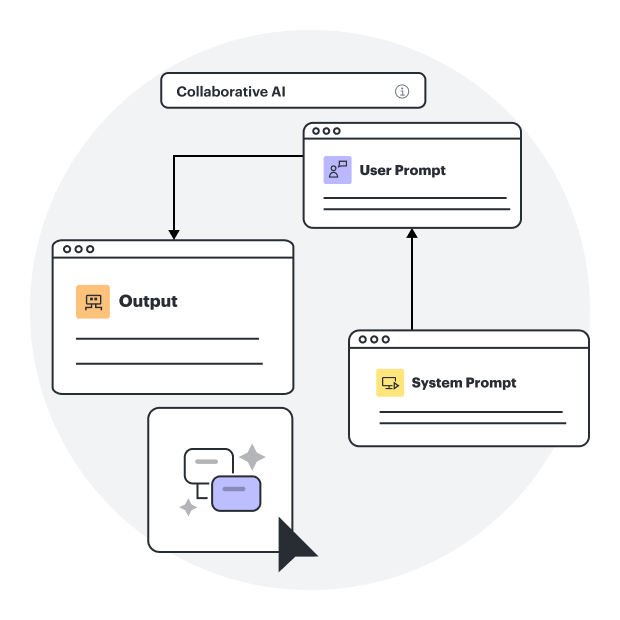
Collaborate with AI
Get an overview of Lucid’s AI functionality and find additional resources.
Lucid blog
Explore tips for optimizing collaboration, aligning teams, and driving initiatives in Lucidspark.

Lucidchart pricing
Create a free account and compare options for paid Individual, Team, or Enterprise plans.
Frequently asked questions about UML diagrams
Can I build a UML diagram using markup?
How can I change the formatting of a UML diagram?
Can I show the difference between current and future states within the UML diagram?
What are the options for sharing my UML diagram in Lucidchart?
Everything you need to make a diagram
In addition to our online communication diagram tool, Lucidchart offers support and training resources to help you branch out to any type of diagram.
Lucid Training