AI flowchart generator
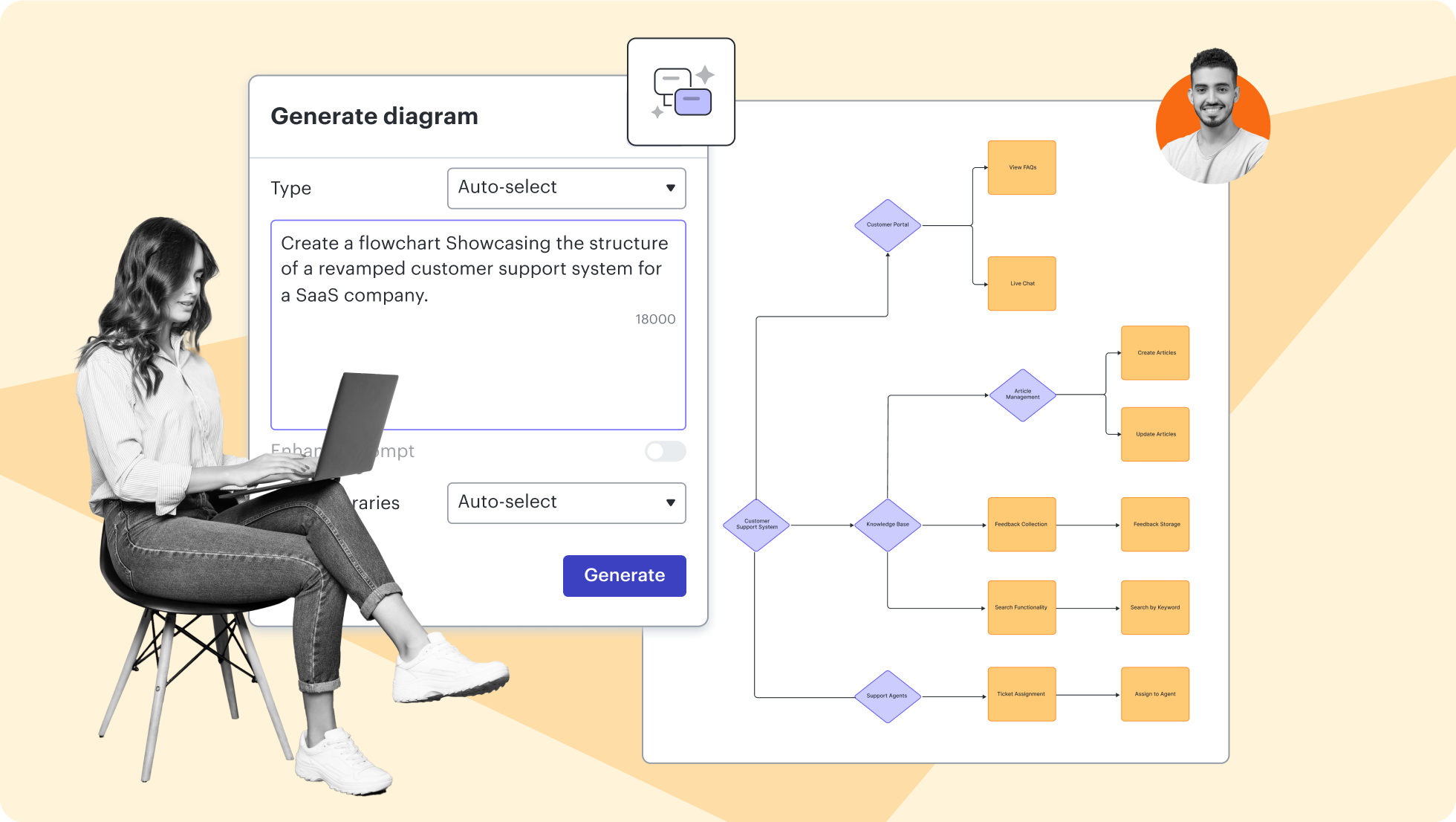
With text-to-flowchart AI, you can describe your process in a conversational way, and Lucid AI will build, style, and optimize your flowchart instantly.


By registering, you agree to our Terms of Service and you acknowledge that you have read and understand our Privacy Policy.
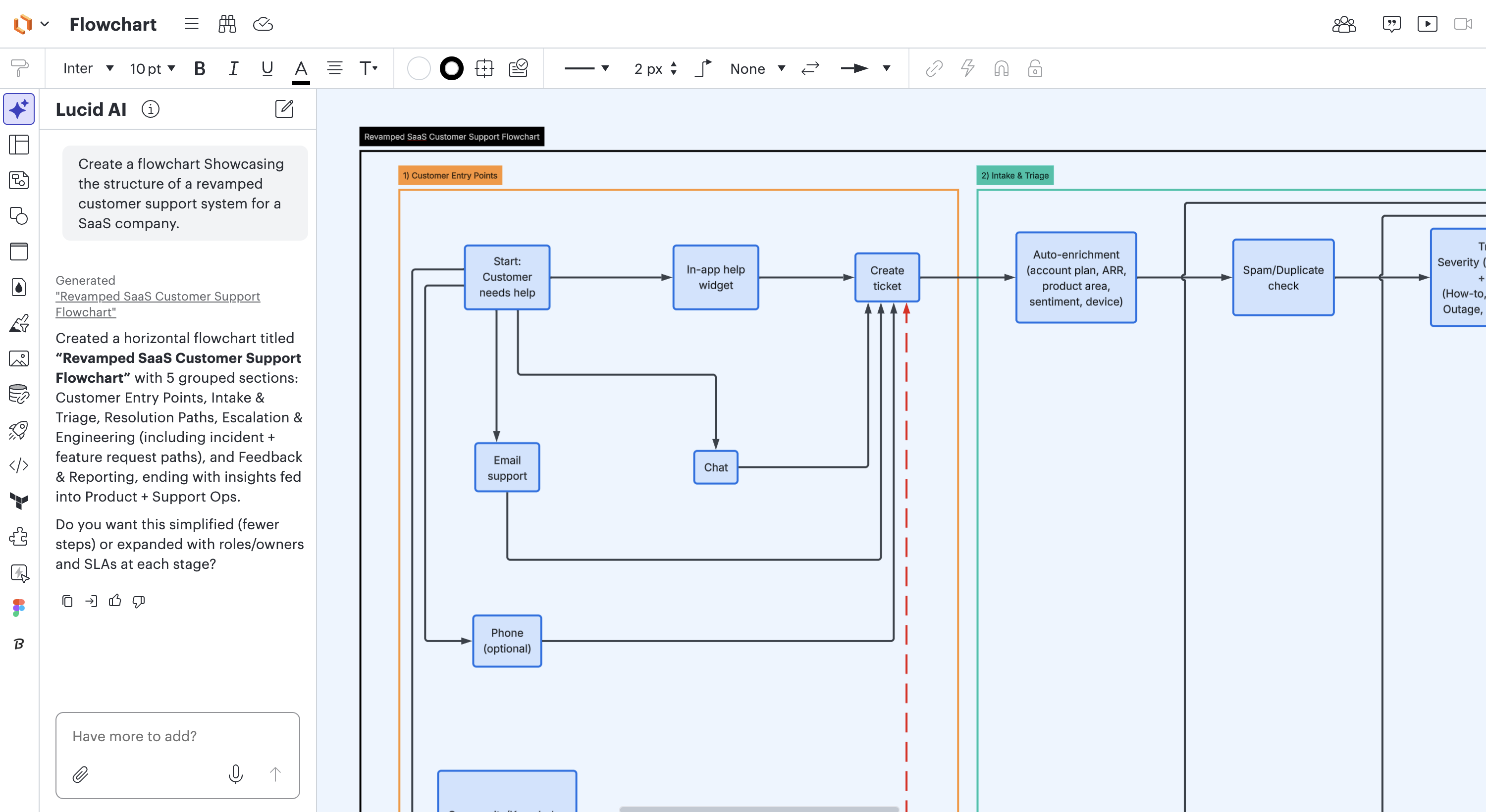
Get started with our AI diagram generator
 , opens in a new tab
See what’s possible with our AI flowchart generator
Map out the flow of ideas, systems, and processes faster with AI.
Create diagrams with flowchart AI
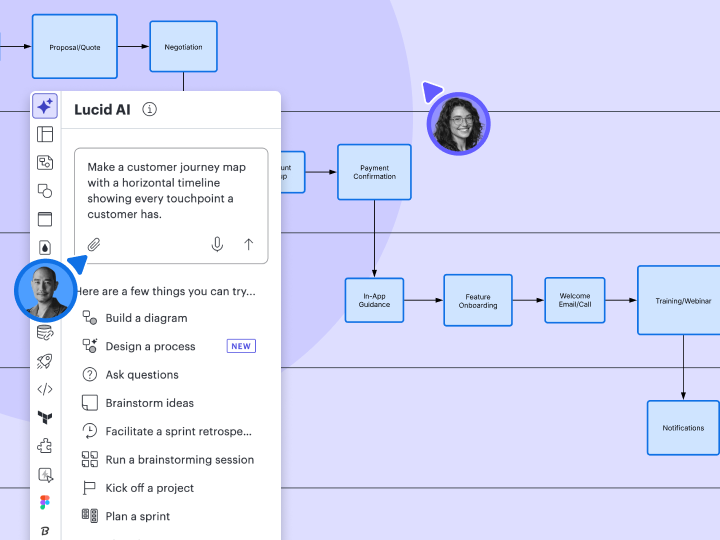
Optimize and edit your flowchart
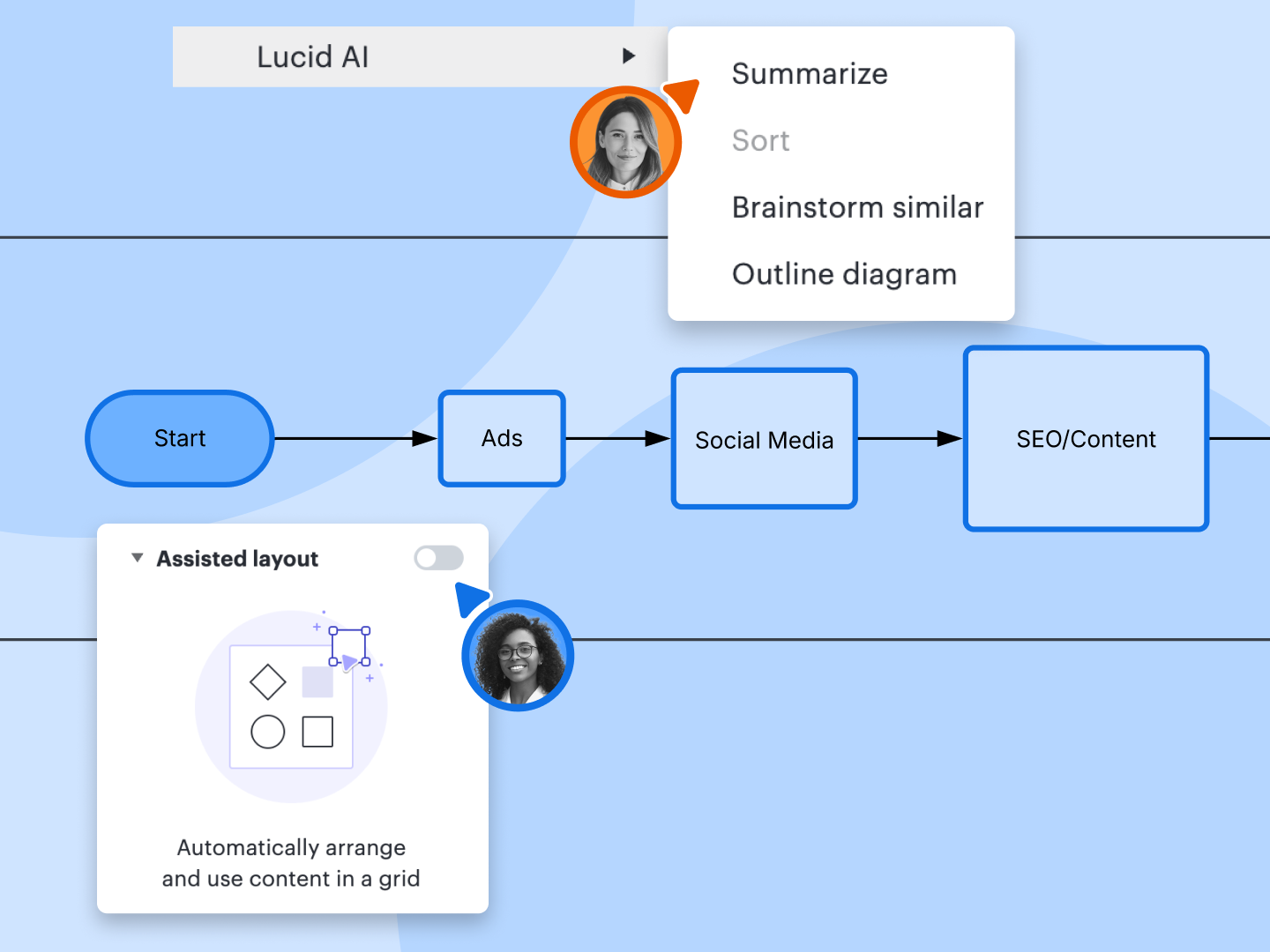
Collaborate in real time

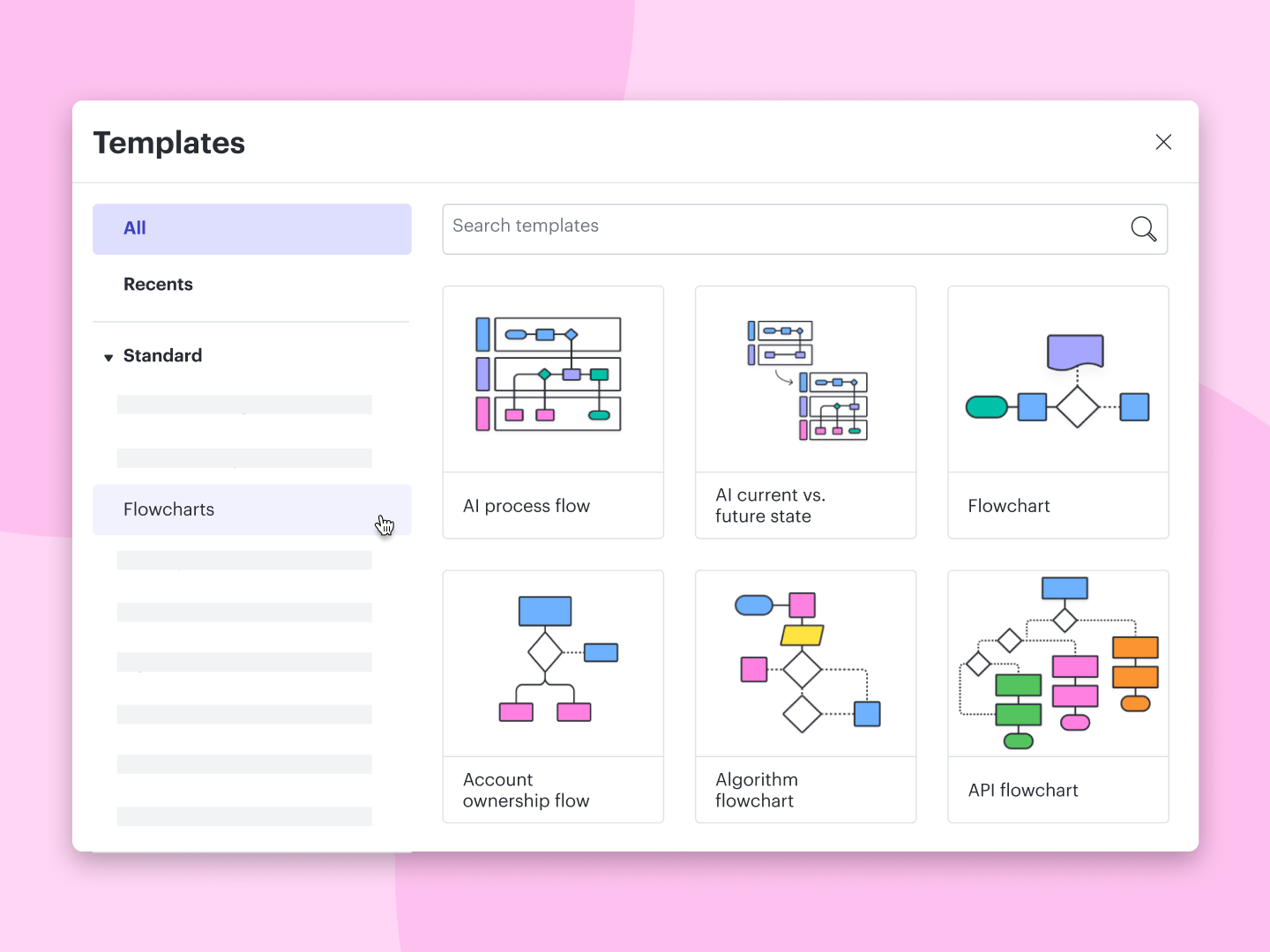
Get a head start with templates
Do more with integrations
AI flowchart generator feature highlights
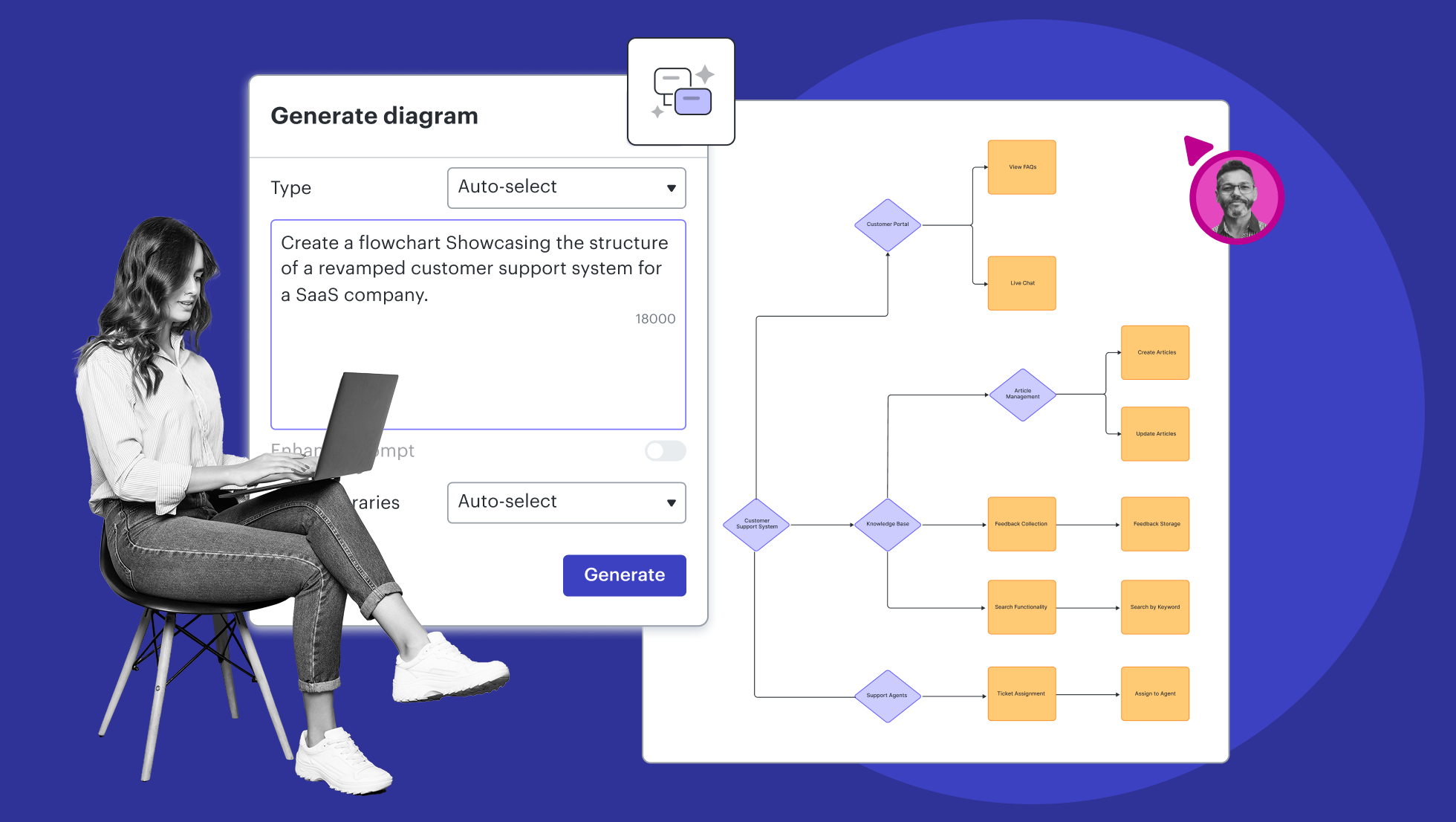
Generate diagrams
Generate diagrams
Add conditional formatting
Add conditional formatting
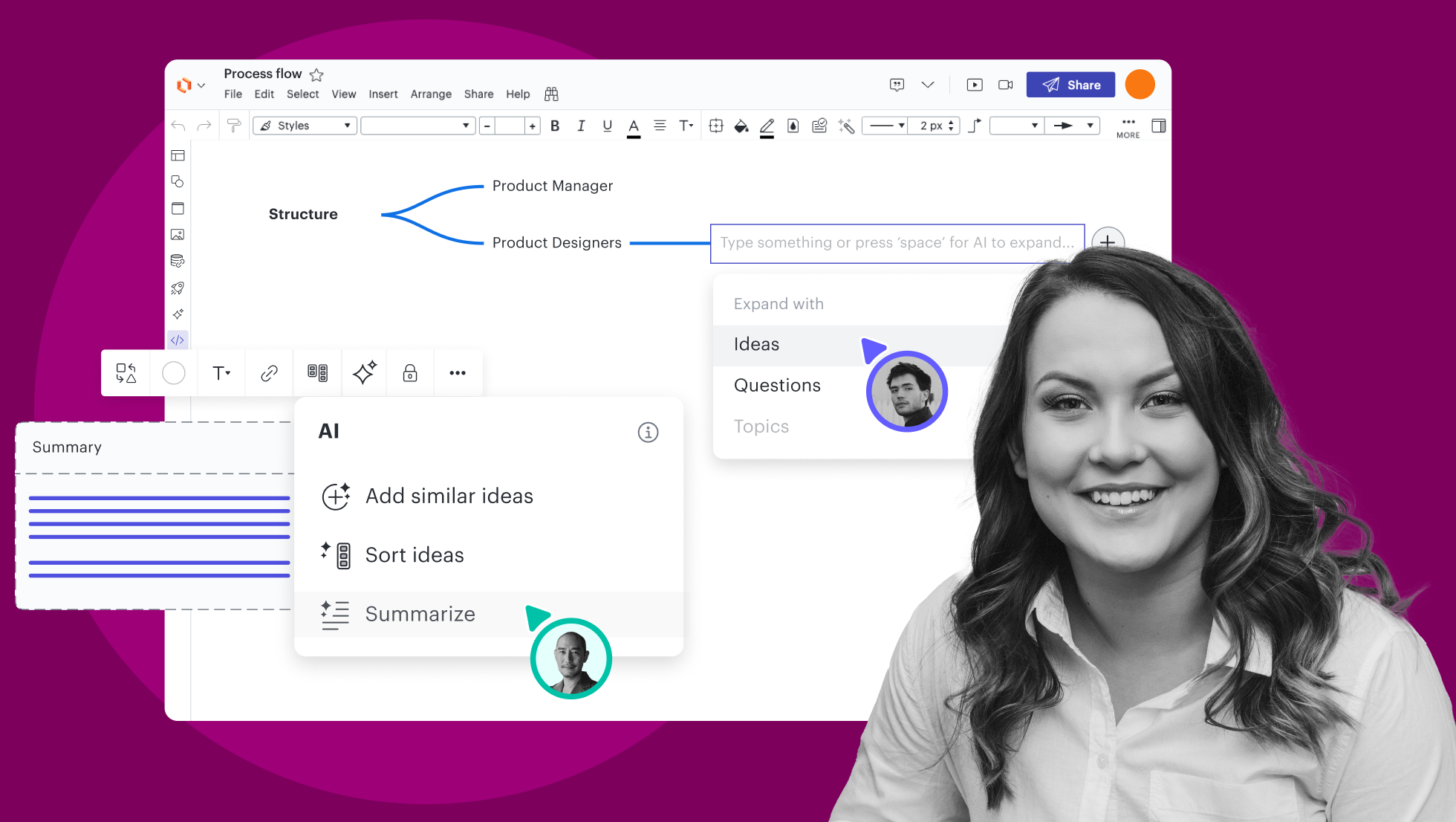
Summarize content
Summarize content
Generate and sort ideas
Generate and sort ideas
Build mind maps
Build mind maps
Use AI Prompt Flow
Use AI Prompt Flow
Integrate with other tools
Integrate with other tools




AI flowchart generator feature highlights
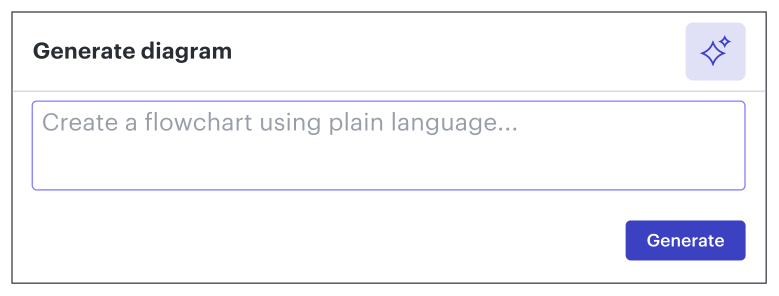
Generate a flowchart using text-to-flowchart AI prompts. Type a detailed description of the diagram you want to create, or attach a file to give Lucid AI more context.
AI flowcharting templates and examples
Get inspired and document your ideas faster with free, customizable templates.

Generate a diagram using AI

Generate a diagram using AI in Lucid
Learn how to generate a diagram in Lucidchart using AI.
Why teams choose Lucidchart
As an intelligent diagramming application, Lucidchart provides simple yet powerful capabilities for visualizing information.

Collaboration. Bring teams together side by side on a shared canvas from anywhere in the world.
Alignment. Build transparency and shared understanding of how a team or company works.
Large-scale change. Increase visibility, standardization, and knowledge sharing across your entire org.
End-to-end workflows. Upgrade to the Lucid Suite for a complete, connected visual collaboration solution.


What is a flowchart?
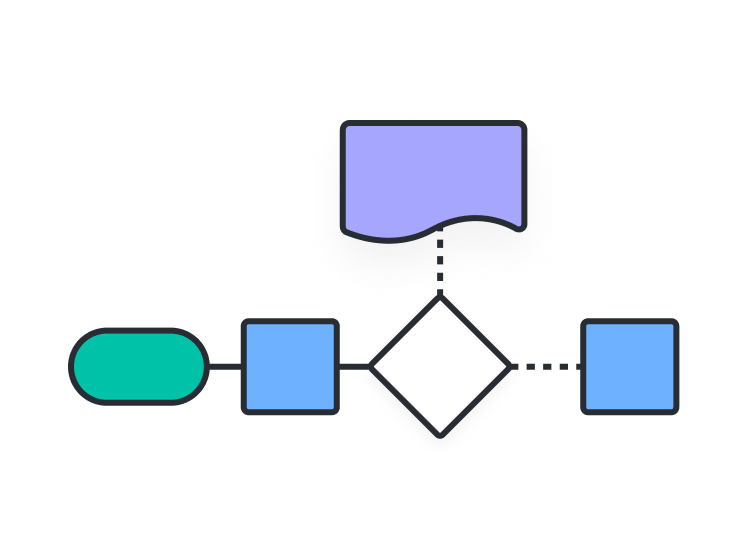
A flowchart is a diagram that uses conventional symbols and connecting lines to show the sequence of steps in a process or system. It’s one of the most commonly used diagram types.
How to make a flowchart using AI
Accessing Lucid AI
Generating a diagram
Editing your AI diagram
Adjusting your layout
Ask Lucid AI questions for help
Additional Lucidchart resources

Lucid Training Labs
Learn visual collaboration skills in free, self-serve courses and live training workshops.

Lucid Community
Connect with other users to share tips and insights. Provide feedback to Lucid’s product team.
Help center
Find detailed articles with step-by-step instructions for using specific Lucid features.
Lucidchart tutorials
Go to the Lucidchart tutorials playlist on YouTube for video training on various topics.
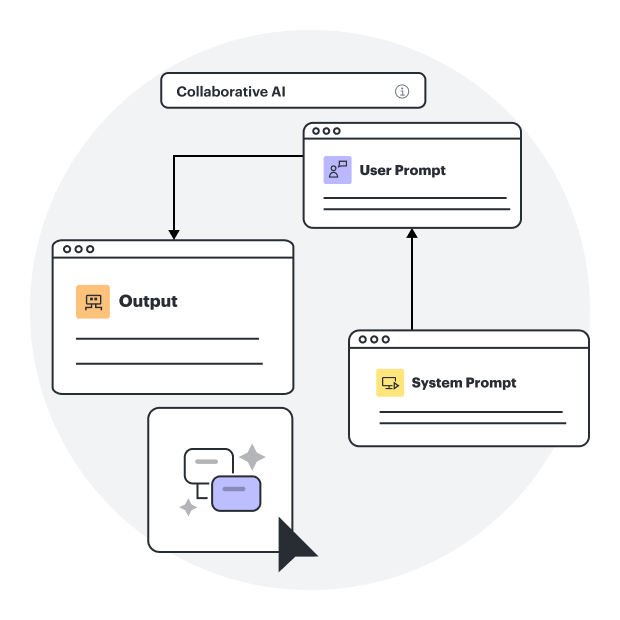
Collaborate with AI
Get an overview of Lucid’s AI functionality and find additional resources.
Lucid blog
Explore tips for optimizing collaboration, aligning teams, and driving initiatives in Lucidspark.
Lucidchart pricing
Create a free account and compare options for paid Individual, Team, or Enterprise plans.
Frequently asked questions about Lucidchart’s AI flowchart generator
Are Lucid's AI capabilities free to all users?
Which AI model is Lucid using?
Does Lucid use customer data to train AI models/LLMs?
Does the AI model/LLM detect and report suspicious activities?
Why don’t I see the Lucid AI icon in my primary toolbar?
AI flowcharts and more
In addition to our AI flowchart generator, Lucid offers support and training resources to help you ideate, collaborate, and build with your team.
Get support