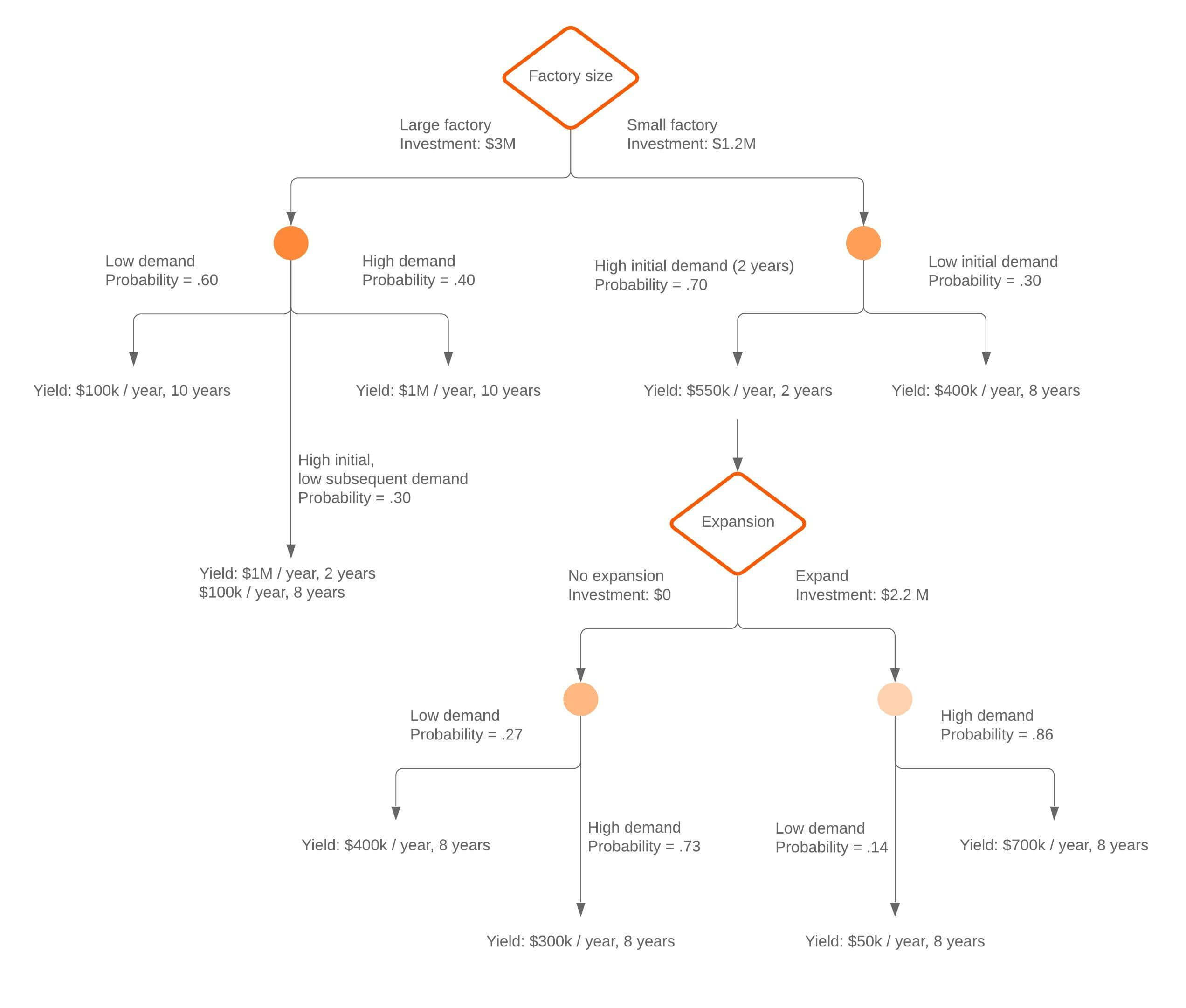
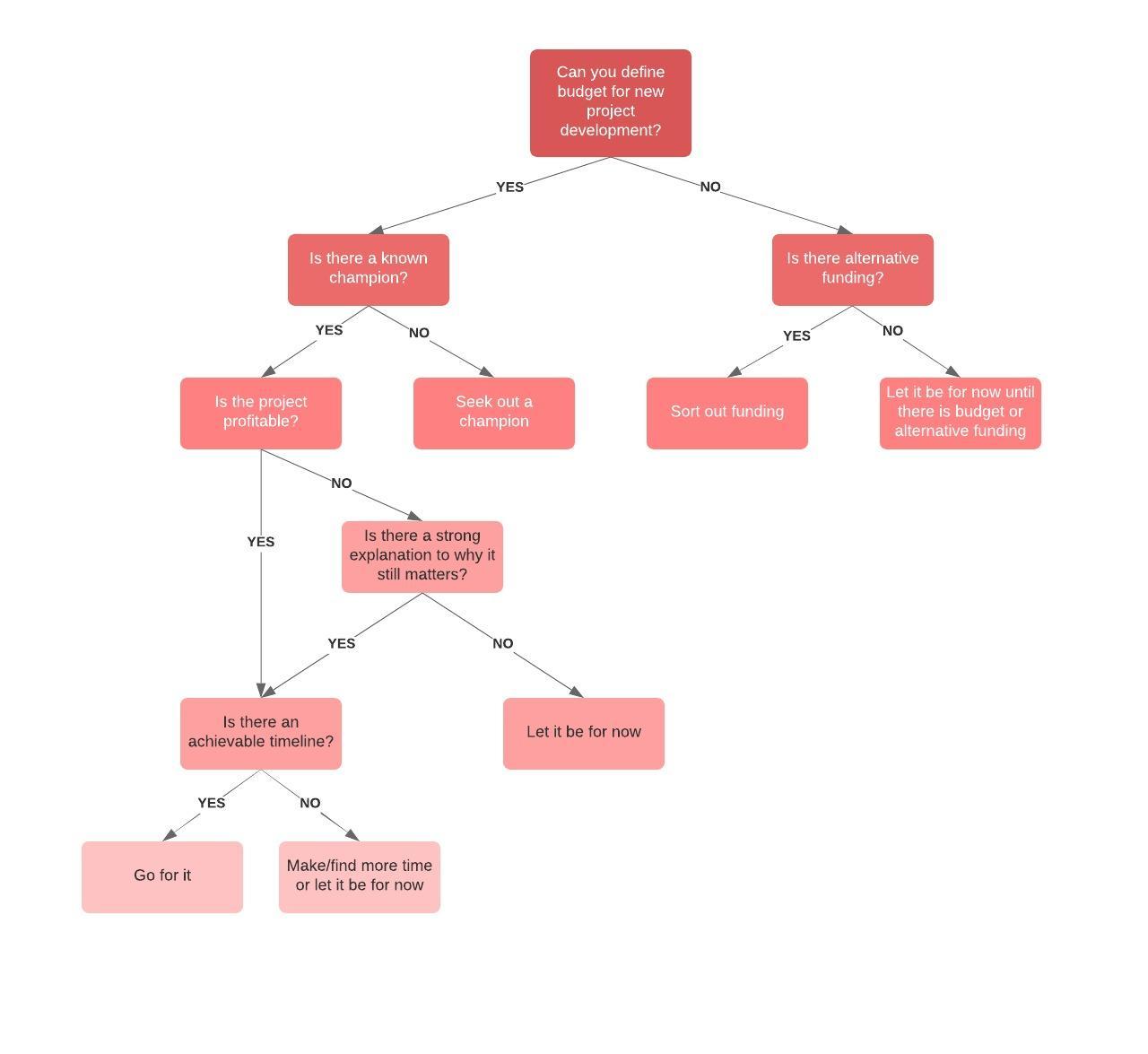
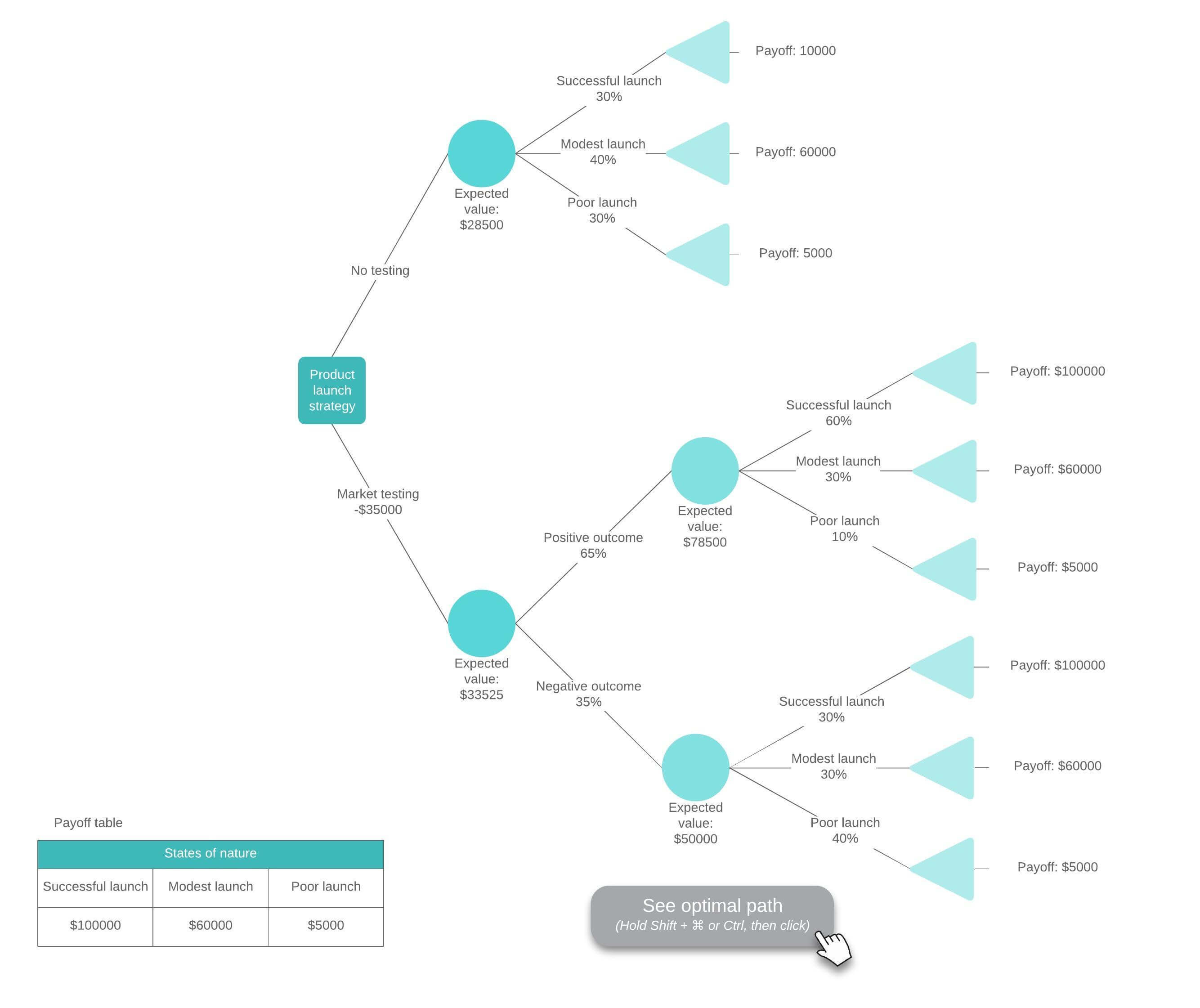
You have to make a tough business decision and have the data to help you determine how to move forward. But making the right choice may feel daunting or even impossible, especially when you have so many factors to consider.
That’s where decision tree diagrams come in. Decision trees help you weigh your options and standardize decision-making processes for your entire company. But in order to share them effectively, you need to build and store them in an app that everyone uses—an app like Google Docs.
Use this guide to learn two approaches to make a decision tree in Google Docs:
Use Lucidchart to automatically add a decision tree
Use Google Drawings to manually create and add a decision tree
Option #1: Use Lucidchart to add decision trees into Google Docs
Start diagramming your decision tree faster with Lucidchart’s integration with G Suite. Drag and drop shapes, use customizable templates, and include your decision tree in context with Lucidchart’s free add-on for Google Docs. For more detailed instructions, use our step-by-step guide on how to make a decision tree diagram.
Not yet a Lucidchart user? Start your free account now.
How to install the Lucidchart add-on for Google Doc
Before you can begin, you’ll need to follow these steps to download the Lucidchart add-on for Google Docs.
- Start in a new Google Doc.
- Go to Add-ons > Get add-ons.
- Find and select Lucidchart.
- Give Lucidchart access to Google Docs.
- Use your Lucidchart credentials to log in and get started.
How to insert your decision tree with the Lucidchart add-on
The Lucidchart add-on makes adding a high-resolution image of your decision tree to your Google Doc quick and simple.
- Open your Google Doc.
- Go to Add-ons > Lucidchart Diagrams > Insert Diagram.
- Find the diagram you want to insert.
- Click the “+” button in the corner of the picture. A preview will appear.
- Click “Insert.” Now your decision tree should be in your Google Doc.
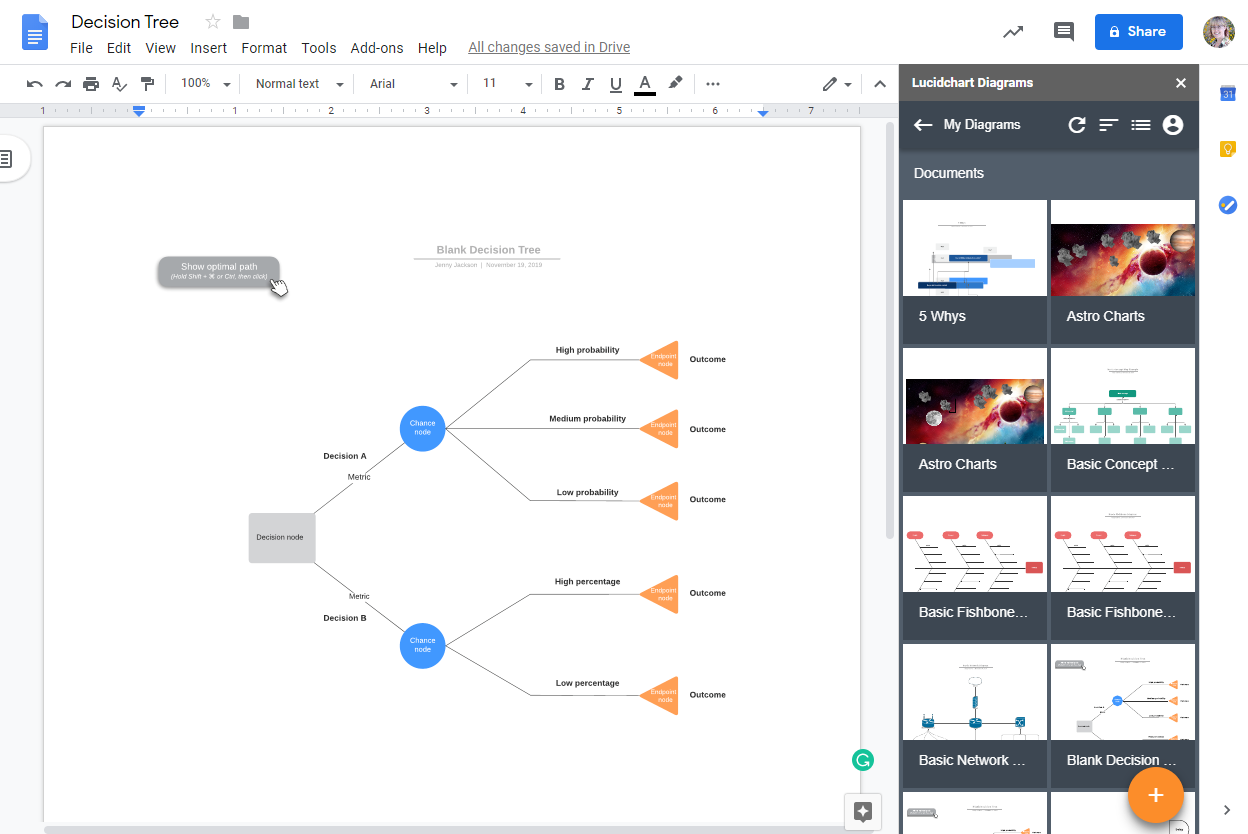
Create a new decision tree in Google Docs with the add-on
Easily access the Lucidchart editor with the add-on to make your decision tree diagram and add it to your doc. Integrate data into your decision tree diagram and update it as needed as you consider new information.
- Open a fresh Google Doc.
- Go to Add-ons > Lucidchart Diagrams > Insert Diagram.
- Select the orange “+” button icon at the bottom of the panel.
- Use a suggested template to customize or a blank document from the pop-up window.
- Build your decision tree diagram within the Lucidchart editor.
- Go back to your Google Doc and select your newly created decision tree.
- Click the “+” in the corner of the picture.
- Select “Insert” to add your decision tree to the Google Doc.
How to update your decision tree using the Lucidchart add-on
You don’t have to reinsert your decision tree every time you add new options or data—simply use the Lucidchart add-on to quickly update diagrams in your Google Doc.
- Open your Google Doc.
- Go to Add-ons.
- Go to Lucidchart Diagram > Update Inserted Diagrams. All of your diagrams are now up to date!
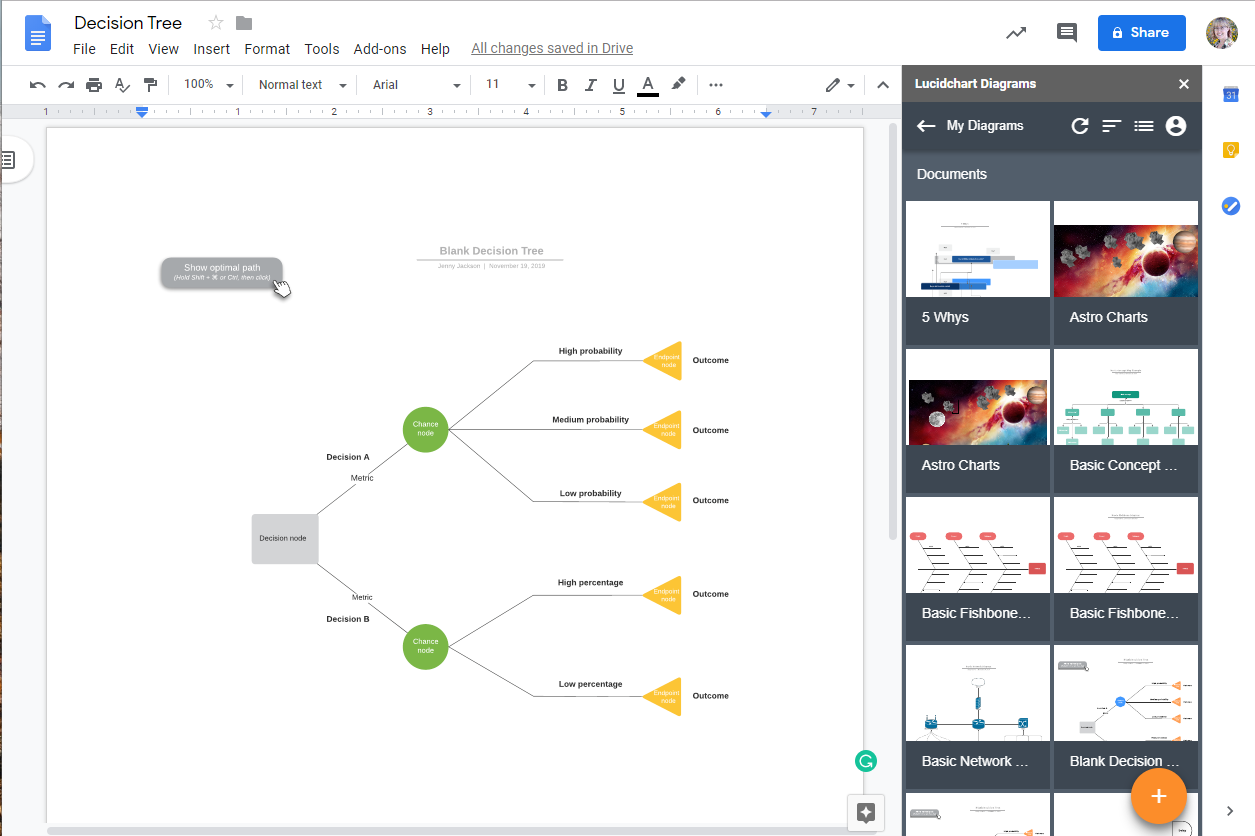
For additional help installing the Lucidchart add-on, visit the Help Center or watch the video tutorial below.
Add diagrams to Google Docs with Lucidchart
Adding Diagrams to Google Docs with Lucidchart.
Option #2: Use Google Drawings to make a decision tree in Google Docs
It is possible to make a decision tree diagram directly in Google Docs using Google Drawings. Each of these options is more time-consuming and will be harder to customize than a decision tree created in Lucidchart.
How to make a decision tree with Google Drawings
- Create a new Google Doc.
- Go to Insert > Drawing. A drawing box will appear.
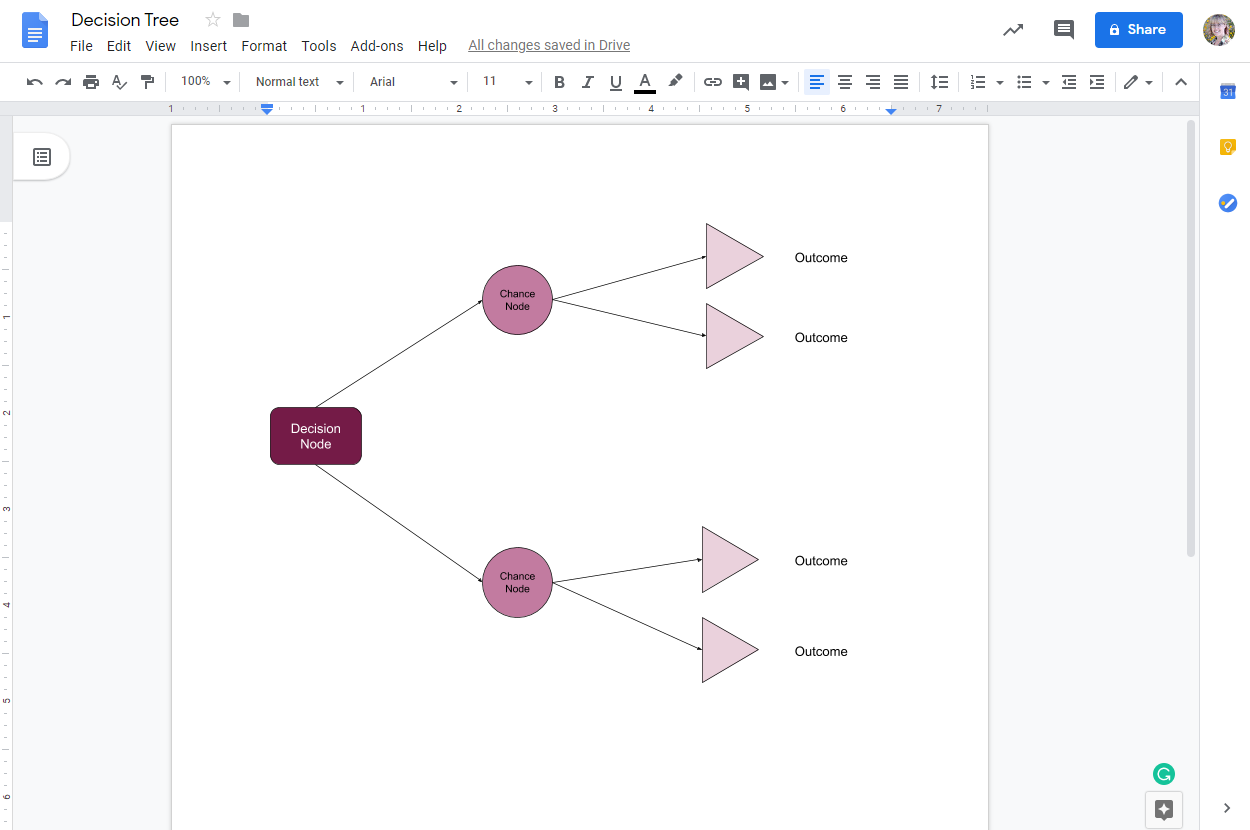
- Add shapes and connect them with lines in the space provided.
- Double-click the shape to add text.
- Click “Save & Close” once you’ve completed your diagram.
Done! You have a completed decision tree in Google Docs. Need to make a change? Double-click your drawing to return to the editor and make changes
Choose Lucidchart to make a decision tree for Google Docs
Save time and create professional decision trees with Lucidchart. Choose from a wide selection of customizable templates, link your data to your diagram, and collaborate with others when you use Lucidchart.
Get started when you sign up for Lucidchart and make your decision today!
Make the right choice on your next big decision when you use a decision tree diagram to help you evaluate your options

Everything you need to make a diagram
Make a polished, professional diagram for free with Lucidchart. No matter what you have in mind, we have the tools you need to build it. Make an account and start diagramming today.
Sign up free