Key takeaways
- Lucid’s intelligent diagramming features, including Lucid AI, can help you visualize your current state and map out your future state.
- Lucid’s collaboration features allow you to easily work with team members and translate technical debt for stakeholders.
- Ensure compliance and standards with Lucid features such as custom shape libraries and the Process Accelerator.
- Use conditional formatting and Visual Activities to make impactful decisions and keep initiatives moving forward.
Lucid helps organizations and teams improve collaboration and accelerate large initiatives. And many of Lucid’s features are especially useful for enterprise architects who have to translate business strategy into IT reality.
Both Lucidchart, our intelligent diagramming solution, and Lucidspark, our virtual whiteboard, offer features you’ll want to check out for your own enterprise architecture needs, including understanding your organization’s current state, planning a future state, collaborating with stakeholders (and getting approval from those stakeholders), improving standardization across documentation, and making impactful decisions.
Understanding your organization’s current state
Lucid makes it easy for you to see and understand your organization’s current state with automated infrastructure mapping.
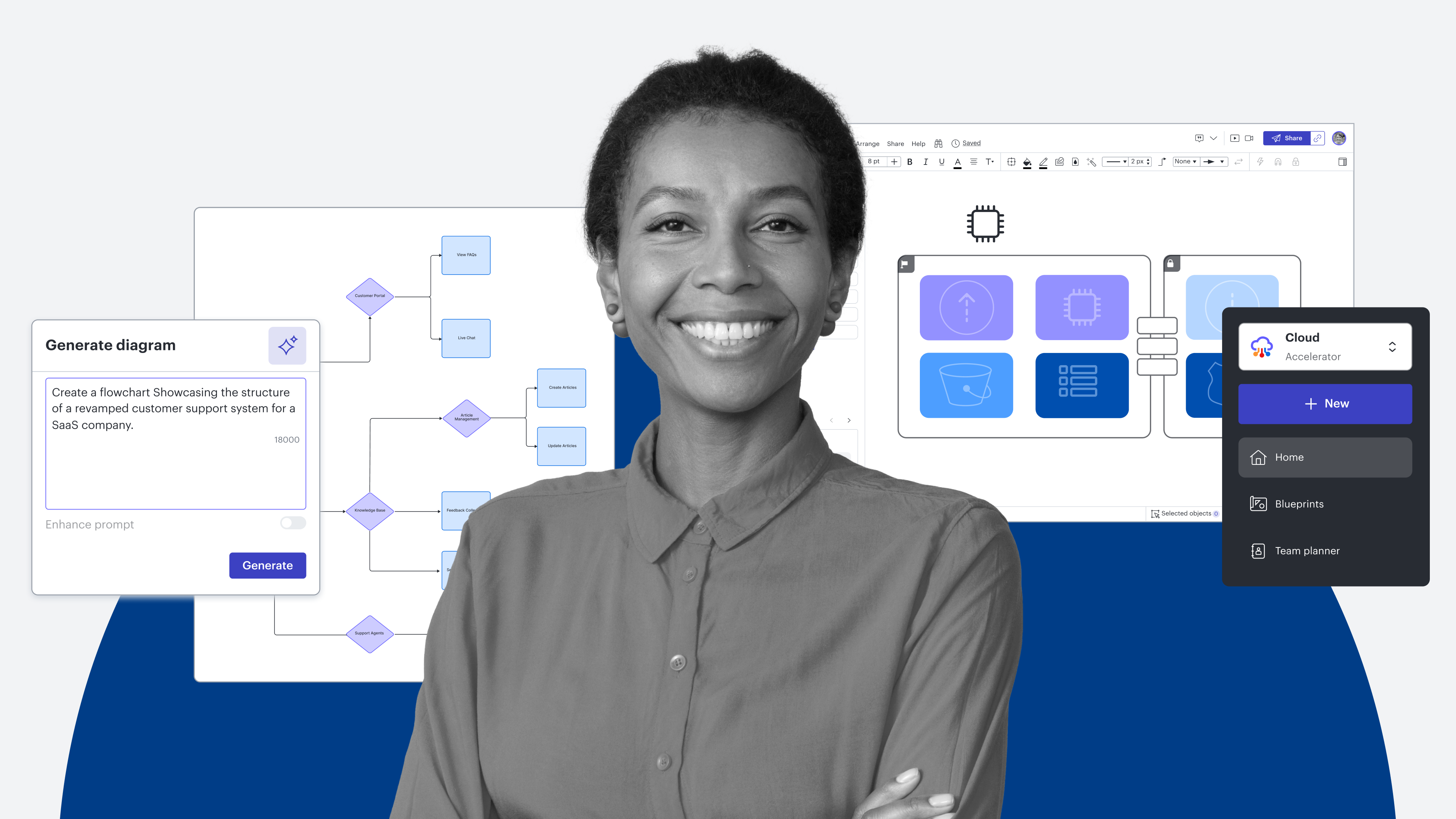
Generate a diagram, opens in a new tab automatically with Lucid AI by providing a prompt—either by typing or using voice-to-text to describe what kind of diagram you need. You can add video files or documents to your prompt for additional context. Whether you’re creating an architecture diagram or a data flow diagram, Lucid AI will generate an initial version in seconds. From there, you can then iterate on that diagram manually or with Lucid AI to get it just right.
Lucid AI generating a diagram from the prompt, "Draw a flowchart showcasing the structure of a revamped customer support system for a SaaS company that uses AI"
The Cloud Accelerator, opens in a new tab, available as an add-on for Lucid Enterprise accounts, allows you to import data from your cloud provider to auto-visualize your cloud architecture and get an accurate picture of your current state.

An overview video of Lucid's Cloud Accelerator that shows how to streamline data imports from AWS, Azure, or Google Cloud to create powerful visualizations.
Planning a future state
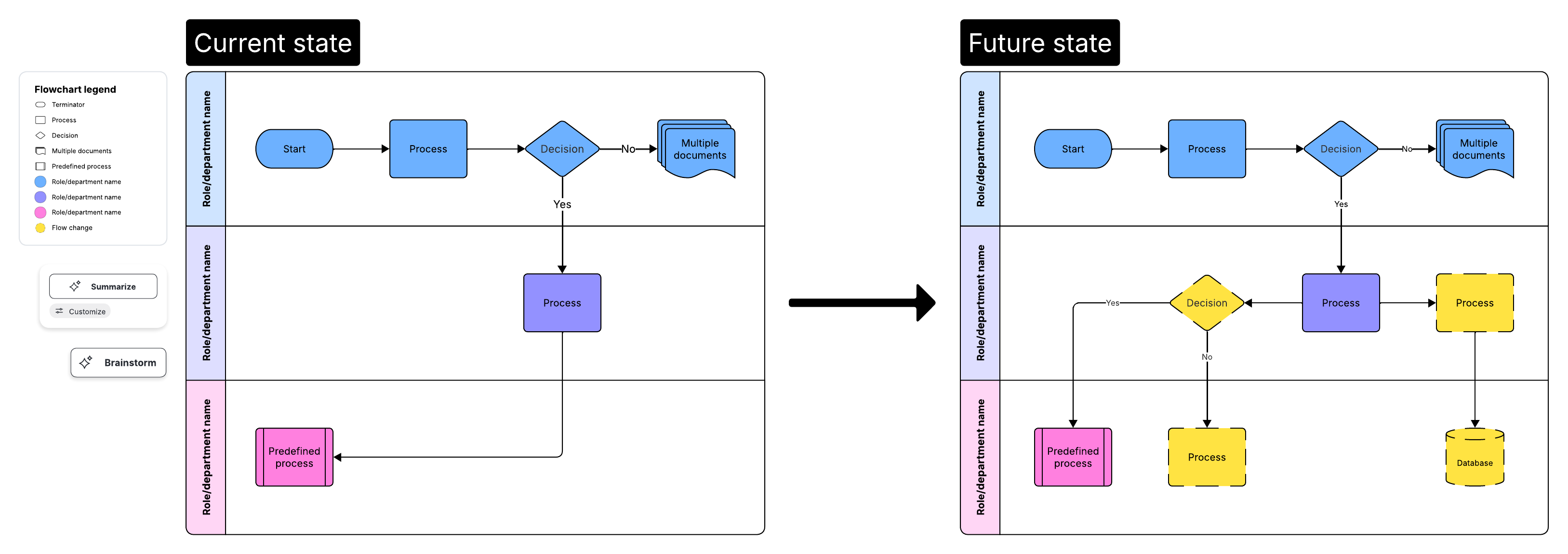
After you’ve reviewed your current state and you’re ready to plan a future state, Lucid can help with that, too. Again, you could use Lucid AI to get a jump-start on mapping out your future state. You could also add data linking, opens in a new tab to connect your Lucid visuals to data from Excel spreadsheets, Google Sheets, or CSVs, and use layers, opens in a new tab to toggle between your current and future state in the same document.
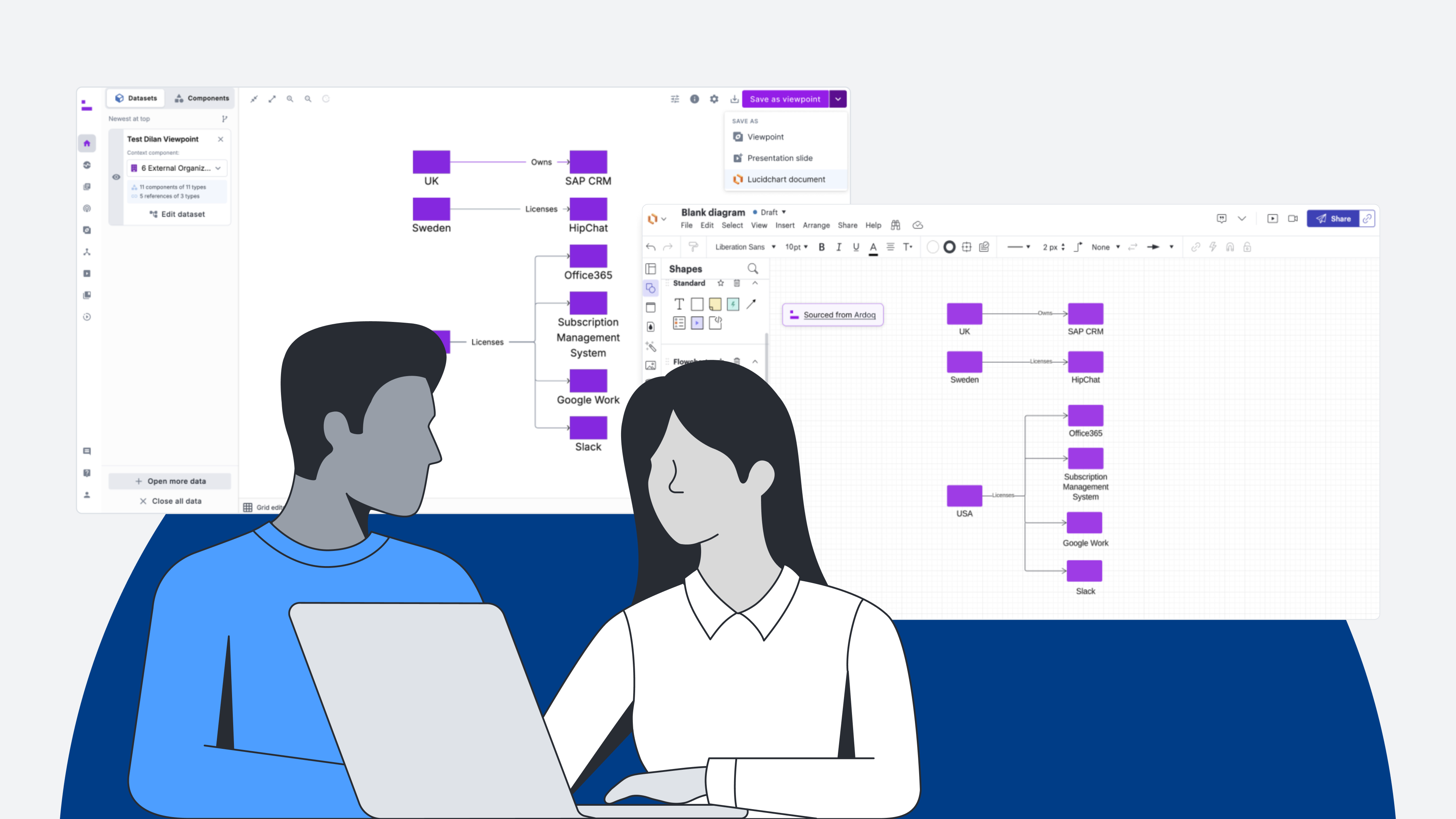
Lucid also has integrations with Ardoq, opens in a new tab and LeanIX, opens in a new tab that allow you to keep your solutions connected for a more accurate source of truth. Import Lucidchart diagrams into Ardoq as structured data for future-state modeling. Convert LeanIX diagrams into Lucidchart documents.

Or, if you need to take a few steps back, Lucid offers many features suited to the brainstorming and ideation stage so you can gather input for your future state. Generate, sort, and summarize ideas, opens in a new tab instantly with Lucid AI.
Collaborating with stakeholders
Lucid is built for collaboration, so whether you're collaborating in real time or asynchronously, there are a variety of features that can help you do so effectively. Need a team member’s thoughts on part of your architecture diagram? You can tag them in a comment, opens in a new tab directly on a shape or line in the diagram. Want to quickly see who added which ideas to a planning session? Turn on the show authors, opens in a new tab feature to add team members’ names to sticky notes.
In a regulated enterprise environment, knowing who changed a diagram is just as important as what was changed. In addition to showing authors, you can use revision history to see a record of changes and who made each change.
To make it clear whether a document is finalized or pending approval, use document statuses, opens in a new tab that every collaborator will be able to see from the Documents Page in Lucid and from the editor in Lucidchart.

Beyond day-to-day collaboration, if you’re tasked with translating technical debt for executives, Presentation Mode, opens in a new tab, Frames, opens in a new tab, and Paths, opens in a new tab make it easy to clarify complex concepts. Rather than having stakeholders review your entire document (and all of the technical ins and outs), share only the most relevant information with Presentation Mode. This feature allows you to add slides over your content and automatically turn those slides into a slide deck to present in Lucid or with Google Slides, opens in a new tab. Alternatively, you can add Frames around content and put those Frames in a path, so that anyone in your Lucid board will be able to click through your curated content in the order you intended.
A display of Lucid's Presentation Mode, turning content on a virtual whiteboard into a slide deck effortlessly with a few clicks.
Improving standardization across your documentation
Ensure compliance and standards with Lucid’s custom shape libraries, opens in a new tab. If you have shapes that already exist on another platform, you can upload an SVG file or a Visio stencil file. You can also create new shapes in Lucidchart and add them to your custom library for team members to use going forward. Making a custom library the standard for your organization creates a shared, visual language for your teams to use across diagrams. Lucid also offers ready-to-use shape libraries such as ArchiMate, UML, and BPMN.
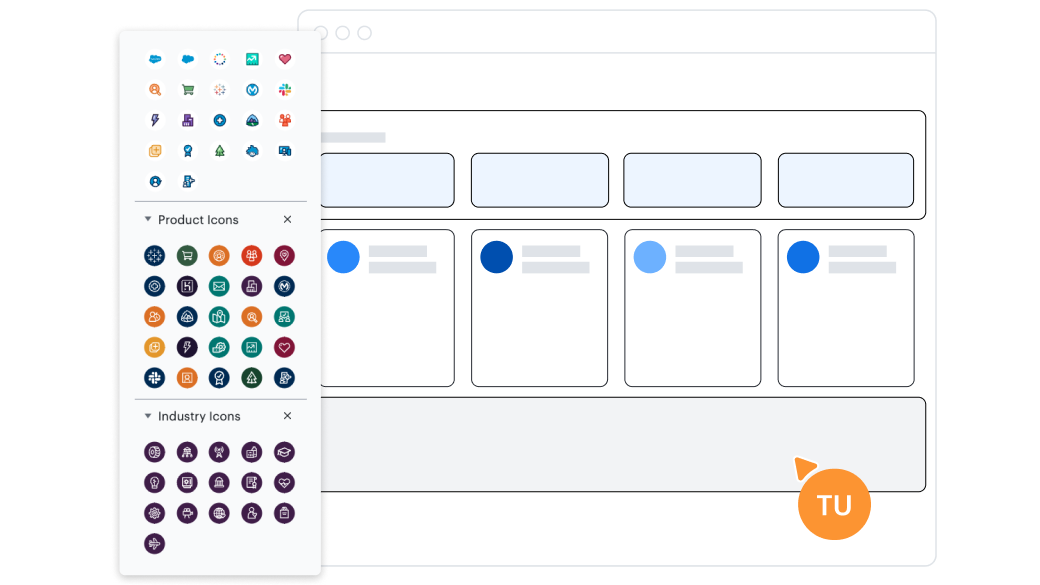
To further improve standardization across documentation, Lucid’s Process Accelerator, opens in a new tab is available as an add-on for Enterprise accounts. It helps improve governance of process documentation, storage, and maintenance. Similar to custom shape libraries, you can create an asset library to be used by all collaborators across all architecture documentation. If you make a change to an asset, it will automatically update everywhere it's used in process documents. Assets include department, role, activity, IT system, document, risk, and control. They also include subprocesses that you can embed into larger processes. Document the subprocess once, and reuse that documentation over and over.

Overview video of Lucid's Process Accelerator. Learn how to centralize your finalized documents in repositories, streamline reviews with built-in approval workflows, and ensure consistency with a library of reusable assets.
The Process Accelerator also includes repositories for centralizing approved assets and process documents, plus approval flows for ensuring the right stakeholders review and sign off on documentation before it’s made official for team use.

Avoid architectural drift
Get more tips for bringing standardization to your enterprise architecture.
Read moreMaking impactful decisions
Last but not least, Lucid can help you and your team with decision-making to keep large-scale initiatives moving forward with momentum.
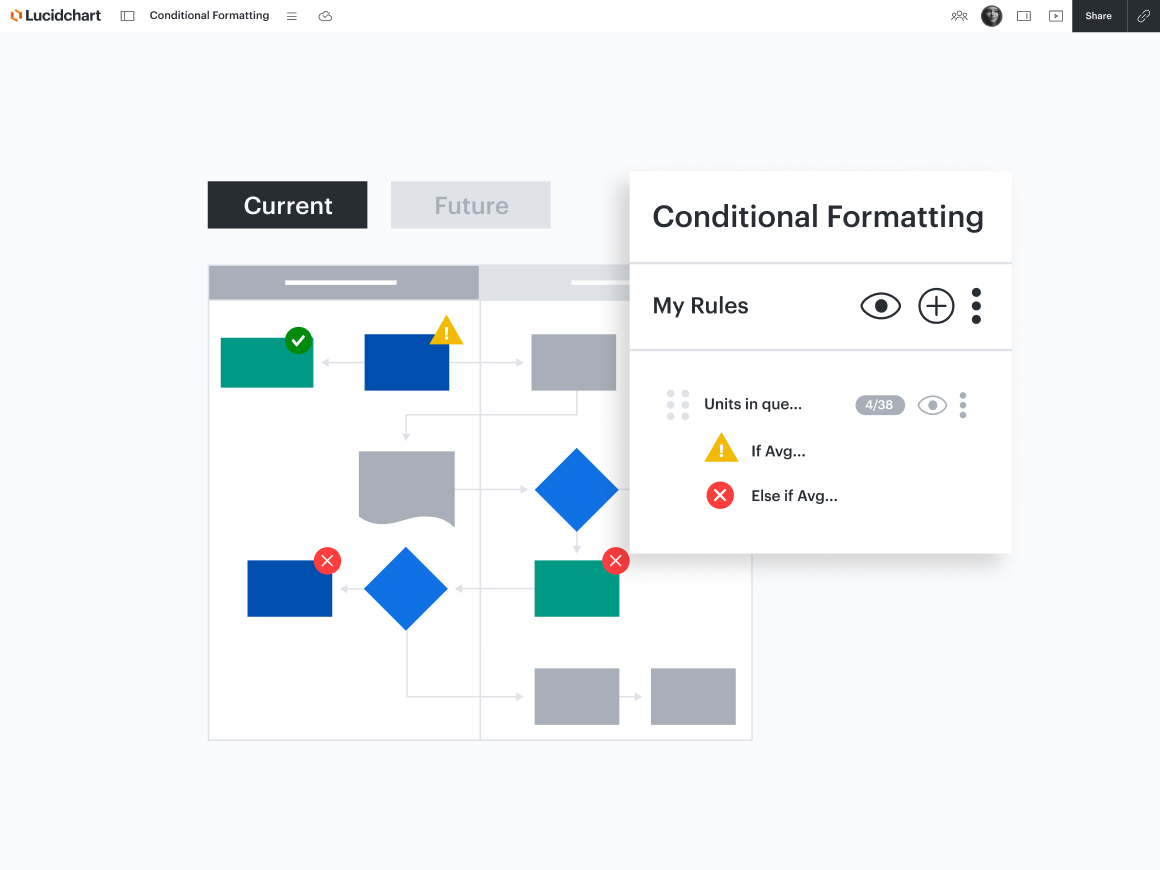
Conditional formatting, opens in a new tab allows you to set rules to highlight certain criteria within your documentation. For example, you could use Lucid AI, opens in a new tab or set up conditional formatting manually to visually flag non-compliant components of your architecture or resources with high monthly spend. By seeing risks at a glance, you’ll be able to address them more quickly and proactively.
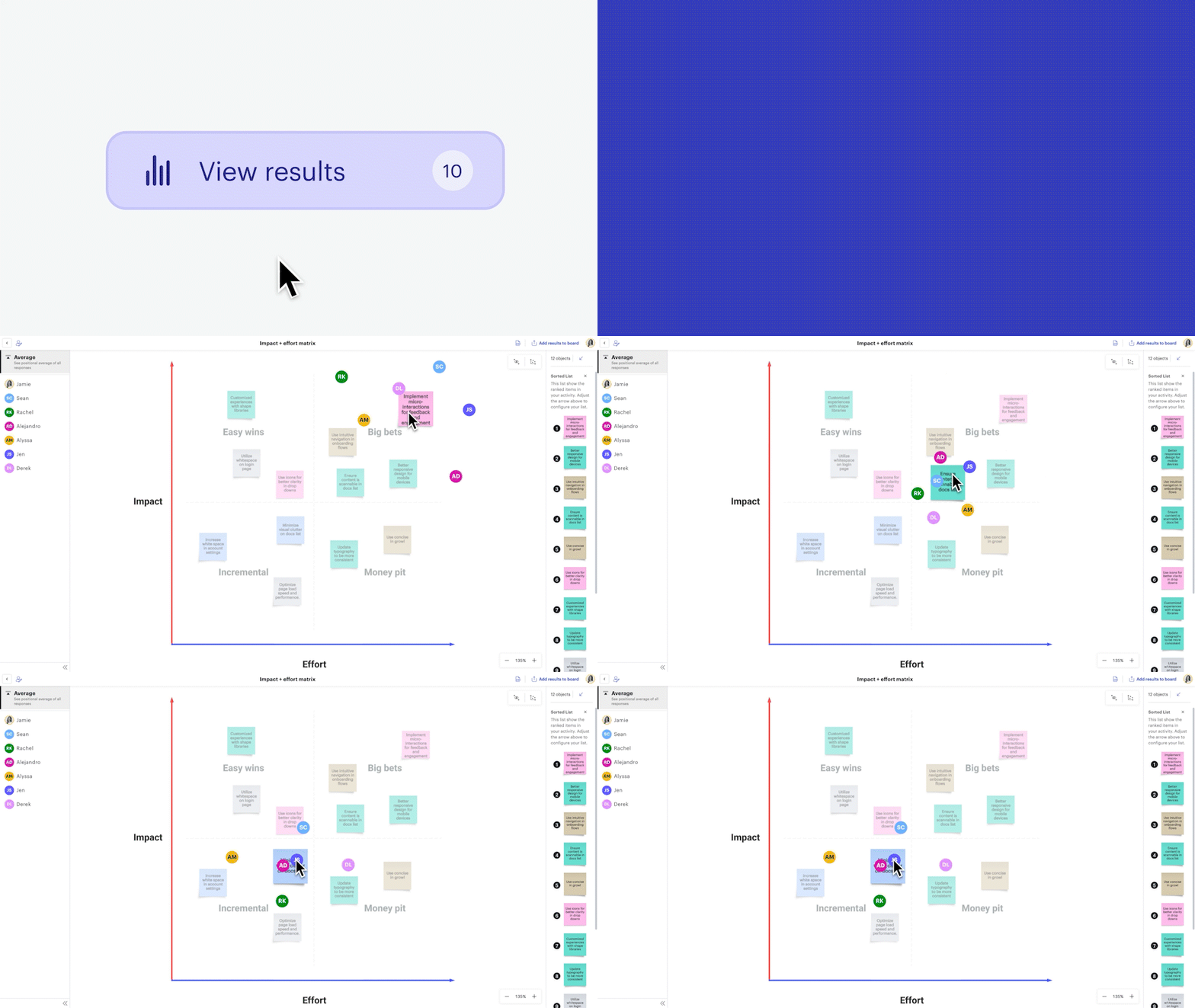
Visual Activities, opens in a new tab are helpful for making decisions as a group. These quick, interactive activities allow team members to individually rank priorities or gauge sentiment and then view the group’s response to see where there’s consensus and where there’s misalignment.
These are just some of the features that enterprise architects use in Lucid to accelerate their work. Now try them out yourself!
Lucid for enterprise architects
Want more information about how Lucid helps visualize enterprise architecture?
Learn more